


In this article, I will address several common questions with Generative Fill in Photoshop & get you started with this feature.
Having downloaded the latest Photoshop Beta for the past few days, I have to say this is a great feature and will significantly boost your workflow. So let’s dive in!
Where Can I Get the Generative Fill Feature?
To get this new feature, you have to have a Creative Cloud subscription. This feature is only available to users who have the Creative Cloud subscription.
If you have an active subscription, you can go to “All Apps” and you will see the “Get the Photoshop (Beta) app” option, simply click on the button and the download will begin:

Why is Generative Fill Greyed Out?
If this feature is greyed out in Photoshop, it means that the feature is not available for the current image.

There are a few things you can do to fix this:
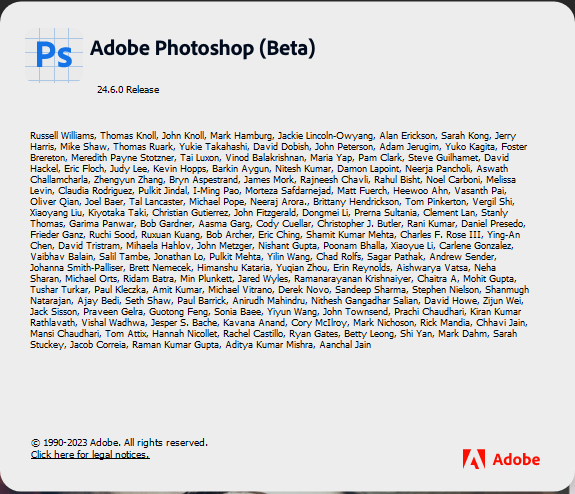
- Make sure you are running the latest version of Photoshop. Generative Fill is a new feature, so it’s important to make sure you have the latest version of Photoshop installed. You can check for updates by going to Help > Check for Updates, and make sure you have the 24.6.0 release or later:
- Make sure you have a raster layer selected. Generative Fill can only be used on raster layers. If you have a vector layer selected, Generative Fill will be greyed out. To select a raster layer, click on it in the Layers Panel.
- Make sure you have a selection drawn around a body of pixels in your image. Generative Fill needs to know what area of the image you want to fill. To create a selection, use the Rectangular Marquee Tool or the Lasso Tool to draw a selection around the area you want to fill.
- Insufficient image data: For Generative Fill to work effectively, it needs enough information in the surrounding area. If the selected area is too small or lacks context, the feature might be greyed out.
- Technical issues: Occasionally, temporary glitches or bugs can cause Generative Fill to malfunction. Restarting Photoshop or updating to the latest version might resolve the issue.
If you have done all of these things and Generative Fill is still grayed out, you may need to contact Adobe support.
I have Older Computer, Can I still Use The Generative Fill Feature?
The answer is yes, however, it will take a long time to complete the entire process as it uses a lot of computer power. Photoshop is a demanding program and requires a certain level of hardware to run smoothly. If your computer is too old or doesn’t have enough RAM or processing power, you may not be able to use Photoshop without experiencing slowness.
How Do I Get Generative Fill to Work Exactly the Way I Want?
- Be as specific as possible when you enter your text prompt. The more specific you are, the better the results will be. For example, instead of saying “mountain,” try saying “snow-capped mountain.”
- Use keywords that describe the style you want to achieve. For example, if you want to create a realistic texture, try using keywords like “realistic,” “natural,” or “organic.”
- Experiment with different settings. There are a number of settings that you can adjust to get the results you want. For example, you can adjust the size of the fill, the opacity, and the blending mode.
Can I use Generative Fill for Commercial Purposes?
Yes, you can use Generative Fill for commercial purposes. However, there are a few things to keep in mind:
- You must use the general release of Photoshop, not the Beta version, for commercial work.
- You must make sure that you have the necessary rights to use the content that you generate with Generative Fill. For example, if you generate a photo with a person in it, you must make sure that you have permission from that person to use the photo commercially.
Imperfections
I have noticed the occasional imperfections while working with Generative Fill, here are 3 examples:
- A gap would appear when trying to use this feature to expand the image from square to rectangular

- 2. Occasionally I notice it doesn’t match the colour next to the filled area and there is blurry line, and you will have to adjust hue/saturation afterwards

Update: I’ve written an article to explain how to fix this blurry issue in Generative Fill.
- 3. Limited object choices – the output is difficult to get right.

Low-resolution output
Currently, Generative Fill can only generate fills at a maximum resolution of 1,024 x 1,024 pixels. This can be limiting for high-resolution projects where you need professional-looking results.
Additional Resources
How to Use Photoshop AI Generative Fill in 2024
How to use Photoshop Generative Fill to add, remove or extend
Summary
Generative Fill is a powerful new tool that can help you create amazing images and boost your productivity. By following these tips, you can get the most out of this feature. However, you need to understand that we’re still in the early stage of AI development and things may not turn out exactly the way you want. Patience is a virtue :D