Close Menu
PSD VaultPSD Vault
  • VIP Area
  • Photoshop Basics
  • Photo Effect
  • Text Effect
  • Premium Tuts
  • Resources
  • Drawing
  • Inspiration
  • Web Graphics
  • Abstract
  • Freebies
  • Advertise
  • Get in Touch
  • About PSD Vault
Facebook Instagram Pinterest YouTube TikTok
Facebook Instagram Pinterest YouTube TikTok RSS
PSD VaultPSD Vault
  • VIP Area
    • Sign Up
    • Log In
  • Photoshop Basics
  • AI
  • Photoshop Error Fixes
  • Video Tutorial
  • Photo Effect
  • Text Effect
  • Premium Tuts
  • Drawing
  • Opinion
PSD VaultPSD Vault
Home»AI»10 Genius Tips to Master Photoshop’s AI Object Selection Tool
AI

10 Genius Tips to Master Photoshop’s AI Object Selection Tool

By James QuNovember 27, 20253 Mins Read
Share
Facebook Twitter LinkedIn Pinterest Email

Photoshop’s Object Selection Tool, enhanced with Adobe’s AI in 2025 (version 26.6), revolutionises selecting complex objects like hair, clothing, or props. Its cloud-powered edge detection and attribute-specific selections (e.g., eyes, hats) make it a game-changer for designers.

In this tutorial, we’ll share 10 smart tips and tricks to maximise its potential, from retouching portraits to crafting seamless composites. Let’s unleash your editing prowess!

What You’ll Need

  • Adobe Photoshop (version 26.6 or later, 2025, with cloud processing enabled)
  • A sample image (e.g., a person with detailed hair or a group shot with varied clothing)

Tip 1: Enable Cloud Processing for Precision

Ensure cloud processing is active to boost AI accuracy. In Preferences > Image Processing:
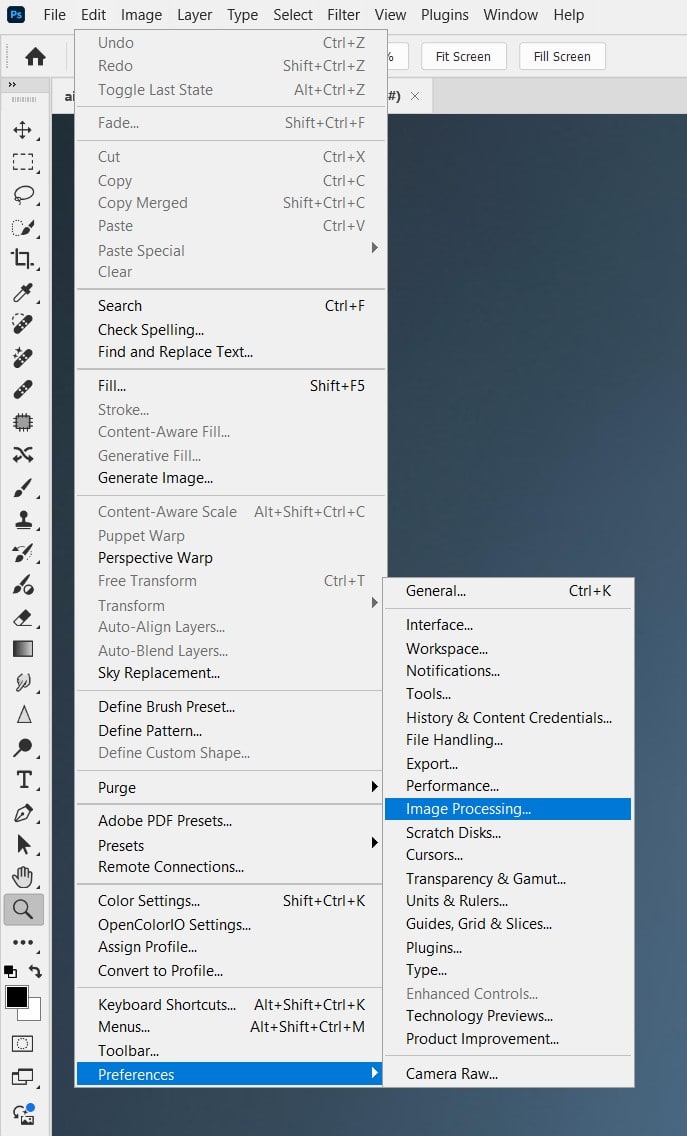
Preferences > Image Processing

Choose “Cloud (Detailed Results)”.

Cloud (Detailed Results)

This sharpens edge detection for intricate selections like hair or lace.

Tip 2: Use Object Finder for Quick Previews

Keep “Object Finder” ticked in the Options bar. Hover over objects (e.g., a person’s head) to see AI highlight them before clicking. This saves time in busy images with multiple subjects.

Object Finder

Tip 3: Switch to Lasso Mode for Tricky Shapes

Set Mode to “Lasso” in the Options bar (Toolbar, W). Draw a rough outline around irregular objects like jewellery or branches. The AI snaps to edges, outperforming Rectangle mode for complex shapes.

Lasso Mode

Tip 4: Refine Hair with One Click

Select a person’s head, then click “Select and Mask” in the Options bar. Hit “Refine Hair” to let AI isolate flyaway strands instantly. Paint with the Refine Edge Brush (R) for extra polish.

Tip 5: Add or Subtract with Shortcuts

If AI misses small areas (e.g., a hat’s brim), hold Shift to add or Alt to subtract from the selection. This quick fix avoids restarting, perfect for overlapping objects.

Tip 6: Select Multiple Specific Attributes at Once

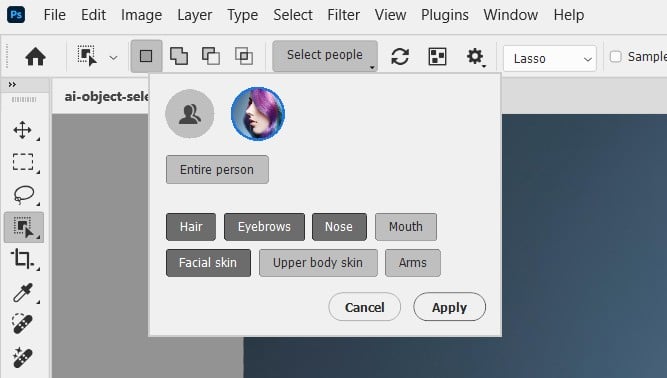
Do you know in the Options bar, you can select multiple attributes all at once? Try clicking “Select People” and choose attributes like “Hair” and “Clothing”.
Tip 7: Pair with Generative Fill for Composites

Select an object, invert the selection (Select > Inverse), and right-click for “Generative Fill” (no prompt). Choose an AI-generated background for seamless composites, like a new sky.
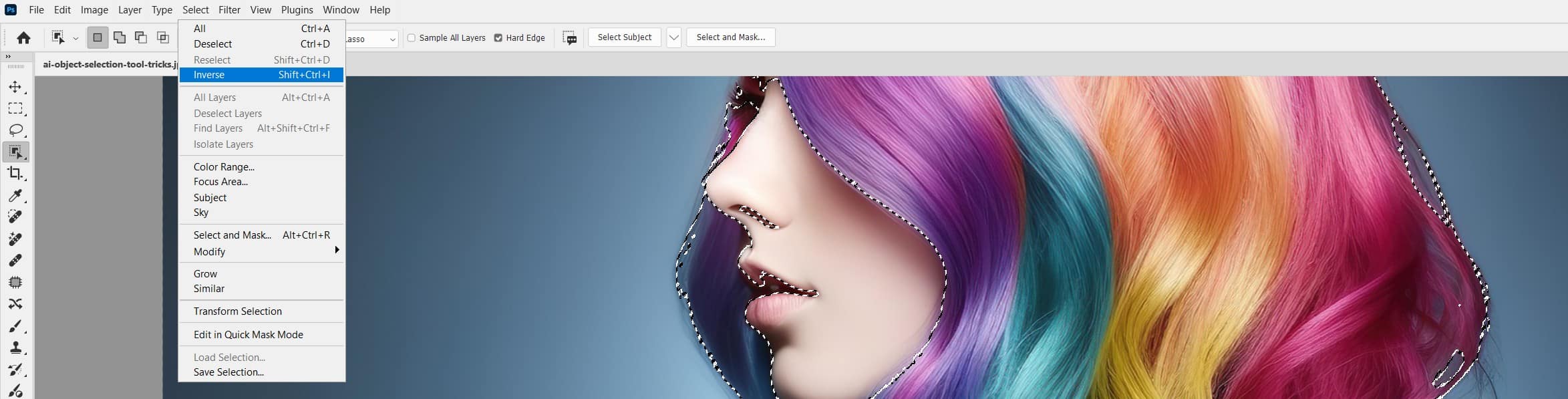
Pair with Generative Fill for Composites

Tip 8: Use Soft Edges for Natural Blends

In “Select and Mask”, set the Feather slider to 1-2 px to soften mask edges. This ensures retouched hair or clothes blend naturally with new backgrounds, avoiding harsh lines.
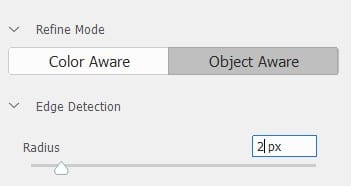
Use Soft Edges for Natural Blends

Tip 9: Batch Select with Mask All Objects

For images with multiple items (e.g., products), go to Layer > Mask All Objects. AI auto-masks all objects in one go, saving clicks on crowded scenes like product shoots.
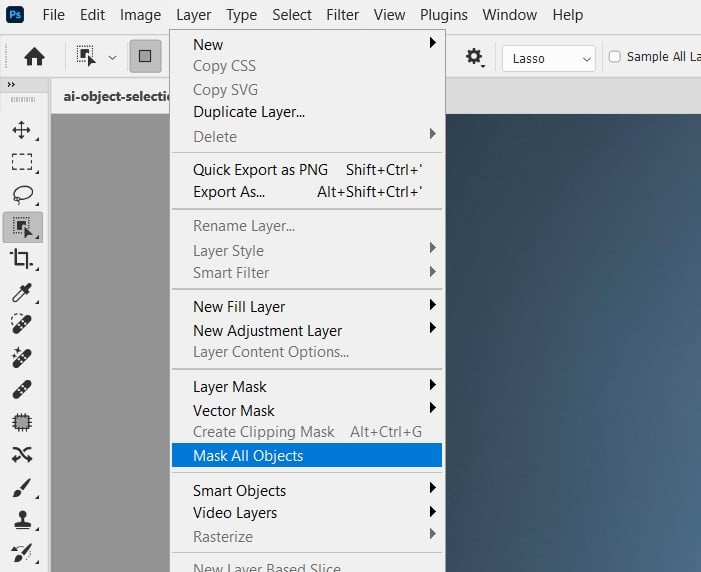
Batch Select with Mask All Objects

Tip 10: Save as Smart Objects for Flexibility

Before selecting, right-click the layer and choose “Convert to Smart Object”. Apply adjustments like Hue/Saturation non-destructively to change colours on selected areas, like clothing.
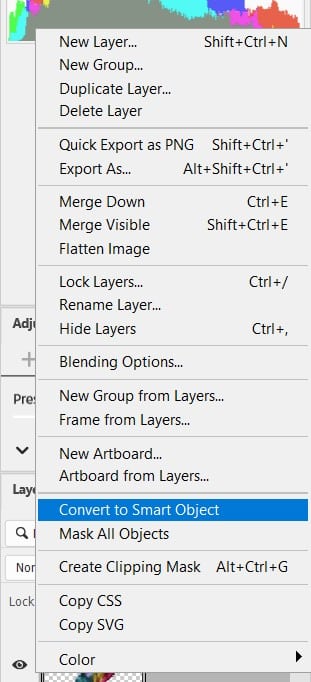
Save as Smart Objects for Flexibility

Why Learning These Matter

The improved Object Selection Tool’s AI detects attributes faster than manual methods, with cloud processing ensuring surgical precision. These tricks save time and elevate your edits, from portraits to composites.

Further Readings

Photoshop Selection Tools – A Beginner’s Guide

ai object selection tool
Share. Facebook Twitter Pinterest LinkedIn Tumblr Email
James Qu
  • Website

James is a seasoned Photoshop expert with over 25 years of experience based in Australia. As the driving force behind PSD Vault, he authors the majority of its in-depth tutorials and insightful articles.

Related Posts

How to Blend Cut-Out Objects Seamlessly with AI Harmonize in Photoshop

December 17, 2025

Unlock the Power of Photoshop’s Generative Expand Tool

December 13, 2025

A Beginner’s Guide to Photoshop’s Adjustment Layers

December 6, 2025

Comments are closed.

Don't Miss

How to Blend Cut-Out Objects Seamlessly with AI Harmonize in Photoshop

December 17, 2025

Unlock the Power of Photoshop’s Generative Expand Tool

December 13, 2025

How to Create a Duotone Effect in Photoshop with Gradient Maps

December 12, 2025

For Beginners

Basics

How to Blend Cut-Out Objects Seamlessly with AI Harmonize in Photoshop

By James QuDecember 17, 20253 Mins Read

A Beginner’s Guide to Photoshop’s Adjustment Layers

December 6, 2025

How to Make Perfect Hair Selection with AI Masking in Photoshop

November 28, 2025

Master Photoshop’s Blending Modes: Unlock Creative Magic for Stunning Art

November 20, 2025

You May Also Like

Basics

How to Blend Cut-Out Objects Seamlessly with AI Harmonize in Photoshop

By James QuDecember 17, 20253 Mins Read
AI

Unlock the Power of Photoshop’s Generative Expand Tool

By Lana WilsonDecember 13, 20254 Mins Read
Basics

A Beginner’s Guide to Photoshop’s Adjustment Layers

By Lana WilsonDecember 6, 20254 Mins Read
Facebook X (Twitter) Instagram Pinterest
  • About Us
  • Get in Touch
  • Advertise
  • VIP Area
  • Privacy Policy
  • Terms & Conditions
© 2025 PSD Vault. All Right Reserved.

Type above and press Enter to search. Press Esc to cancel.

Manage Consent
To provide the best experiences, we use technologies like cookies to store and/or access device information. Consenting to these technologies will allow us to process data such as browsing behavior or unique IDs on this site. Not consenting or withdrawing consent, may adversely affect certain features and functions.
Functional Always active
The technical storage or access is strictly necessary for the legitimate purpose of enabling the use of a specific service explicitly requested by the subscriber or user, or for the sole purpose of carrying out the transmission of a communication over an electronic communications network.
Preferences
The technical storage or access is necessary for the legitimate purpose of storing preferences that are not requested by the subscriber or user.
Statistics
The technical storage or access that is used exclusively for statistical purposes. The technical storage or access that is used exclusively for anonymous statistical purposes. Without a subpoena, voluntary compliance on the part of your Internet Service Provider, or additional records from a third party, information stored or retrieved for this purpose alone cannot usually be used to identify you.
Marketing
The technical storage or access is required to create user profiles to send advertising, or to track the user on a website or across several websites for similar marketing purposes.
  • Manage options
  • Manage services
  • Manage {vendor_count} vendors
  • Read more about these purposes
View preferences
  • {title}
  • {title}
  • {title}