


Staying ahead with Photoshop updates is crucial for designers, whether you’re practicing tutorials or delivering client projects. Adobe rolls out updates roughly monthly—think September 2025’s v26.11, with Adobe Express templates and Firefly refinements. Missing these means skipping powerful AI tools and creative shortcuts.
This guide shows you how to track every Photoshop update, install them safely, and maximise their features like a pro. Let’s dive in!
What You’ll Need
- Adobe Creative Cloud desktop app (download from adobe.com)
- Stable internet connection
- Photoshop 2025
Why Bother Staying Updated?
Updates aren’t just “bug fixes” – they add superpowers:
- AI tools like Generative Fill let you type “add a sunset sky” and Photoshop does it for you.
- New adjustment layers (Clarity for sharpness, Dehaze for clearing fog, Grain for film-like texture) are non-destructive—meaning you can tweak or undo anytime without ruining your original photo.
- Smarter Remove Tool erases unwanted objects (like photobombers) with one brush stroke, way easier than old lasso methods.
- Recent 2026 updates improved AI quality—cleaner edges, higher resolution fills, better blending.
I used to skip updates and struggle with manual selections for hours. After updating, simple edits took minutes. Plus, updates often fix crashes or slow performance that frustrate new users.
How to Stay Ahead?
Step 1: Enable Auto-Updates in Creative Cloud
The simplest way to catch every Photoshop 2025 update is via the Creative Cloud app. Open it, click the profile icon (top right), and go to Preferences > Apps. Select “Update All Apps Automatically” to let updates install in the background. This keeps you current without manual checks.
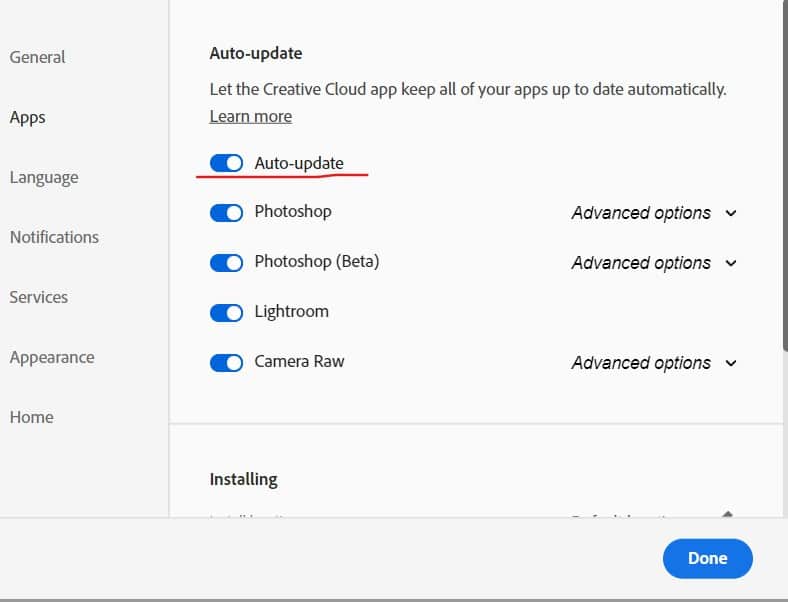
Beginner tip: Auto-updates happen quietly in the background. If your internet is slow or you’re on a metered connection (like mobile hotspot), turn it off temporarily to avoid surprises. After an update, always restart Photoshop to see new features. Common newbie mistake: Forgetting to restart—new tools won’t appear until you do!
Step 2: Subscribe to Adobe’s Update Alerts
For instant notifications, visit Adobe’s What’s New page and sign up for their newsletter. In Creative Cloud, go to Preferences >Notification and enable “Show Updates Notifications.”
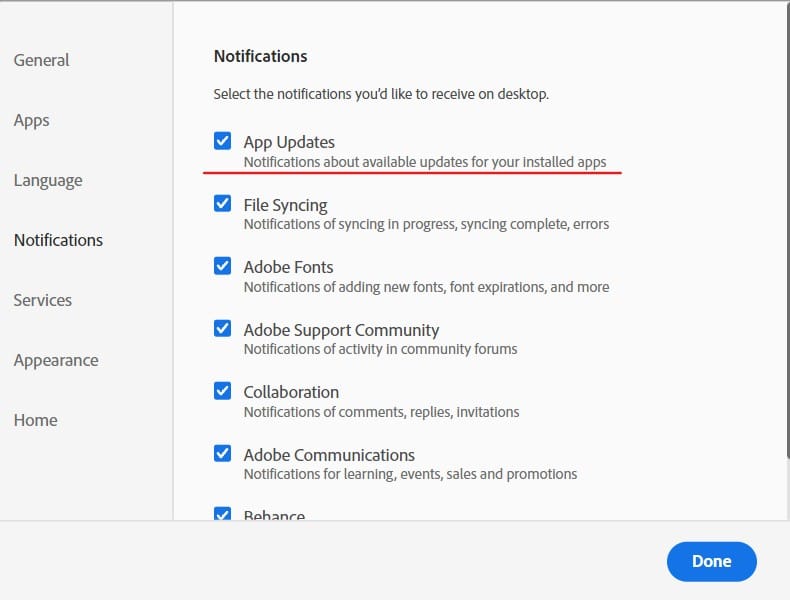
Why this helps beginners: Newsletters and alerts often include simple “What’s cool this time” summaries with pictures. I set mine to email only important ones—keeps my inbox clean.
Step 3: Join Communities for Expert Tips
Communities amplify Photoshop updates with real-world insights. Join Adobe’s Photoshop Community (community.adobe.com), r/photoshop on Reddit, or LinkedIn’s Adobe Photoshop Users group. Search “Photoshop v26.11 tips” to see how pros use features like Projects for Collaboration. Set up email digests or RSS feeds for updates.

My beginner advice: Lurk first—read others’ questions. When posting, say “I’m a total beginner” and people explain extra simply. Search for “Photoshop 2026 beginner tutorial” to find videos made just for you.
Step 4: Maximise New Features with Hands-On Tests
After updating, explore the “What’s New” panel (Help> What’s New) for guided tours. Test v26.11’s Adobe Express templates:
- Mini-Project: Create a poster using an Express template. Load it from the homescreen, customise fonts and colours in 5 minutes, and save as a PSD.
- Firefly Test: Open a Firefly-generated image as an editable PSD, tweak layers non-destructively, and analyse results.
- Collaboration: Share a project via Projects for Collaboration (File > Share) and invite a teammate.
Apply these to real work and journal your experiments. Want AI masking tips? See our AI Masking tutorial.

Beginner practice project: Take a selfie or pet photo. Remove the background (Object Selection Tool > Select Subject), add a fun new one with Generative Expand. Save versions (File > Save As > “MyEdit_v1.psd”) so you can compare.
Mistake to avoid: Don’t overdo AI—start small, keep original layers. If results look weird, try “Generate” again or refine your selection.
Step 5: Fix Common Beginner Problems After Updates
- Photoshop feels slow? Edit > Preferences > Performance > Set RAM usage to 70% (if you have 8GB+ RAM). Close other apps.
- Crashes on launch? Hold Shift (Windows) or Option+Command (Mac) while opening to reset preferences safely.
- New feature missing? Check Help > System Info for your version (should be 27.x in 2026). Reinstall via Creative Cloud if needed.
- AI features grayed out? Ensure you’re signed in to Creative Cloud (some need internet first time).
Updates rarely break old files, but always save copies first.
Extra Beginner Pro Tips
- Join Adobe’s Prerelease Program (in Creative Cloud) for early features—great for seeing what’s coming.
- Use keyboard shortcuts: Ctrl/Cmd + K opens Preferences fast.
- Practice weekly: Pick one new thing (e.g., “this week, master Remove Tool”).
- Free learning: Adobe’s own beginner tutorials (helpx.adobe.com/photoshop) + YouTube searches like “Photoshop 2026 beginner Generative Fill.”
Quick Beginner FAQs
- Too expensive? Start with trial.
- Update stuck? Pause/resume in Creative Cloud; try off-peak hours.
- Will it ruin my work? No – updates improve files, don’t change them unless you use new tools.
- Where to start basics? Adobe’s “Get started” section before updates.
Wrapping Up
Staying ahead of Photoshop updates isn’t about being “advanced”—it’s about making your beginner journey easier and more enjoyable. With 2026’s AI boosts and simple tools like new adjustment layers, you’ll edit faster and have more fun sooner. Update regularly, practice a little each time, ask questions in communities, and watch your skills grow.
You’ve got this! Happy editing—drop a comment if a feature confuses you, and I’ll explain it simply.
Final Thoughts
Mastering Photoshop updates transforms your workflow. As a Photoshop beginner, it’s essential for you to keep up with all the latest updates and maxmise their use.