Close Menu
PSD VaultPSD Vault
  • VIP Area
  • Photoshop Basics
  • Photo Effect
  • Text Effect
  • Premium Tuts
  • Resources
  • Drawing
  • Inspiration
  • Web Graphics
  • Abstract
  • Freebies
  • Advertise
  • Get in Touch
  • About PSD Vault
Facebook Instagram Pinterest YouTube TikTok
Facebook Instagram Pinterest YouTube TikTok RSS
PSD VaultPSD Vault
  • VIP Area
    • Sign Up
    • Log In
  • Photoshop Basics
  • AI
  • Photoshop Error Fixes
  • Video Tutorial
  • Photo Effect
  • Text Effect
  • Premium Tuts
  • Drawing
  • Opinion
PSD VaultPSD Vault
Home»Text Effect»Create Fire Burning on Metal Text Effect in Photoshop
Text Effect

Create Fire Burning on Metal Text Effect in Photoshop

By James QuJanuary 22, 20263 Mins Read
Share
Facebook Twitter LinkedIn Pinterest Email

In this Photoshop tutorial, I will show you the steps I took to Create Fire Burning on Metal Text Effect in Photoshop. Have a go!

The PSD file of this tutorial is available via the PSD Vault VIP members area.

Here is a preview of the final effect I have for this tutorial: (click to enlarge)

PSD Vault VIP Membership

You can download the PSD File for this tutorial via the VIP Members Area for only $6.95/Month (or less)! You will not only get this PSD File, but also 100+ other PSD Files + Extra Goodies + Exclusive Photoshop tutorials there. Signup now and get exclusive!

OK Let’s get started!

To complete this tutorial, you will need the following stocks:

Metal Texture 1

Metal Texture 2

Fire Stock

Step 1

Create a new document sized 1220px * 700px with black background. We will start this design by preparing some background with metal texture.

Load “Metal Texture 1” into Photoshop and select the entire texture, copy and paste it onto our document. Re-size the new layer with the free transform tool to this result shown below:

Apply the following layer mask (in Red) to this metal texture layer: (As you can see, I deliberately hid the centre portion of the metal texture, so our text can be placed there in future steps)

Apply the following image adjustments to this metal layer:

Black and White

Levels

Curves

and here is the effect so far:

Step 2

Use any font you like, type some texts onto our document as shown below:

Apply the following layer mask on this text layer with the Chalk Brush and a soft round Brush, to create some rough edge around the texts:

Hint: Set brush opacity and flow to be around 50%:

and here is the effect you aim to achieve:
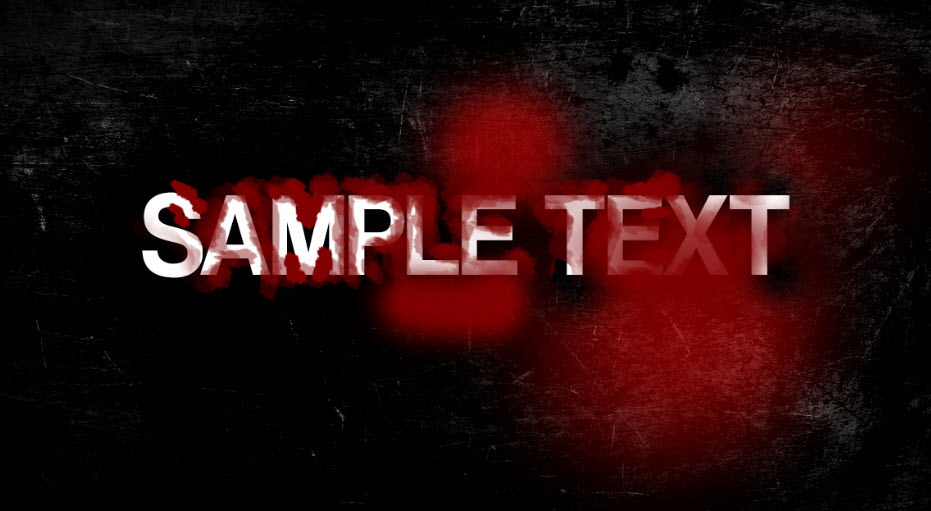
Load “Metal Texture 2” image into Photoshop, select a piece from it and paste it to cover our texts:

Set this new metal texture layer as clipping mask to the text layer:

Apply the following image adjustments to this metal texture layer:

Levels

Curves

and here is the effect so far:

Step 3

Load the fire stock image into Photoshop and copy the entire image, paste it below our text layer, and use the free transform tool to re-size it as shown below:

Apply the following Levels adjustments to this fire layer:

Select the fire around the letter “T”, use the free transform tool to warp the fire as shown below:

Use a big soft eraser, remove the parts of the fire you don’t need – here is my effect so far:

Step 4

We will add some fire sparks around the texts. Select a piece of flame from the fire stock image with the Lasso Tool, paste it to our document:

Change the layer blending mode of the this new fire layer to “Colour Dodge”:

Re-size it and attach to the text:

Repeat this process and add a few more fire to our texts:

Step 5

We’re almost done! For final touches, I added the following Selective Color adjustment layers on top:

I then flattened the image, and sharpen the image with the “Smart Sharpen” filter:

and here is my final effect:

That’s it for this tutorial! Hope you enjoy it and find it useful! If you have any questions about the steps, please contact me or leave a comment below. I will try my best to answer them.

Till next time, have a great day!

burning fire metal
Share. Facebook Twitter Pinterest LinkedIn Tumblr Email
James Qu
  • Website

James is a seasoned Photoshop expert with over 25 years of experience based in Australia. As the driving force behind PSD Vault, he authors the majority of its in-depth tutorials and insightful articles.

Related Posts

How to Create Realistic Frozen Text with Cracks in Photoshop

December 11, 2025

Create an Electrified Text Effect in Photoshop

November 19, 2025

Create Realistic Neon Text Effect in Photoshop

November 8, 2025
Leave A Reply

You must be logged in to post a comment.

Don't Miss

How to Fix Neural Filters Not Working or Greyed Out in Photoshop 2026

February 1, 2026

How to Use AI-Driven Landscape Masking in Adobe Photoshop’s Camera Raw

January 31, 2026

Bring Old Photos Back to Life with Photoshop Super Zoom

January 29, 2026

For Beginners

Basics

Dodge & Burn Tool in Photoshop – The Beginner’s Guide

By Maria SemelevichJanuary 24, 20268 Mins Read

How to Pixelate an Image in Photoshop

January 21, 2026

How to Resize Images Without Losing Quality in Photoshop

January 8, 2026

Photoshop Clipping Masks – Everything You Need to Know

January 7, 2026

You May Also Like

Text Effect

How to Create Realistic Frozen Text with Cracks in Photoshop

By James QuDecember 11, 20254 Mins Read
Text Effect

Create an Electrified Text Effect in Photoshop

By James QuNovember 19, 20254 Mins Read
Text Effect

Create Realistic Neon Text Effect in Photoshop

By Valentin PetroffNovember 8, 20253 Mins Read
Facebook X (Twitter) Instagram Pinterest
  • About Us
  • Get in Touch
  • Advertise
  • VIP Area
  • Privacy Policy
  • Terms & Conditions
© 2026 PSD Vault. All Right Reserved.

Type above and press Enter to search. Press Esc to cancel.

Manage Consent
To provide the best experiences, we use technologies like cookies to store and/or access device information. Consenting to these technologies will allow us to process data such as browsing behavior or unique IDs on this site. Not consenting or withdrawing consent, may adversely affect certain features and functions.
Functional Always active
The technical storage or access is strictly necessary for the legitimate purpose of enabling the use of a specific service explicitly requested by the subscriber or user, or for the sole purpose of carrying out the transmission of a communication over an electronic communications network.
Preferences
The technical storage or access is necessary for the legitimate purpose of storing preferences that are not requested by the subscriber or user.
Statistics
The technical storage or access that is used exclusively for statistical purposes. The technical storage or access that is used exclusively for anonymous statistical purposes. Without a subpoena, voluntary compliance on the part of your Internet Service Provider, or additional records from a third party, information stored or retrieved for this purpose alone cannot usually be used to identify you.
Marketing
The technical storage or access is required to create user profiles to send advertising, or to track the user on a website or across several websites for similar marketing purposes.
  • Manage options
  • Manage services
  • Manage {vendor_count} vendors
  • Read more about these purposes
View preferences
  • {title}
  • {title}
  • {title}