Close Menu
PSD VaultPSD Vault
  • VIP Area
  • Photoshop Basics
  • Photo Effect
  • Text Effect
  • Premium Tuts
  • Resources
  • Drawing
  • Inspiration
  • Web Graphics
  • Abstract
  • Freebies
  • Advertise
  • Get in Touch
  • About PSD Vault
Facebook Instagram Pinterest YouTube TikTok
Facebook Instagram Pinterest YouTube TikTok RSS
PSD VaultPSD Vault
  • VIP Area
    • Sign Up
    • Log In
  • Free Image Tools
  • Photoshop Basics
  • AI
  • Photoshop Error Fixes
  • Video Tutorial
  • Photo Effect
  • Text Effect
  • Premium Tuts
  • Drawing
PSD VaultPSD Vault
Home»Basics»How to Use Preset Manager to Organise Photoshop Brushes
Basics

How to Use Preset Manager to Organise Photoshop Brushes

By James QuNovember 5, 20222 Mins Read
Share
Facebook Twitter LinkedIn Pinterest Email

I love custom Photoshop brushes and there are tons of these over the internet. As time goes by you will have download thousands of these brushes and it’s hard to manager. In this post, I will show you a handy way to use Adobe Preset Manager to organise Photoshop brushes.

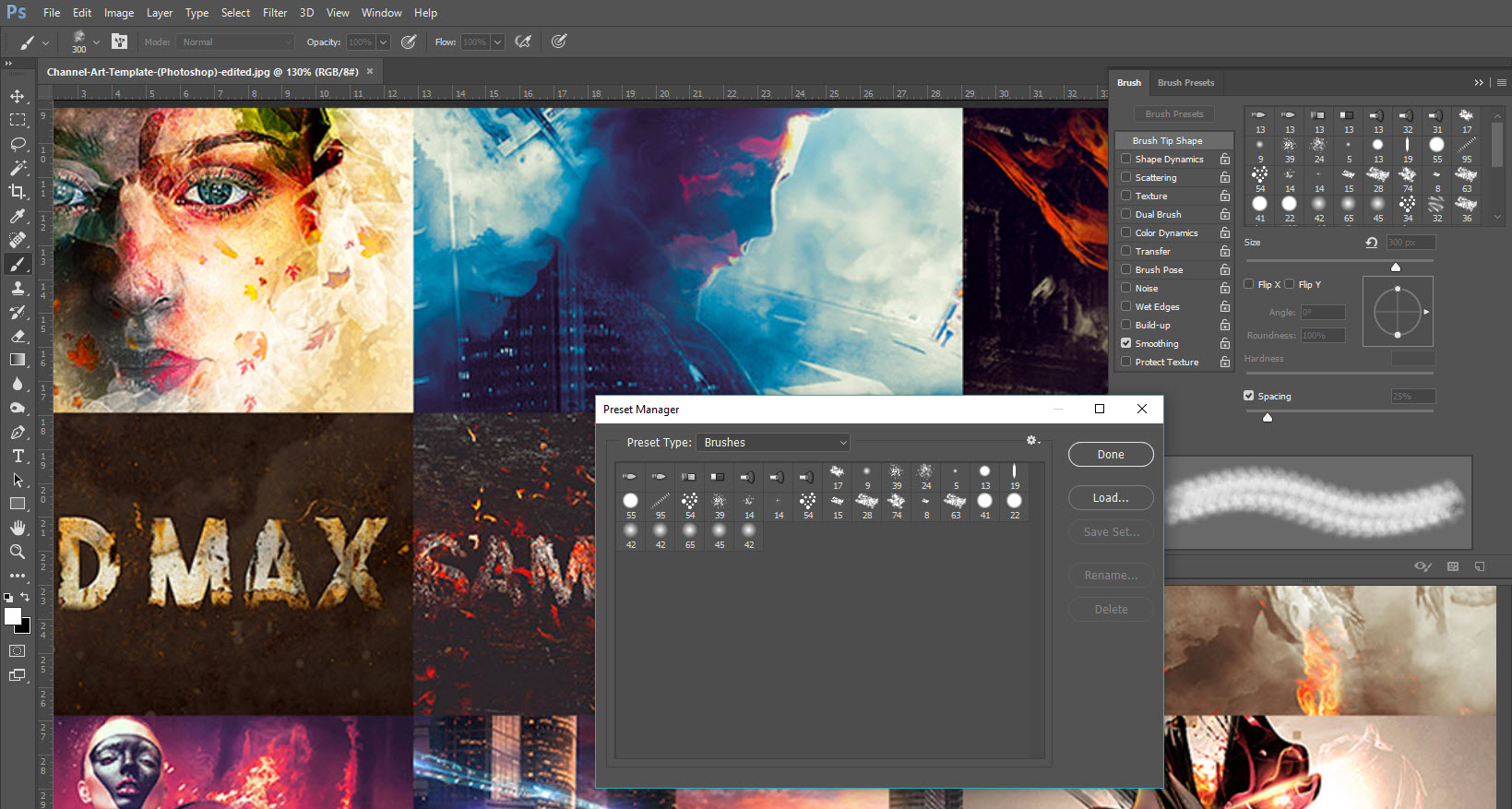
As we download more and more Photoshop brushes off the net and load them into Photoshop, they become quite disorganised and you will find it’s getting harder & harder to locate certain brush (like this screenshot below, I have hundreds of brushes all cramped into one panel):

If you want to save time and find your desired brush quickly, it’s important to save them into groups using the Preset Manager.

Now let’s begin – firstly go into Window > Brush Presets and turn on the brush preset panel:

Once the brush preset panel is on, click on the “Preset Manager” button down the bottom of the panel:

Open the preset manager, then simply hold down the Ctrl key and left-click on the brushes you would like to group:
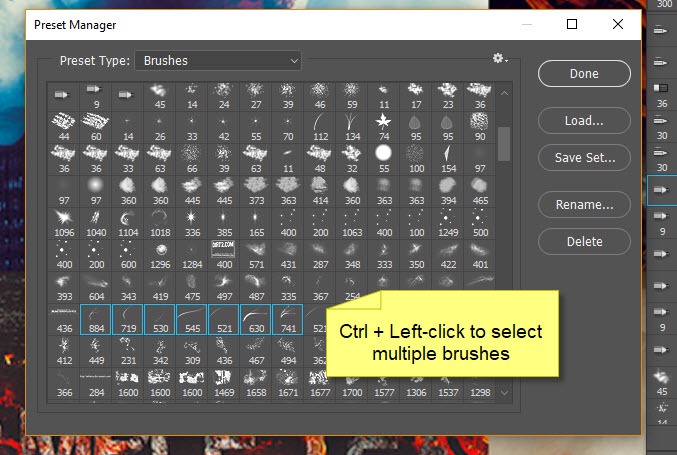
Once you finish the selection, click on “Save Set…”:

Choose a folder and name your brushes to save with, and press “Save”:

That’s it! Next time you want to use these brushes, you can simply use the “Replace Brushes” feature on the brush panel:

And you will see only the brushes within that preset! Much cleaner, isn’t it:

This method will come in particularly handy if you have several brushsets with the same theme, as such cloud, smoke or fire brushes. You can just group brushes with the same theme into a single preset. Much easier to locate.

That’s it folks! Hope this method help you organise Photoshop brushes and save your time finding them. If you have any other handy tips, leave me a comment below!

brushes manager photoshop preset
Share. Facebook Twitter Pinterest LinkedIn Tumblr Email
James Qu
  • Website

James is a seasoned Photoshop expert with over 25 years of experience based in Australia. As the driving force behind PSD Vault, he authors the majority of its in-depth tutorials and insightful articles.

Related Posts

How to Read Photoshop Histograms for Beginners

April 18, 2026

How to Sharpen Images in Photoshop: 4 Methods for Every Situation

April 12, 2026

Curves or Levels: Choosing the Right Tool for Stunning Edits

March 26, 2026

2 Comments

  1. NerdyBirdy on February 3, 2018 9:50 PM

    I have a TON of brushes. I categorized them into groups (such as; accents, floral, masks, borders, etc) and saved them, deleted them and loaded them one by one until it looked semi-organized. and when i load new brushes, i put them in order of where they’re supposed to be, and save the whole set again. my brush file is over 250MB now XD

  2. PSD Vault on February 6, 2018 8:49 PM

    Same here, way too many brushes and the amount just keep growing!

Don't Miss

How to Draw Water Ripples Effect in Photoshop

April 19, 2026

How to Read Photoshop Histograms for Beginners

April 18, 2026

Create Portrait Photo Manipulation with Rose and Rock Pattern in Photoshop

April 17, 2026

For Beginners

Basics

How to Read Photoshop Histograms for Beginners

By James QuApril 18, 20267 Mins Read

How to Sharpen Images in Photoshop: 4 Methods for Every Situation

April 12, 2026

Curves or Levels: Choosing the Right Tool for Stunning Edits

March 26, 2026

10 Proven Ways to Improve Photoshop Performance in 2026

March 22, 2026

You May Also Like

Basics

How to Read Photoshop Histograms for Beginners

By James QuApril 18, 20267 Mins Read
Basics

How to Sharpen Images in Photoshop: 4 Methods for Every Situation

By James QuApril 12, 202618 Mins Read
Basics

Curves or Levels: Choosing the Right Tool for Stunning Edits

By James QuMarch 26, 20265 Mins Read
Facebook X (Twitter) Instagram Pinterest
  • About Us
  • Get in Touch
  • Advertise
  • VIP Area
  • Free Image Tools
  • Privacy Policy
  • Terms & Conditions
© 2026 PSD Vault. All Right Reserved.

Type above and press Enter to search. Press Esc to cancel.

Manage Consent
To provide the best experiences, we use technologies like cookies to store and/or access device information. Consenting to these technologies will allow us to process data such as browsing behavior or unique IDs on this site. Not consenting or withdrawing consent, may adversely affect certain features and functions.
Functional Always active
The technical storage or access is strictly necessary for the legitimate purpose of enabling the use of a specific service explicitly requested by the subscriber or user, or for the sole purpose of carrying out the transmission of a communication over an electronic communications network.
Preferences
The technical storage or access is necessary for the legitimate purpose of storing preferences that are not requested by the subscriber or user.
Statistics
The technical storage or access that is used exclusively for statistical purposes. The technical storage or access that is used exclusively for anonymous statistical purposes. Without a subpoena, voluntary compliance on the part of your Internet Service Provider, or additional records from a third party, information stored or retrieved for this purpose alone cannot usually be used to identify you.
Marketing
The technical storage or access is required to create user profiles to send advertising, or to track the user on a website or across several websites for similar marketing purposes.
  • Manage options
  • Manage services
  • Manage {vendor_count} vendors
  • Read more about these purposes
View preferences
  • {title}
  • {title}
  • {title}