Close Menu
PSD VaultPSD Vault
  • VIP Area
  • Photoshop Basics
  • Photo Effect
  • Text Effect
  • Premium Tuts
  • Resources
  • Drawing
  • Inspiration
  • Web Graphics
  • Abstract
  • Freebies
  • Advertise
  • Get in Touch
  • About PSD Vault
Facebook Instagram Pinterest YouTube TikTok
Facebook Instagram Pinterest YouTube TikTok RSS
PSD VaultPSD Vault
  • VIP Area
    • Sign Up
    • Log In
  • Photoshop Basics
  • AI
  • Photoshop Error Fixes
  • Video Tutorial
  • Photo Effect
  • Text Effect
  • Premium Tuts
  • Drawing
  • Opinion
PSD VaultPSD Vault
Home»Photoshop Error Fixes»How to Fix Neural Filters Not Working or Greyed Out in Photoshop 2026
Photoshop Error Fixes

How to Fix Neural Filters Not Working or Greyed Out in Photoshop 2026

By James QuFebruary 1, 20263 Mins Read
Share
Facebook Twitter LinkedIn Pinterest Email

Struggling with Neural Filters in Photoshop 2026? If they’re greyed out, not downloading, or showing errors like “temporarily disabled,” you’re not alone. This step-by-step tutorial covers the most common fixes for version 27.x, based on Adobe’s official troubleshooting and user reports.

We’ll focus on quick, easy solutions to get your AI-powered tools like Photo Restoration, Skin Smoothing, and Generative Fill back online. Make sure you always back up your preferences before starting.

Before You Begin: Quick Checks

  • Ensure you’re using Photoshop 2026 (v27.0 or later). Go to Help > About Photoshop to confirm.
  • Verify your image is in RGB mode and 8-bit/channel (Image > Mode > RGB Color; Image > Image Size > 8 Bits/Channel). Neural Filters don’t work in other modes.
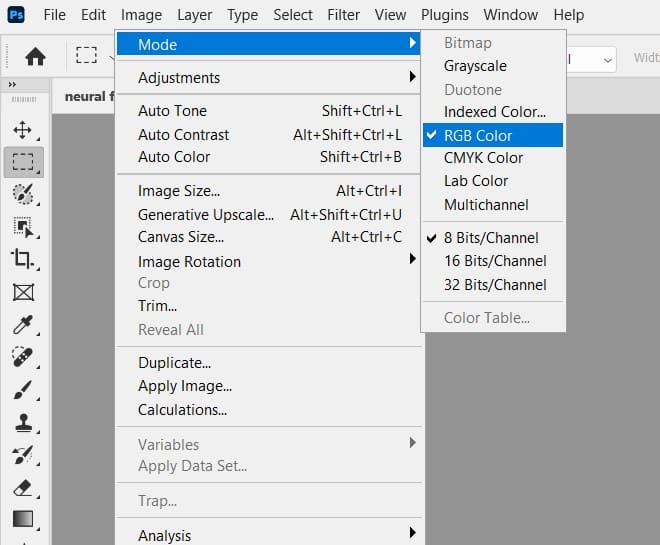
Verify your image is in RGB mode and 8-bit/channel
  • Have a stable internet connection – many filters require cloud downloads.
  • Update your graphics drivers via your GPU manufacturer’s site (NVIDIA, AMD, or Intel).

Method 1: Sign In and Restart Photoshop

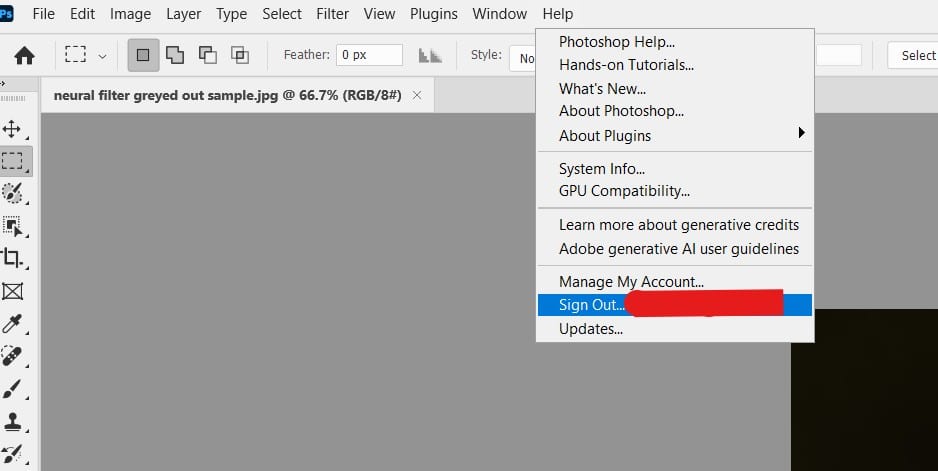
Sometimes, a simple sign-out fixes authentication issues.

  1. Go to Help > Sign Out.
  2. Quit Photoshop completely (check Task Manager on Windows or Activity Monitor on Mac).
  3. Relaunch Photoshop and sign back in with your Adobe ID.
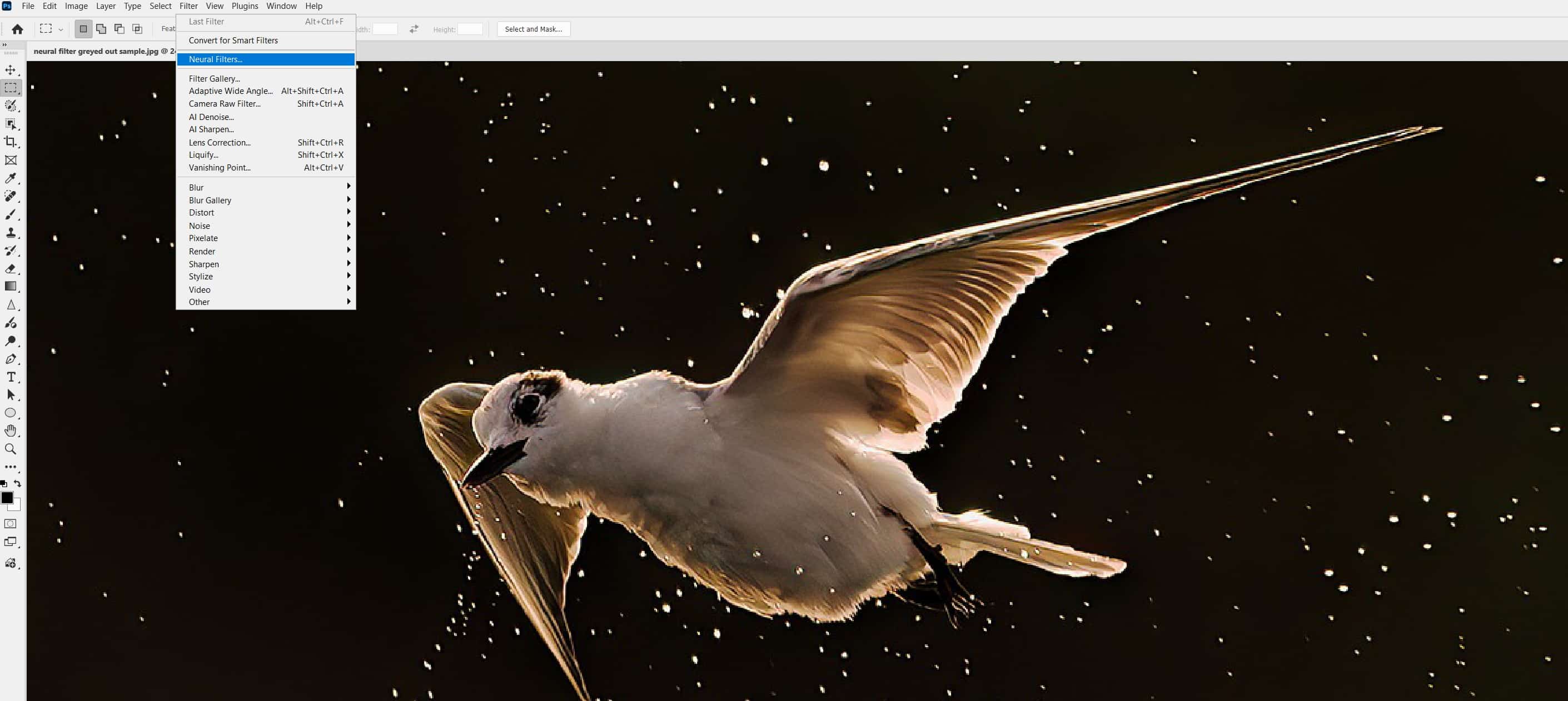
  4. Try accessing Filter > Neural Filters again.

If it still fails, proceed to the next step.
Method 2: Download or Redownload Filters

Filters might not have downloaded properly.

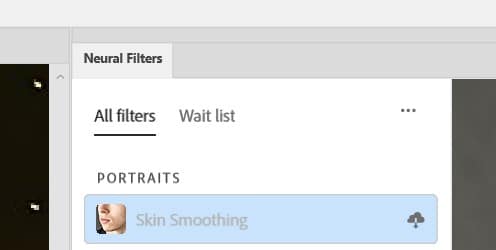
  1. Open Filter > Neural Filters.
  2. In the Neural Filters panel, toggle on any greyed-out filter – it should prompt a download.
  3. If downloads fail, close Photoshop and clear your browser cache (or try a different browser if using Creative Cloud app).
  4. Relaunch and retry.
Download or Redownload Filters

Method 3: Clear the Neural Filters Cache

This resets corrupted filter data without affecting your work.

  1. Quit Photoshop.
  2. Navigate to the cache folder:
    • Windows: C:\Users[Your Username]\AppData\Roaming\Adobe\UXP\PluginsStorage\PHSP\27\Internal\com.adobe.nfp.gallery\PluginData
    • Mac: ~/Library/Application Support/Adobe/UXP/PluginsStorage/PHSP/27/Internal/com.adobe.nfp.gallery/PluginData
  3. Delete or rename the “PluginData” folder.
  4. Relaunch Photoshop—it will recreate the folder and prompt redownloads.

Pro Tip: If you’re on beta, repeat for the “Photoshop Beta” folder.
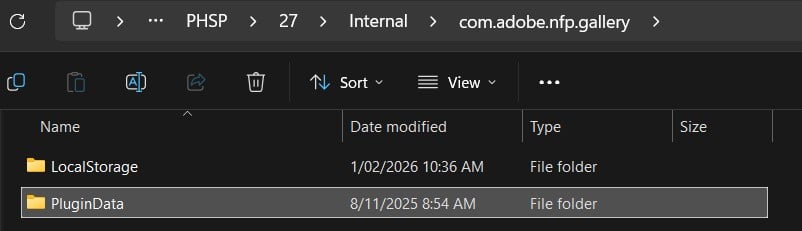
Clear the Neural Filters Cache

Method 4: Reset Photoshop Preferences

Corrupted prefs often cause greyed-out features.

  1. Quit Photoshop.
  2. Relaunch while holding Shift + Ctrl + Alt (Windows) or Shift + Cmd + Option (Mac).
  3. When prompted, select “Yes” to reset preferences.
  4. Test Neural Filters on a new document.

Method 5: Update Photoshop and Check for Beta Issues

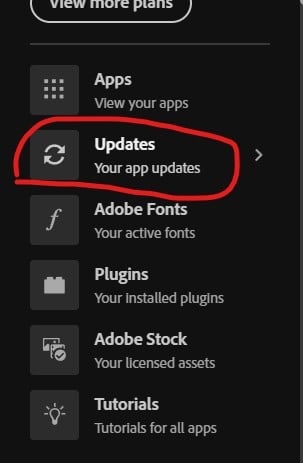
  1. Open the Creative Cloud desktop app.
  2. Go to Updates and install any available Photoshop patches (v27.1+ often fixes AI bugs).
  3. If using beta filters like Photo Restoration, note they can be temporarily disabled by Adobe due to errors—check Adobe forums for status updates.
  4. As a last resort, reinstall Photoshop via Creative Cloud (uninstall first, then reinstall).
Additional Tips for Persistent Issues

  • Offline Fix: If internet is spotty, some users report success with manual filter installs, but stick to official methods to avoid risks.
  • System Requirements: Ensure your OS is compatible (Windows 10/11 or macOS Ventura+). Disable antivirus temporarily if downloads block.
  • Test on a New File: Create a blank RGB document and try filters there to rule out image-specific problems.
  • If nothing works, visit Adobe’s community forums or contact support with your error details.

That’s it! I hope these methods help you solve the neural filter issues. Happy editing!

filter greyed out issues neural not working
Share. Facebook Twitter Pinterest LinkedIn Tumblr Email
James Qu
  • Website

James is a seasoned Photoshop expert with over 25 years of experience based in Australia. As the driving force behind PSD Vault, he authors the majority of its in-depth tutorials and insightful articles.

Related Posts

How to Create Instant Professional Blurred Backgrounds in Photoshop with AI Depth Blur

January 18, 2026

Neural Filters in Photoshop – A Beginner’s Guide (Updated Jan 2026)

January 7, 2026

Quick AI Portrait Relighting for Dramatic Effects in Photoshop

December 31, 2025

Comments are closed.

Don't Miss

How to Fix Neural Filters Not Working or Greyed Out in Photoshop 2026

February 1, 2026

How to Use AI-Driven Landscape Masking in Adobe Photoshop’s Camera Raw

January 31, 2026

Bring Old Photos Back to Life with Photoshop Super Zoom

January 29, 2026

For Beginners

Basics

Dodge & Burn Tool in Photoshop – The Beginner’s Guide

By Maria SemelevichJanuary 24, 20268 Mins Read

How to Pixelate an Image in Photoshop

January 21, 2026

How to Resize Images Without Losing Quality in Photoshop

January 8, 2026

Photoshop Clipping Masks – Everything You Need to Know

January 7, 2026

You May Also Like

Photo Effect

How to Create Instant Professional Blurred Backgrounds in Photoshop with AI Depth Blur

By James QuJanuary 18, 20263 Mins Read
Basics

Neural Filters in Photoshop – A Beginner’s Guide (Updated Jan 2026)

By James QuJanuary 7, 20266 Mins Read
Photo Effect

Quick AI Portrait Relighting for Dramatic Effects in Photoshop

By James QuDecember 31, 20253 Mins Read
Facebook X (Twitter) Instagram Pinterest
  • About Us
  • Get in Touch
  • Advertise
  • VIP Area
  • Privacy Policy
  • Terms & Conditions
© 2026 PSD Vault. All Right Reserved.

Type above and press Enter to search. Press Esc to cancel.

Manage Consent
To provide the best experiences, we use technologies like cookies to store and/or access device information. Consenting to these technologies will allow us to process data such as browsing behavior or unique IDs on this site. Not consenting or withdrawing consent, may adversely affect certain features and functions.
Functional Always active
The technical storage or access is strictly necessary for the legitimate purpose of enabling the use of a specific service explicitly requested by the subscriber or user, or for the sole purpose of carrying out the transmission of a communication over an electronic communications network.
Preferences
The technical storage or access is necessary for the legitimate purpose of storing preferences that are not requested by the subscriber or user.
Statistics
The technical storage or access that is used exclusively for statistical purposes. The technical storage or access that is used exclusively for anonymous statistical purposes. Without a subpoena, voluntary compliance on the part of your Internet Service Provider, or additional records from a third party, information stored or retrieved for this purpose alone cannot usually be used to identify you.
Marketing
The technical storage or access is required to create user profiles to send advertising, or to track the user on a website or across several websites for similar marketing purposes.
  • Manage options
  • Manage services
  • Manage {vendor_count} vendors
  • Read more about these purposes
View preferences
  • {title}
  • {title}
  • {title}