



Photoshop’s Harmonize feature is a beginner-friendly AI powerhouse that automatically blends cut-out objects or people into new backgrounds. It intelligently adjusts colour, lighting, shadows, and tone for realistic results—perfect for quick composites without manual curves or masks.
In this tutorial, we’ll place a cut-out person into a scenic background and let AI do the heavy lifting. Ideal for beginners wanting pro-looking blends fast!
What You’ll Need
- Adobe Photoshop (2025 version or later, with Harmonize enabled—available on desktop and web)
- Two images: a background scene and a subject to cut out (e.g., a person on a plain background)
Let’s Get Started!
Step 1: Open Your Background Image
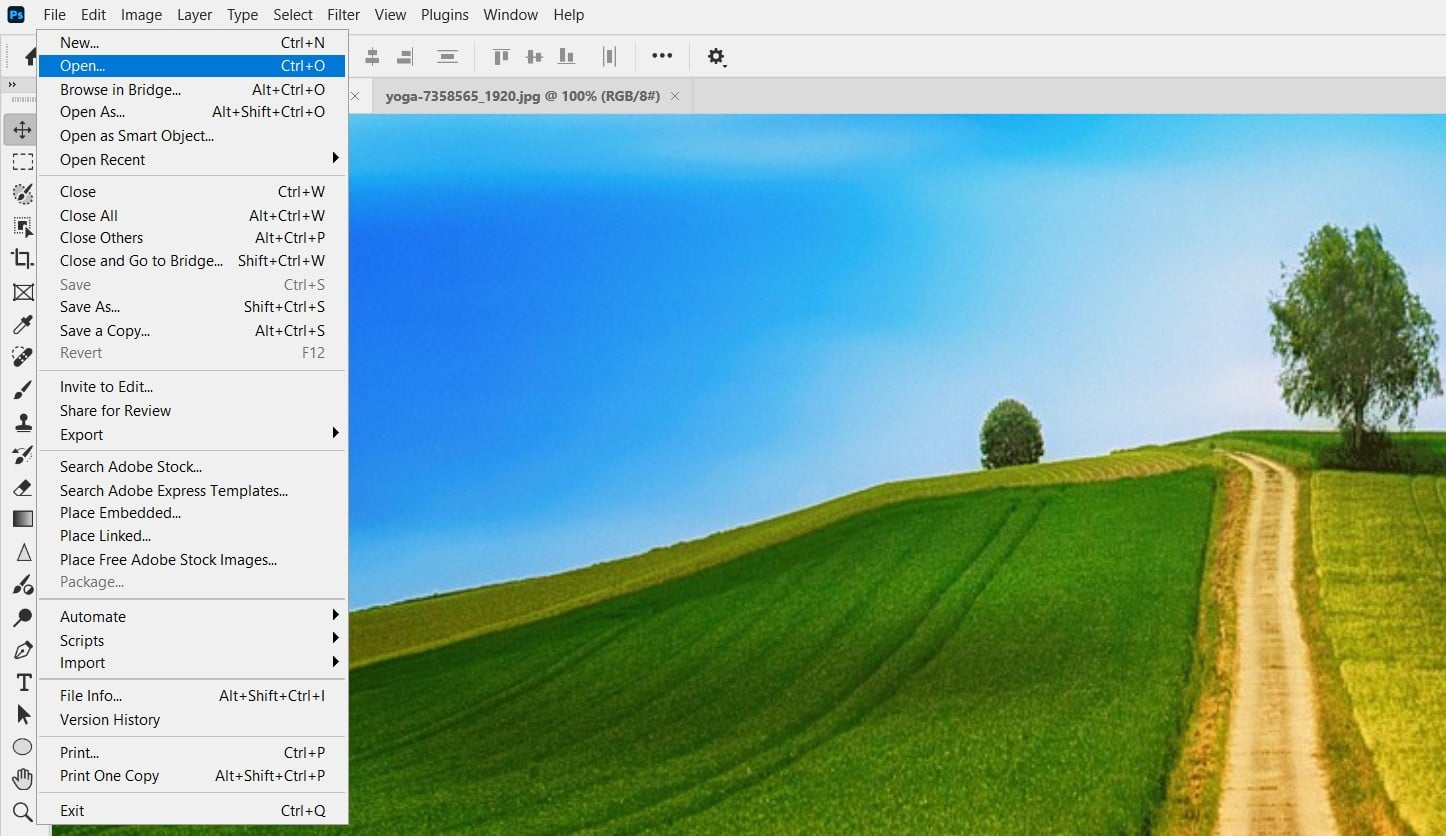
Launch Photoshop and open your background image (File > Open). This will be the base layer for your composite.
Step 2: Add Your Cut-Out Object
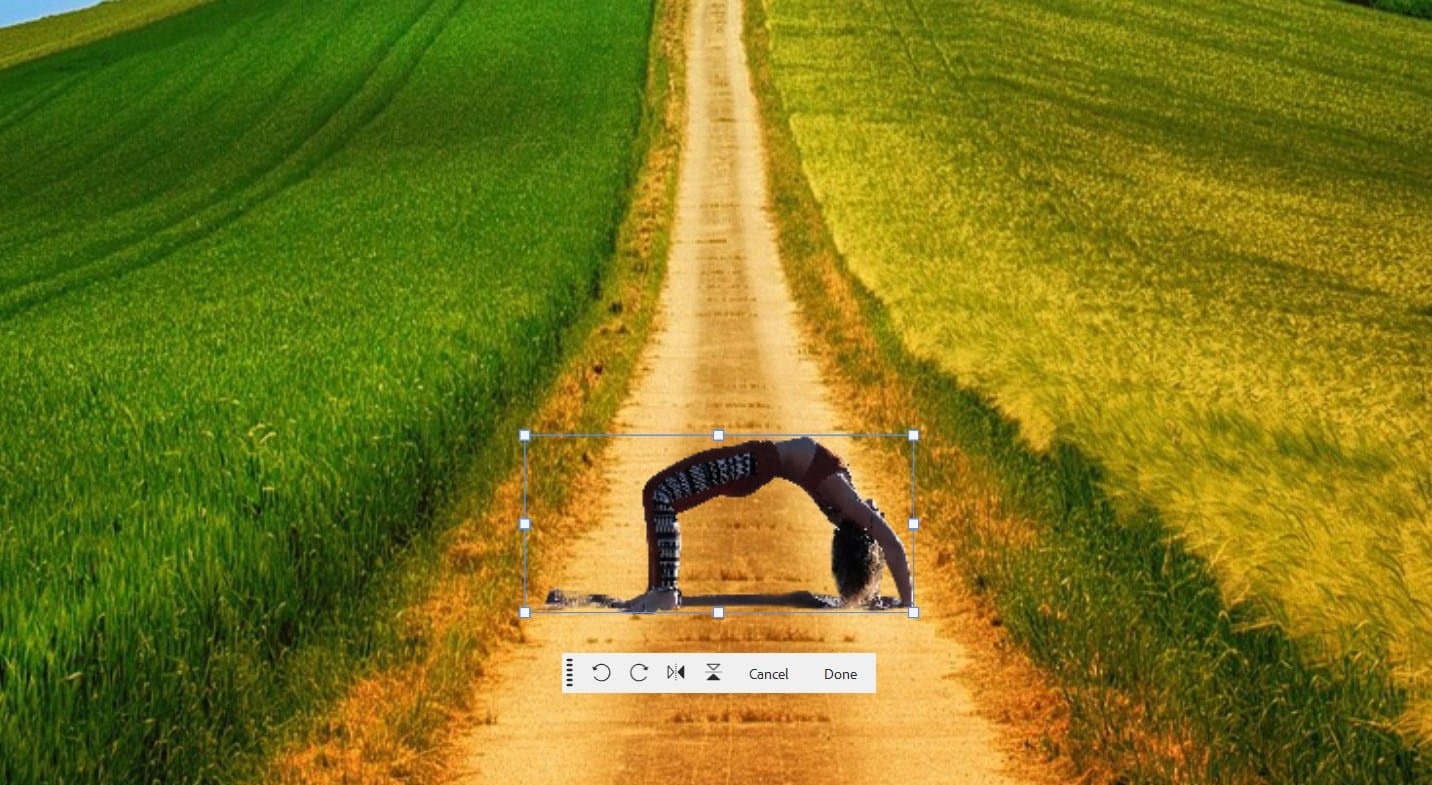
Go to File > Place Embedded and select your subject image (the object/person to blend). It appears on a new layer above the background. Resize and position it using the Transform handles (Ctrl/Cmd + T).
Step 3: Remove the Object’s Background (If Needed)
If your subject has a background, select its layer in the Layers panel. In the Contextual Task Bar (top of the screen), click “Remove Background”—Photoshop’s AI instantly isolates the object.

Step 4: Apply Harmonize
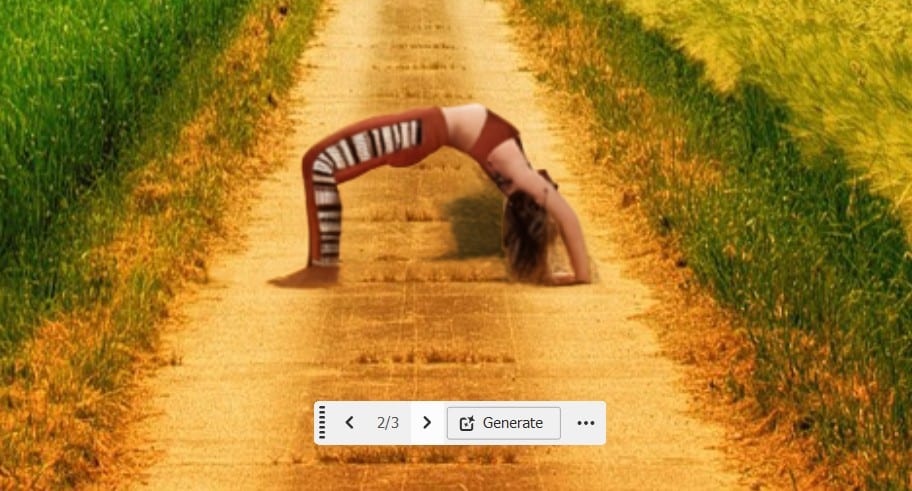
With the subject layer selected, look for “Harmonize” in the Contextual Task Bar and click it. Photoshop’s AI analyses the scene and generates variations (usually three options). Preview them in the Properties panel.

Step 5: Choose Your Best Variation
Click your favourite variation—AI applies adjustments for lighting, colour, shadows, and edges. If not perfect, click “Generate” again for more options. The result appears on a new layer for non-destructive editing.
Step 6: Refine Manually (Optional for Beginners)
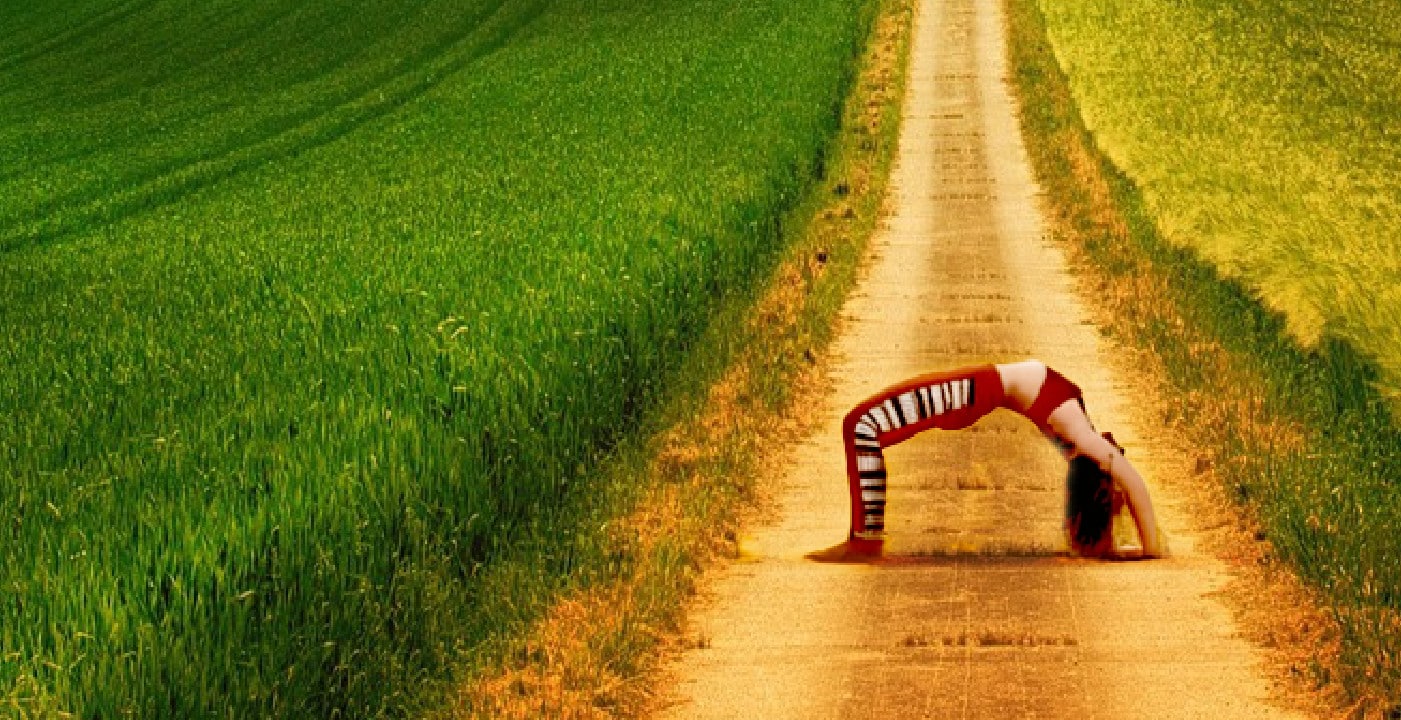
For extra polish, add a layer mask to the harmonised layer and paint subtle tweaks with a soft brush. In this case, I painted some extra shadow under the model subject:
Step 7: Finalise and Export
Compare by toggling layer visibility. Save as PSD for future edits, then export (File > Export > Export As) as PNG for transparency or JPG for sharing.
A Few Pro Tips for Beginners
- Best Results: Use realistic photos with similar perspectives – AI shines on people/objects against varied backgrounds.
- Credits Note: Harmonize uses a few generative credits (check your plan).
- Fallback: If variations aren’t ideal, try repositioning the object first.
Why Use Harmonize?
This AI tool turns clunky cut-and-paste jobs into seamless magic in seconds – no advanced skills required. Great for social media edits, fun composites, or quick client mocks. Experiment on your next project and share your blends in the comments!