Close Menu
PSD VaultPSD Vault
  • VIP Area
  • Photoshop Basics
  • Photo Effect
  • Text Effect
  • Premium Tuts
  • Resources
  • Drawing
  • Inspiration
  • Web Graphics
  • Abstract
  • Freebies
  • Advertise
  • Get in Touch
  • About PSD Vault
Facebook Instagram Pinterest YouTube TikTok
Facebook Instagram Pinterest YouTube TikTok RSS
PSD VaultPSD Vault
  • VIP Area
    • Sign Up
    • Log In
  • Photoshop Basics
  • AI
  • Photoshop Error Fixes
  • Video Tutorial
  • Photo Effect
  • Text Effect
  • Premium Tuts
  • Drawing
  • Opinion
PSD VaultPSD Vault
Home»Photo Effect»Create a Surreal Natural Landscape Scene in Photoshop
Photo Effect

Create a Surreal Natural Landscape Scene in Photoshop

By James QuMay 22, 20114 Mins Read
Share
Facebook Twitter LinkedIn Pinterest Email

In this tutorial, I will show you the steps I took to Create a Surreal Natural Landscape Scene in Photoshop. This is an intermediate tutorial so some steps can be tricky, but why not have a try :)

Along the way, we will transform a day photo into dusk scene, plus some image adjustment techniques and the use of pen tool for abstract lines.

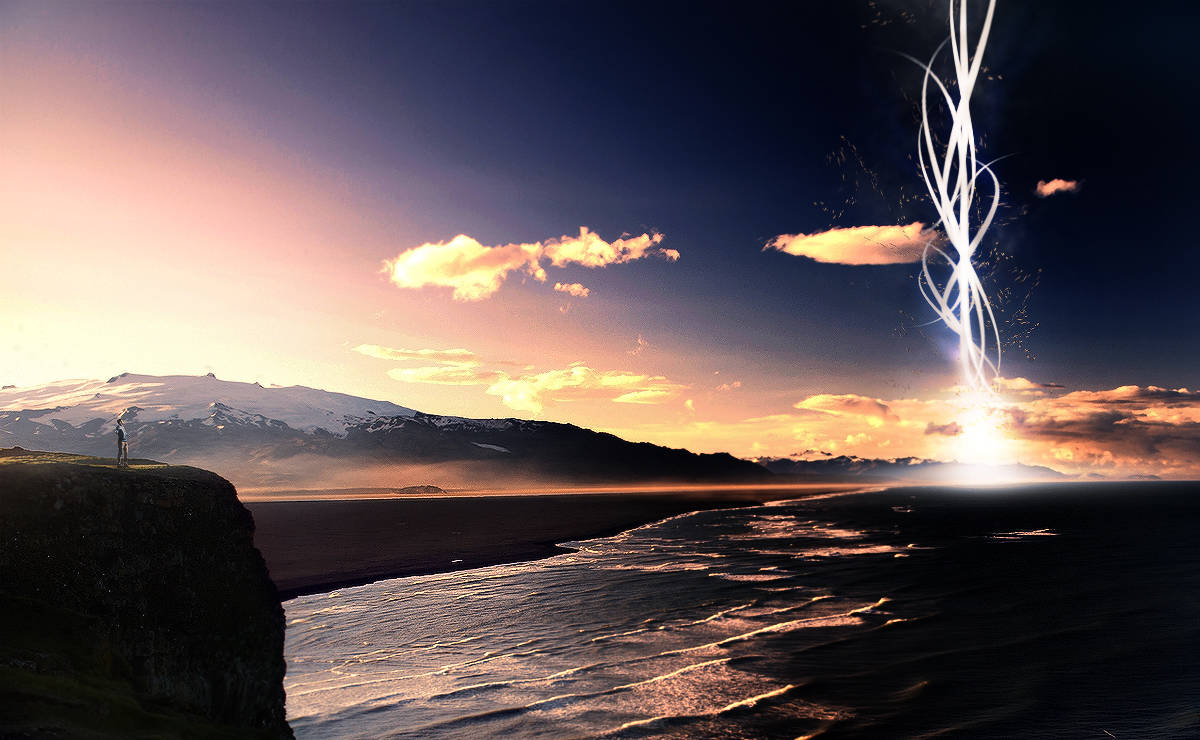
Here is a preview of the final effect: (click to enlarge)

PSD Vault VIP Membership

You can download the PSD File for this tutorial via the VIP Members Area for only $6.95/Month (or less)! You will not only get this PSD File, but also 200+ other PSD Files + Extra Goodies + Exclusive Photoshop tutorials there. Signup now and get exclusive!

Ok Let’s get started!

To complete this tutorial, you will need the following stock:

Cliff

Man on top of Mountain

Step 1

Create a new document sized 1200px * 740px with white background. Load the Cliff image into Photoshop, copy and paste the entire image onto our document, resize and position it as shown below:

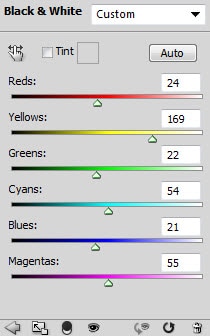
Now let’s reduce the brightness and colour of the image a bit – firstly add the following two image adjustment layers to this landscape layer:

Black and White (set layer opacity to around 70%)
Levels

Layer mask on the Levels adjustment layer: (this will hide the sky portion)

and here is the effect so far:

Step 2

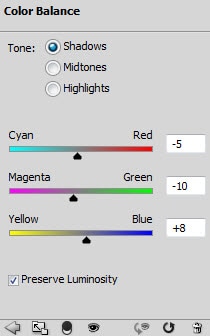
Now we can turn this day photo into a dusk photo with a darker colour scheme. So let’s add the following 2 adjustment layers:

Color Balance
Layer mask on the colour balance adjustment layer:

Levels

Layer Mask on the Levels adjustment layer:
and we will have the following effect after the adjustments:
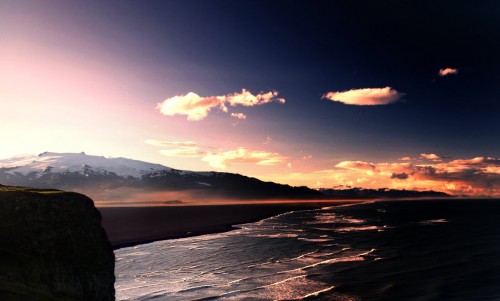
Step 3

Load the Man on top of mountain image into Photoshop, cut out of the man’s body and paste it to the position shown below: (resize it with free transform tool)
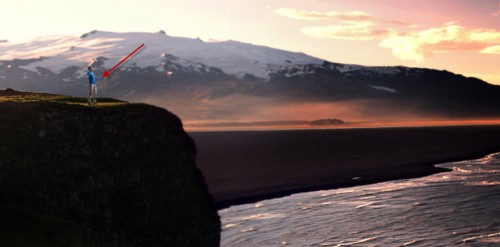
Add the following 3 adjustment layers as clipping mask to this man standing layer:

Black and White

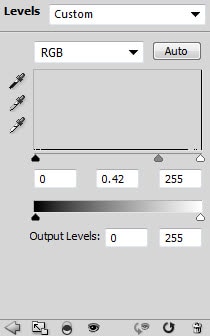
Levels
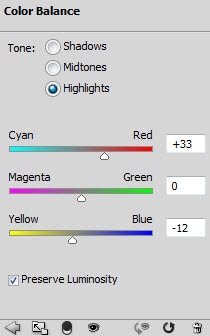
Color Balance

Use a soft black brush, carefully paint some shadow under the man:
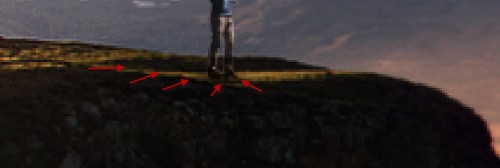
and here is the effect so far:
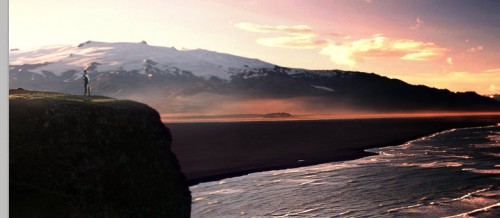
Step 4

Now we can add some flying rock into the image. Go to the Man on the mountain image and use the quick selection tool to select a piece of rock:

Copy and paste the selection onto our canvas, resize it to a smaller scale:
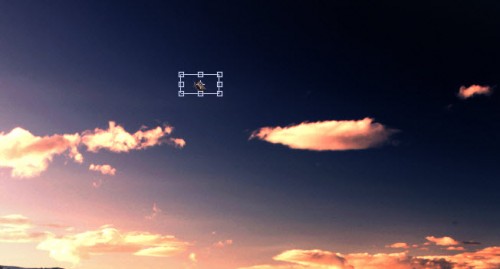
Duplicate this rock layer a few times, resize and rotate each layer so they vary in size:
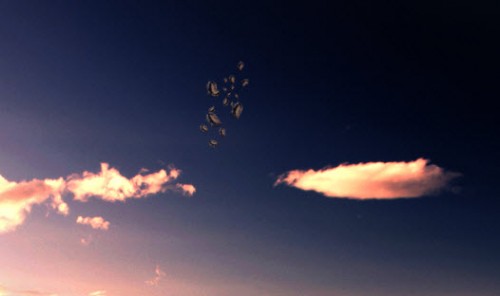
Merge those duplicated rock layer together, apply the warp tool on the merged layer:
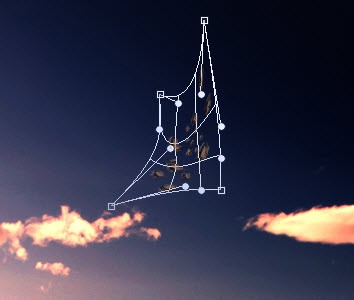
Duplicate this layer a few times, adjust the size of each layer with free transform tool, from them into a shape as shown below:

Step 5

Now let’s add some lighting effect to the bottom of the flying rocks. Use a soft white brush to do a single-click on the position shown below:
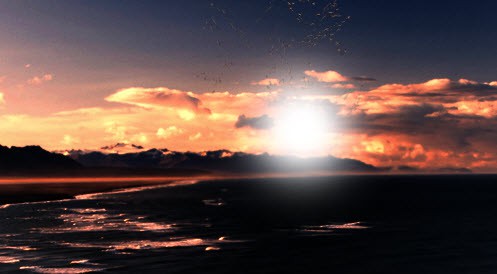
Compress it down with the free transform tool:

and you will have the following effect:

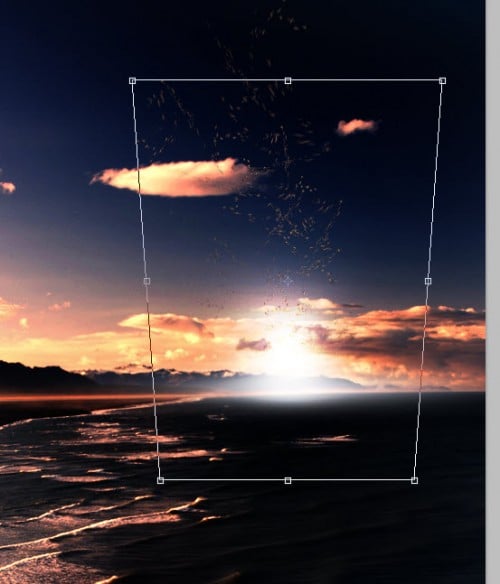
Duplicate this layer once, and again use the free transform tool to expend its height, then perspective it a bit as shown below:
Step 6

Now let’s practice some Pen Tool skills with adding some simple abstract lines on the sky. So grab the Pen Tool and draw the following Path:

Stroke this path with 5px hard white brush: (tick “simulate pressure” box)
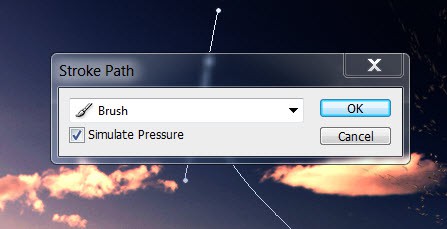
and you will have the following effect:
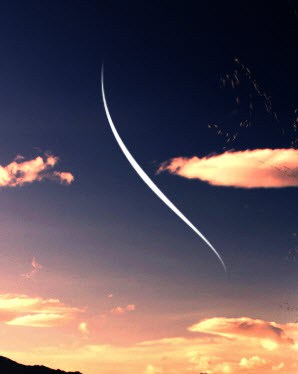
Duplicate this line layer a few times and free transform them, attach those layers together and form a shape as shown below:
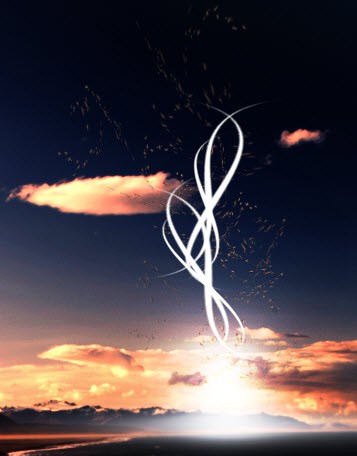
Keep duplicating and free-transforming until you’re happy with the shapes:

I adjust the brightness and contrast of the image a bit, and here is the final effect for this tutorial: (click to enlarge)

That’s it for this tutorial! Hope you enjoy this tutorial and find it useful! Till next time, have a great day!

create landscape photoshop natural landscape photoshop surreal landscape photoshop
Share. Facebook Twitter Pinterest LinkedIn Tumblr Email
James Qu
  • Website

James is a seasoned Photoshop expert with over 25 years of experience based in Australia. As the driving force behind PSD Vault, he authors the majority of its in-depth tutorials and insightful articles.

Related Posts

How to Create Instant Professional Blurred Backgrounds in Photoshop with AI Depth Blur

January 18, 2026

How to Perform Flawless Photoshop AI Distraction Removal

January 11, 2026

Quick AI Portrait Relighting for Dramatic Effects in Photoshop

December 31, 2025

5 Comments

  1. rajasegar on May 30, 2011 11:17 PM

    Great tutorial and techniques well explained!
    Thanks for sharing…
    Bookmarked!!

  2. ali on June 13, 2011 1:31 AM

    it very very nice

  3. DeMoN on June 22, 2011 10:21 PM

    Cool! Simply and beautifuly!

  4. Sammysande on August 22, 2011 8:01 PM

    Bro this was so awesome……

  5. ISPSD on August 24, 2011 11:34 PM

    nice blog…

Don't Miss

Exploring Third-Party AI Models in Photoshop: Which One Suits Your Graphic Workflow?

January 26, 2026

Dodge & Burn Tool in Photoshop – The Beginner’s Guide

January 24, 2026

Create Fire Burning on Metal Text Effect in Photoshop

January 22, 2026

For Beginners

Basics

Dodge & Burn Tool in Photoshop – The Beginner’s Guide

By Maria SemelevichJanuary 24, 20268 Mins Read

How to Pixelate an Image in Photoshop

January 21, 2026

How to Resize Images Without Losing Quality in Photoshop

January 8, 2026

Photoshop Clipping Masks – Everything You Need to Know

January 7, 2026

You May Also Like

Photo Effect

How to Create Instant Professional Blurred Backgrounds in Photoshop with AI Depth Blur

By James QuJanuary 18, 20263 Mins Read
AI

How to Perform Flawless Photoshop AI Distraction Removal

By Lana WilsonJanuary 11, 20263 Mins Read
Photo Effect

Quick AI Portrait Relighting for Dramatic Effects in Photoshop

By James QuDecember 31, 20253 Mins Read
Facebook X (Twitter) Instagram Pinterest
  • About Us
  • Get in Touch
  • Advertise
  • VIP Area
  • Privacy Policy
  • Terms & Conditions
© 2026 PSD Vault. All Right Reserved.

Type above and press Enter to search. Press Esc to cancel.

Manage Consent
To provide the best experiences, we use technologies like cookies to store and/or access device information. Consenting to these technologies will allow us to process data such as browsing behavior or unique IDs on this site. Not consenting or withdrawing consent, may adversely affect certain features and functions.
Functional Always active
The technical storage or access is strictly necessary for the legitimate purpose of enabling the use of a specific service explicitly requested by the subscriber or user, or for the sole purpose of carrying out the transmission of a communication over an electronic communications network.
Preferences
The technical storage or access is necessary for the legitimate purpose of storing preferences that are not requested by the subscriber or user.
Statistics
The technical storage or access that is used exclusively for statistical purposes. The technical storage or access that is used exclusively for anonymous statistical purposes. Without a subpoena, voluntary compliance on the part of your Internet Service Provider, or additional records from a third party, information stored or retrieved for this purpose alone cannot usually be used to identify you.
Marketing
The technical storage or access is required to create user profiles to send advertising, or to track the user on a website or across several websites for similar marketing purposes.
  • Manage options
  • Manage services
  • Manage {vendor_count} vendors
  • Read more about these purposes
View preferences
  • {title}
  • {title}
  • {title}