


In this tutorial, you will learn the process of making this unique snow & frost text effect in Photoshop. We will use a forest stock image as the background, and construct the text effect with a combination of stone & frost texture, then finish it off with a touch of snow particles. Have a try!
This is an intermediate difficulty tutorial.
The PSD file of this tutorial is available via the PSD Vault VIP members area.
Here is a preview of the final effect I have for this tutorial: (click to enlarge)

PSD Vault VIP Membership
You can download the PSD File for this tutorial via the VIP Members Area for only $6.95/Month (or less)! You will not only get this PSD File, but also 300+ other PSD Files & 50+ VIP Exclusive Photoshop tutorials there. Signup now and get exclusive!

OK Let’s get started!
To complete this tutorial, you will need the following stocks:
Step 1 – Prepare a Forest Background
Create a new document with a size of 1440px * 800px. Set the background layer colour to Black. Load the forest stock image into Photoshop, copy and paste the entire image onto our document.
Use the Free Transform tool to resize the forest layer as shown below:

Use a soft eraser to remove the following area from the forest layer:

Apply the following Levels adjustments to this forest layer:

and you will have the following effect:

Step 2 – Adding Frost Effect to Forest
Load the ice texture into Photoshop. Copy and paste the entire image onto our document. Use the Free Transform tool to rotate it, as shown below:

Use a soft eraser to fade the following area as shown below:

Step 3 – Working on Our Letter
Use the font we downloaded (or any font you like), type a letter onto our document:

Apply the following Bevel & Emboss blending option on this text layer:

Fade the top and bottom part of the text with soft eraser:

Load the concrete stock image into Photoshop, select a portion of it as shown below:

Copy and paste the concrete selection to our document, cover the text as shown below:

Set this concrete layer as clipping mask to this text layer below:

and this is the effect so far:

Step 4 – Let’s Make Our Text Icy!
Go to the ice stock image and select this part of the stock:

Add it to our document as shown below (adjust its size with free transform tool):

Make sure you set this new ice layer’s blend mode to “Pin Light”:

Again we go to the ice texture, select this piece from it:

Add it to the bottom of the text, make sure you lower the layer opacity of this new ice layer to around 80%, so the text below aren’t covered entirely by it:

This step 4 is the most difficult part of the tutorial. You might need to experiment a few times to get it right.
Step 5 – Adding Extra Frost Effect
We’re almost done! For final touches, I added some frozen water drops from the stock image we downloaded:

Paint some snowfall effect by using the snow brushes we downloaded:
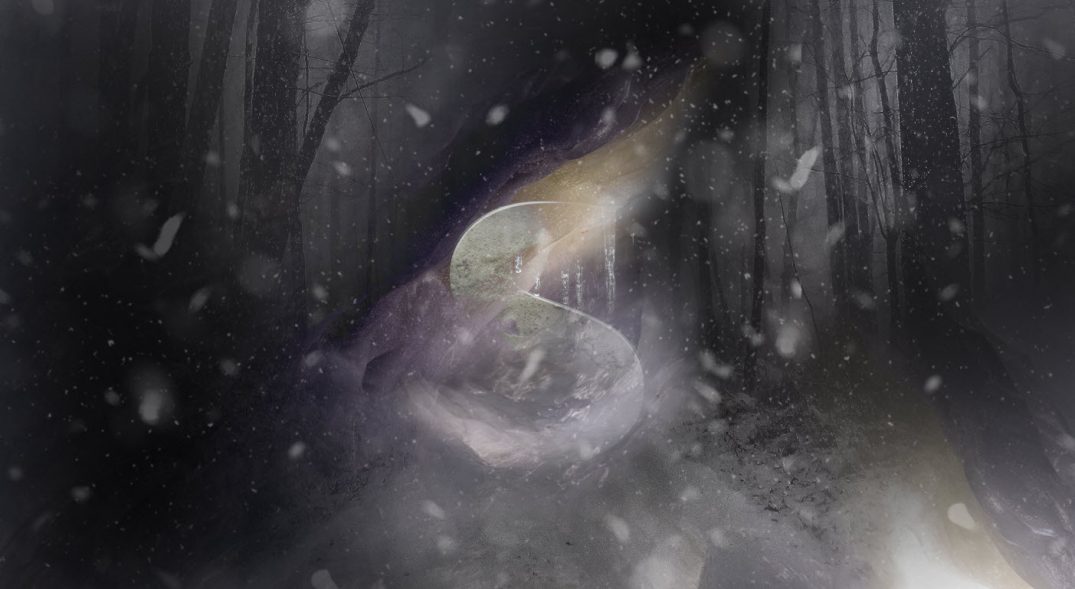
We can also use the Accented Edges filter to brighten the edge of the text, adding some artistic effect to it:

I further apply some cold blue colour to it, and this is my final result:
That’s it for this tutorial! Leave me a comment below if you have any questions and I will try my best to answer it.