Close Menu
PSD VaultPSD Vault
  • VIP Area
  • Photoshop Basics
  • Photo Effect
  • Text Effect
  • Premium Tuts
  • Resources
  • Drawing
  • Inspiration
  • Web Graphics
  • Abstract
  • Freebies
  • Advertise
  • Get in Touch
  • About PSD Vault
Facebook Instagram Pinterest YouTube TikTok
Facebook Instagram Pinterest YouTube TikTok RSS
PSD VaultPSD Vault
  • VIP Area
    • Sign Up
    • Log In
  • Photoshop Basics
  • AI
  • Photoshop Error Fixes
  • Video Tutorial
  • Photo Effect
  • Text Effect
  • Premium Tuts
  • Drawing
  • Opinion
PSD VaultPSD Vault
Home»Basics»How to Pixelate an Image in Photoshop
Basics

How to Pixelate an Image in Photoshop

By Lana WilsonJanuary 21, 20264 Mins Read
Share
Facebook Twitter LinkedIn Pinterest Email

In this tutorial, we will guide you through the process of pixelating an image in Photoshop using “Mosaic” under the Pixelate Filter. The Pixelate filter has been with Photoshop for a long time and is a widely used amongst graphic designer and artists.

What is Image Pixelation

Pixelation is a popular technique used in graphic design and digital art to create a retro or low-resolution effect. Pixelating an image in Photoshop is a great way to create a unique artistic effect or to protect your privacy.

Let’s get started with the tutorial:

Step 1 – Open the Image in Photoshop

Start by launching Adobe Photoshop on your computer. Then, go to the “File” menu and select “Open” to choose the image you want to pixelate. Alternatively, you can use the keyboard shortcut Ctrl+O (Windows) or Command+O (Mac).

Step 2 – Duplicate the Image Layer

To preserve the original image, it’s essential to work on a duplicate layer. Right-click on the background layer in the Layers panel and select “Duplicate Layer.” This will create a new layer above the original one.

Step 3 – Select the Pixelation Area

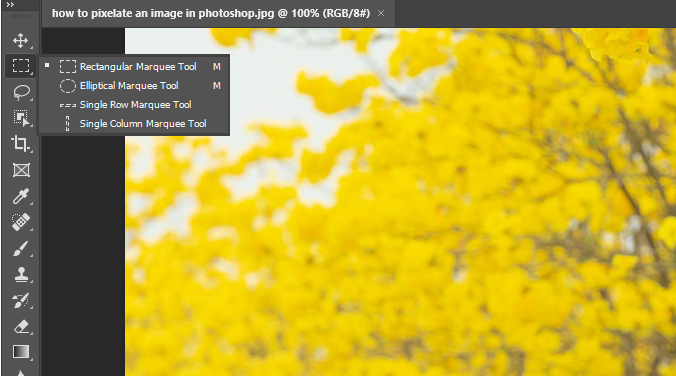
Use the Marquee tool from the toolbar on the left (shortcut: M) to select the area you want to pixelate. You can choose to pixelate the entire image or just a specific portion. Ensure that you have the duplicate layer selected in the Layers panel.

In this tutorial, I selected the background area of the image, separating the model:
Step 4 – Apply the Mosaic Filter

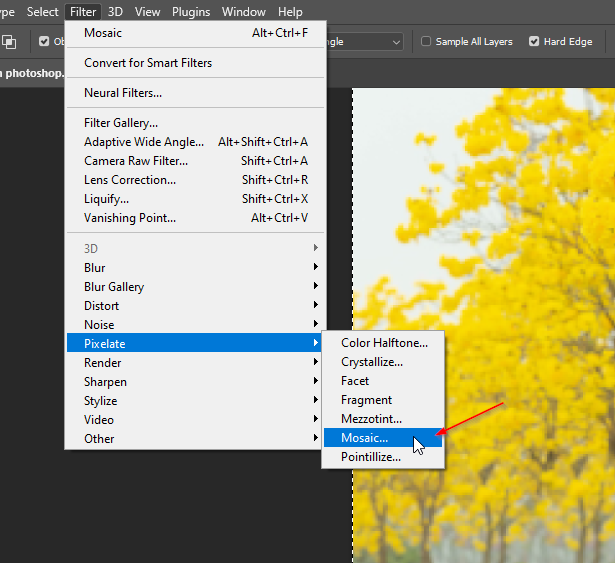
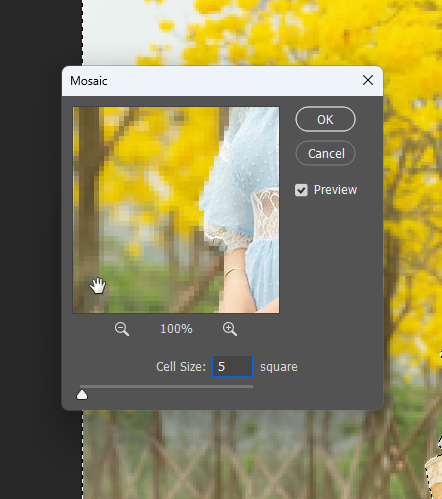
Once you have selected the desired area, go to the “Filter” menu, navigate to “Pixelate,” and choose “Mosaic.” A dialog box will appear, allowing you to adjust the pixel size. Drag the slider to determine the level of pixelation you desire. Click “OK” to apply the filter.
Step 5 – Refine the Pixelation

If you’re not entirely satisfied with the initial pixelation effect, you can further refine it. Go to the “Filter” menu, select “Noise,” and choose “Add Noise.” Adjust the “Amount” and “Distribution” sliders to add subtle variations to the pixelation, giving it a more organic appearance. Click “OK” to apply the noise filter.
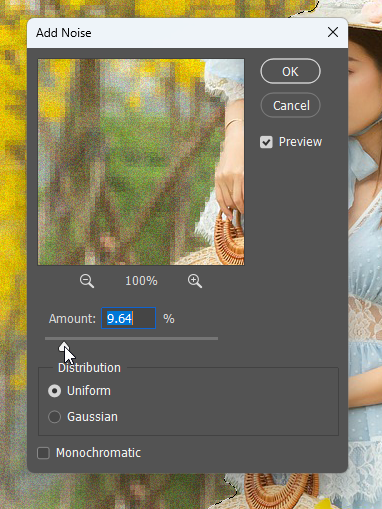
The image will now be pixelated. You can adjust the size of the pixels to get the desired effect.

Extra Tips for Pixelating Images

Here are some additional tips for pixelating images in Photoshop:

  • You can use the Rectangular Marquee Tool to select a specific area of the image to pixelate.
  • You can also use the Lasso Tool to create a freehand selection.
  • Once you have made a selection, you can apply the Mosaic Filter to the selected area.
  • You can also use the Smart Object feature to pixelate an image without permanently altering the original image.

To use the Smart Object feature, follow these steps:

  1. Right-click on the image layer and select Convert to Smart Object.
  2. Click on the Filter menu and select Pixelate.
  3. From the list of options, select Mosaic.
  4. In the Mosaic Filter dialog box, adjust the Cell Size slider to control the size of the pixels.
  5. Click OK to apply the filter.

The image will now be pixelated, but it will be stored as a Smart Object. This means that you can edit the original image without affecting the pixelated version.

Final Words

Pixelating an image in Photoshop is a straightforward process that can yield intriguing and visually appealing results. By following these steps, you can experiment with different levels of pixelation and create unique effects for your digital artwork or design projects. Remember to save a copy of the original image and work on a duplicate layer to maintain flexibility and preserve your creative options. Enjoy exploring the world of pixel art and its artistic possibilities!

image photoshop pixelate
Share. Facebook Twitter Pinterest LinkedIn Tumblr Email
Lana Wilson

Lana Wilson is a Photoshop artist with over 10 years of experience. She is known for her creative and innovative use of Photoshop to create stunning images. Her work has been featured in magazines, websites, and advertising campaigns. Lana is passionate about using Photoshop to tell stories and create emotional connections with her audience. She is always looking for new ways to use the software to push the boundaries of what is possible.

Related Posts

How to Stay Ahead of Every Photoshop Update & Unlock Their Full Power

February 8, 2026

Create a Dissolved Ancient Ink Text Effect in Photoshop

February 5, 2026

Dodge & Burn Tool in Photoshop – The Beginner’s Guide

January 24, 2026

Comments are closed.

Don't Miss

How to Stay Ahead of Every Photoshop Update & Unlock Their Full Power

February 8, 2026

VIP Exclusive Photoshop Tutorial – “The Real Her”

February 7, 2026

How to Create a Fairytale Composition in Photoshop

February 6, 2026

For Beginners

Basics

How to Stay Ahead of Every Photoshop Update & Unlock Their Full Power

By Valentin PetroffFebruary 8, 20265 Mins Read

Dodge & Burn Tool in Photoshop – The Beginner’s Guide

January 24, 2026

How to Resize Images Without Losing Quality in Photoshop

January 8, 2026

Photoshop Clipping Masks – Everything You Need to Know

January 7, 2026

You May Also Like

Basics

How to Stay Ahead of Every Photoshop Update & Unlock Their Full Power

By Valentin PetroffFebruary 8, 20265 Mins Read
Text Effect

Create a Dissolved Ancient Ink Text Effect in Photoshop

By James QuFebruary 5, 20263 Mins Read
Basics

Dodge & Burn Tool in Photoshop – The Beginner’s Guide

By Maria SemelevichJanuary 24, 20268 Mins Read
Facebook X (Twitter) Instagram Pinterest
  • About Us
  • Get in Touch
  • Advertise
  • VIP Area
  • Privacy Policy
  • Terms & Conditions
© 2026 PSD Vault. All Right Reserved.

Type above and press Enter to search. Press Esc to cancel.

Manage Consent
To provide the best experiences, we use technologies like cookies to store and/or access device information. Consenting to these technologies will allow us to process data such as browsing behavior or unique IDs on this site. Not consenting or withdrawing consent, may adversely affect certain features and functions.
Functional Always active
The technical storage or access is strictly necessary for the legitimate purpose of enabling the use of a specific service explicitly requested by the subscriber or user, or for the sole purpose of carrying out the transmission of a communication over an electronic communications network.
Preferences
The technical storage or access is necessary for the legitimate purpose of storing preferences that are not requested by the subscriber or user.
Statistics
The technical storage or access that is used exclusively for statistical purposes. The technical storage or access that is used exclusively for anonymous statistical purposes. Without a subpoena, voluntary compliance on the part of your Internet Service Provider, or additional records from a third party, information stored or retrieved for this purpose alone cannot usually be used to identify you.
Marketing
The technical storage or access is required to create user profiles to send advertising, or to track the user on a website or across several websites for similar marketing purposes.
  • Manage options
  • Manage services
  • Manage {vendor_count} vendors
  • Read more about these purposes
View preferences
  • {title}
  • {title}
  • {title}