


Ah, the bittersweet joy of rediscovering a cherished photo, only to find it’s trapped in pixel purgatory. A grainy snapshot from your first trip abroad, a blurry family portrait from simpler times – these precious memories deserve better than their pixelated fate. Fortunately, enlarging images without losing quality is no longer a fantastical dream, but a pixel-perfect reality thanks to the magic of Super Resolution in Photoshop.
Say goodbye to pixelated nightmares! This AI-powered wizardry lets you enlarge your images significantly, adding pixels where pixels once feared to tread. Think of it as a digital paintbrush, meticulously filling in the gaps with stunningly realistic detail. It doesn’t just stretch pixels; Super Resolution Photoshop understands the image, its textures, and its edges, then intelligently recreates them at a higher resolution.
Imagine the Possibilities
- Resurrecting blurry vacation photos from your phone’s early days, transforming them into vibrant prints worthy of your walls.
- Saving the day for overly-cropped portraits, breathing new life into those precious close-ups without sacrificing sharpness.
- Upscaling social media snaps for professional presentations or online portfolios, giving them the pixel power they deserve.
But wait, there’s more! Super Resolution Photoshop isn’t just for the nostalgic or the clumsy cropper. Even high-resolution images can benefit from its touch. By analysing and enhancing fine details, Super Resolution Photoshop can unlock hidden textures and sharpen edges, making your photos sing with newfound clarity, especially when zoomed in.
Limitation of Super Resolution
Of course, no magic comes without limitations. While Super Resolution Photoshop works wonders, enlarging images without losing quality isn’t always perfect. Complex details or intricate patterns might remain elusive, and some artifacts might creep in on occasion.
Additionally, the file size will inevitably increase, so keep storage limitations in mind.
But for the vast majority of scenarios, Super Resolution Photoshop is a game-changer. It’s not a replacement for good photography practices, but rather a powerful tool to salvage, improve, and enlarge your existing photos. Just remember, the higher the quality of your source image (especially raw files), the better the results.
How to Use Super Resolution in Photoshop
If you have a raw image file, you can open it straight away with Photoshop and follow the steps in Part II below. However, most likely you will need to use super resolution on an existing JPEG photo. In order to use Super Resolution on JPEG, we need to use steps in Part I to set Camera Raw Preference:
Part I
Go to Edit > Preference > File Handling
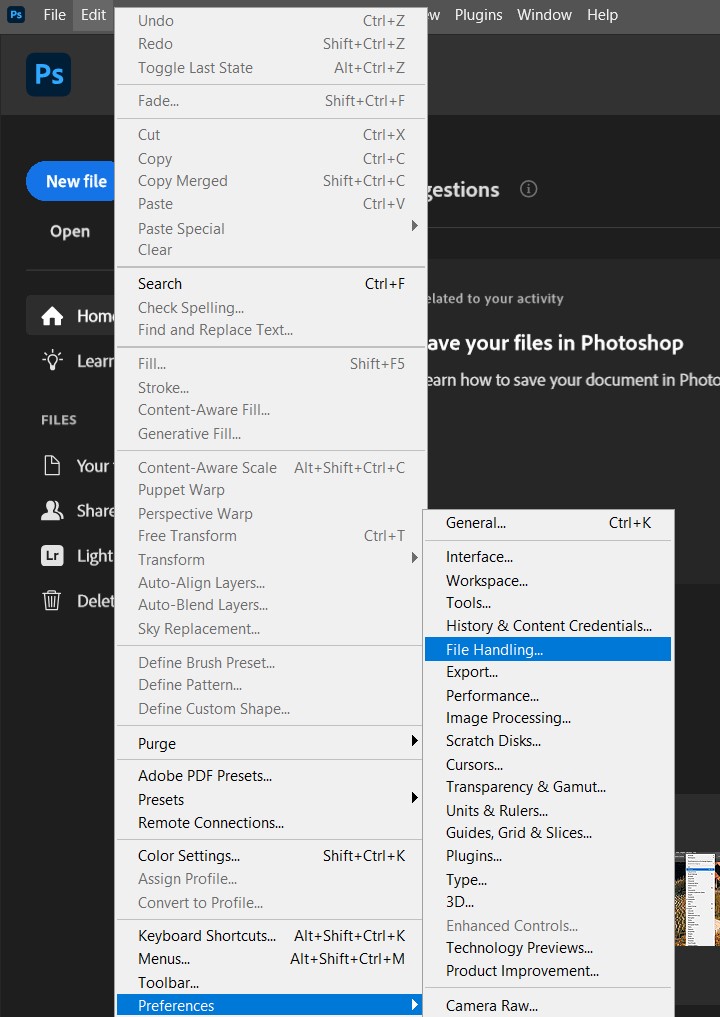
Click on Camera Raw Preferences:

Under JPEG and TFF Handling, select “Automatically open all supported JPEGs” for JPEG:

Click ok to apply the setting. Next time when you open any JPEG file, camera raw filter will automatically open with super resolution feature.
Part II
Open your low-resolution image in Photoshop. Right-click on the image and choose Enhance
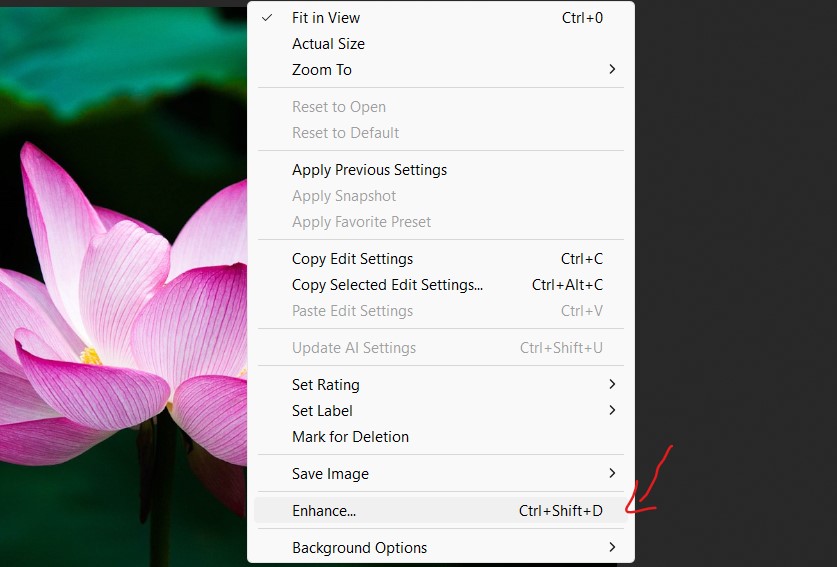

(Raw format only) Adjust the Enhance and Scale sliders to your preference. Remember, enlarging images without losing quality requires careful balancing .
You can click and hold preview window to view the difference.
Once satisfied, hit OK and bask in the pixel-perfect glory!
Super Resolution FAQs
- Can I use Super Resolution to fix a blurry image? It can help sharpen slightly blurry images, but won’t fix extreme blur or motion blur.
- Will Super Resolution work on old, low-quality photos? It can improve them to some extent, but the results might not be ideal. Higher-quality source material yields better results.
- What are the alternatives to Super Resolution for enlarging images? Traditional upscaling methods are still available, but the results are generally inferior. Gigapixel AI is another option, offering similar functionality with different strengths and weaknesses.
Remember: Super Resolution is a powerful tool to improve and enlarge your images, but it’s not magic. Experimenting and understanding its limitations will help you achieve the best results.
Conclusion
Enlarging images without losing quality is no longer a dream. With Super Resolution in Photoshop at your fingertips, your cherished photos can finally escape pixel purgatory and shine in all their high-resolution glory. Remember, the future of photography isn’t about shrinking your dreams, it’s about expanding your possibilities!