


In this tutorial, I will show you the steps I took to create this Rough Woody Text Effect Made of Wood Splinters in Photoshop. We will also use some ground textures and dirt brushes to achieve some special effect. Have a try!
The PSD file of this tutorial is available to buy on PSD Vault Shop, or via the PSD Vault VIP members area.

Here is a preview of the final effect I have for this tutorial: (click to enlarge)

PSD Vault VIP Membership
You can download the PSD File for this tutorial via the VIP Members Area for only $6.95/Month (or less)! You will not only get this PSD File, but also 200+ other PSD Files + Extra Goodies + Exclusive Photoshop tutorial there. Signup now and get exclusive!

Ok let’s get started!
To complete this tutorial, you need to the following stocks:
Nature Texture
Step 1
Create a new document sized 700px * 1000px with white background, then paint some dirt texture with the brush you downloaded: (please use any brush you like, no need to use the same brush as mine)
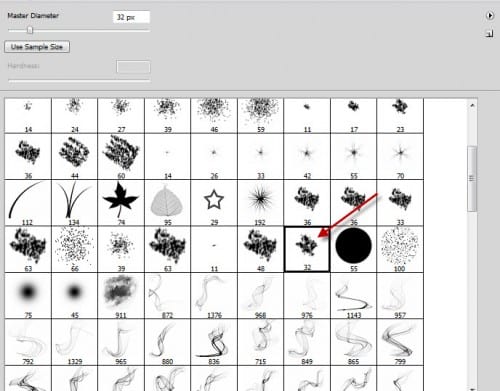
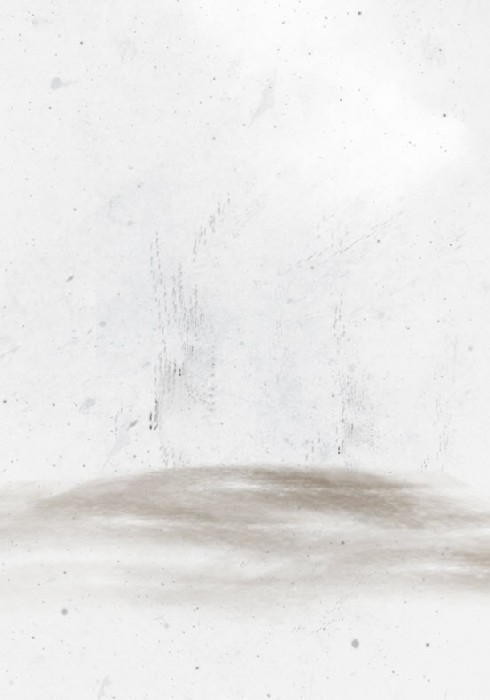
Grab a chalk brush from the brush window and set the brush colour to be light brown, then paint some ground on the canvas:
Step 2
Load the nature path stock image into Photoshop, select a portion of the image as shown below:

Copy and paste the selection onto our image, then adjust the perspective a bit with the free transform tool:

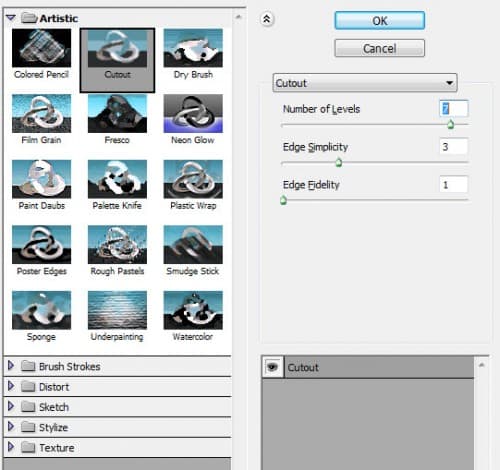
I decided to add some art feeling to the image. Go to Filter > Artistic > Cutout and apply the following settings to this ground texture:
Then erase the edge of this ground texture with a soft eraser:

Step 3
Use the font we download, type a letter on the canvas:

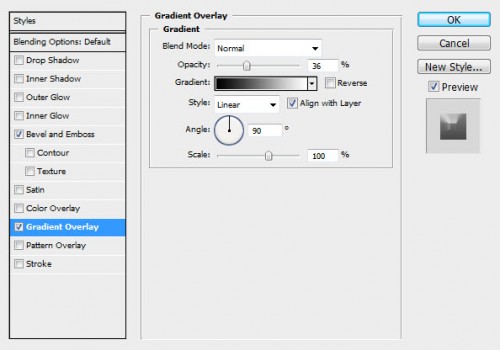
Apply the follow layer blending options to this text layer:
Bevel and Emboss

Gradient Overlay
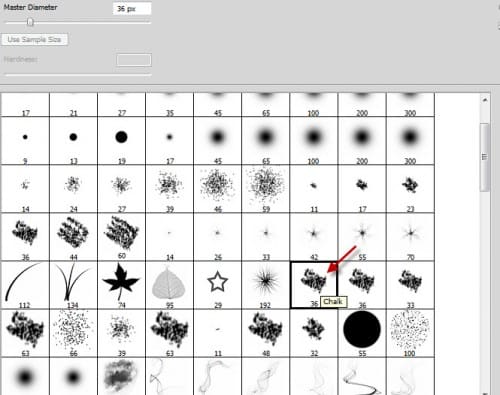
Select the chalk brush preset from the brush window:
Use the eraser tool with the chalk brush setting, erase the edge of the text to create some roughness:
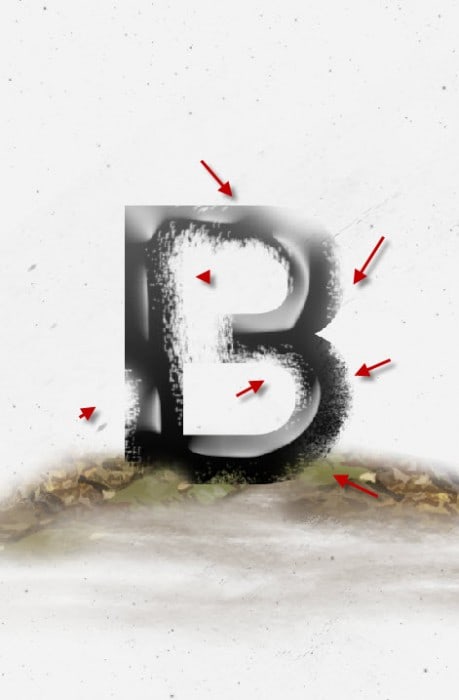
and here is the effect so far:

Step 4
Load the wood splinter image into Photoshop, use the Quick Selection tool to select a sharp piece from the image:

Copy and paste the selection on to our letter:

Go back to the wood stock image and repeat the step above, until the entire letter is covered.
Use the Warp Tool to adjust the shape of the wood for the right part of the letter:
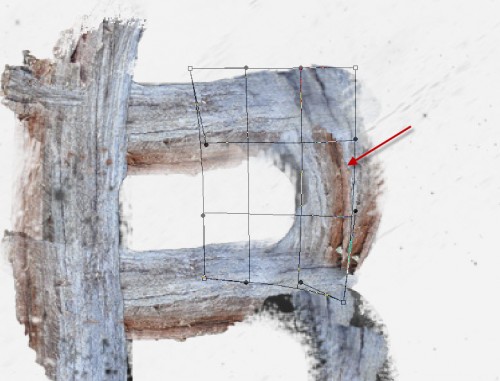
Use a soft brush to erase the edges so it blends into the background:
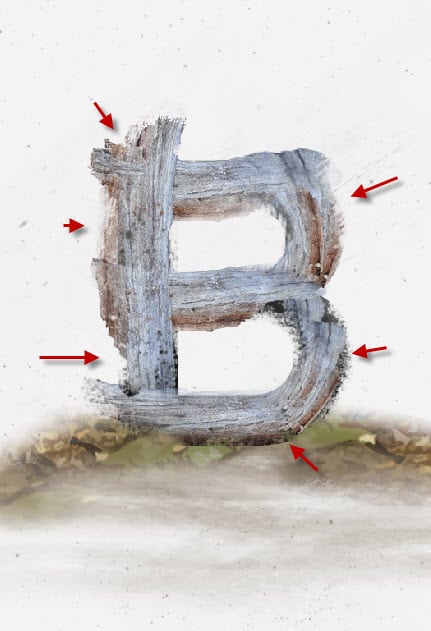
Carefully paint shadow under the text with a soft black brush, use the Free Transform tool to adjust its size when necessary:
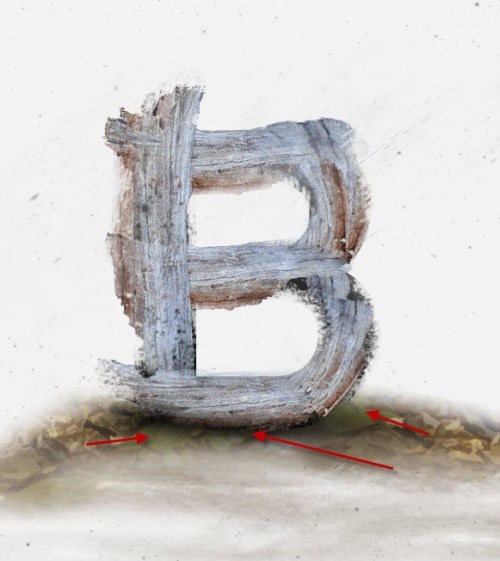
Step 5
I decided to use my own colour for this image. So I add a black and white image adjustment layer to the top of all previous layers:

By have this black and white adjustment layer, we can re-define the colour of the image, and also make certain areas darker (or lighter).
Also add a Curves adjustment layer on top of the black and white adjustment layer:

Mask on this Curves adjustment layer:
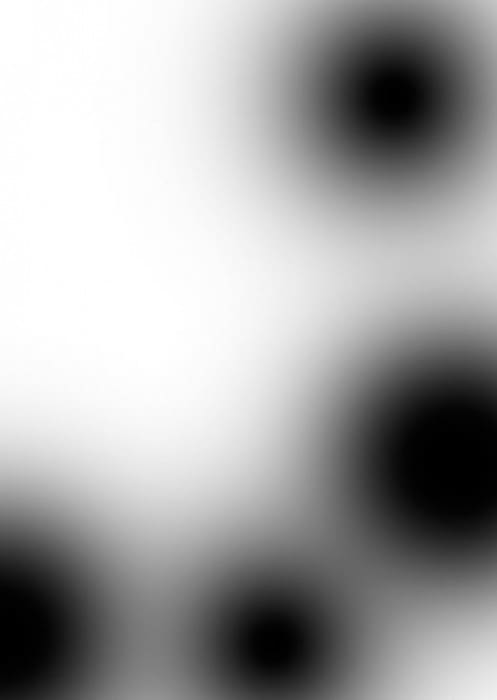
Use the dirt brush you downloaded, paint some splash around the edge of the text:

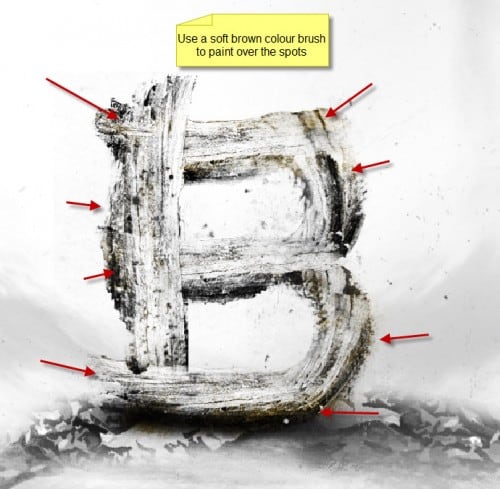
Create a new layer and use a dark green (or yellow) brush with around 20% flow and opacity, paint over the areas indicated below: (This adds a level of roughness and give the image some rusty feeling)
Step 6
We’re almost done. I decided to add some more rough feeling to the image. To do this, flatten the image (make sure you save a layered copy before you do this) and duplicate the background layer, apply the following Reduce Noise filter to the duplicated layer:

Reduce the layer opacity of this duplicated layer to around 80%, then add the following image adjustment layers on top of it:
Levels
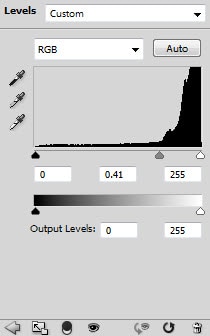
Mask on Levels adjustment layer

Curves
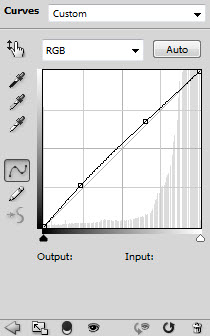
Colour Balance
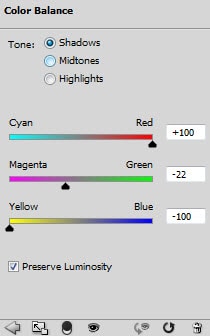
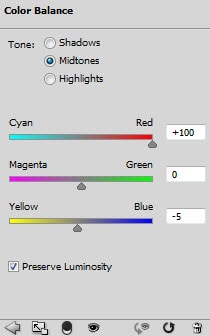
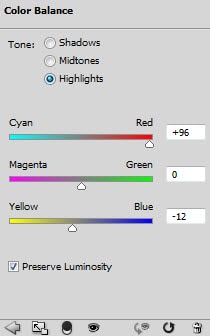
Mask on Colour Balance layer:

For more depth of the image, use the dodge and burn tool (with around 20% exposure) as indicated below:

and here is the final effect: (click to enlarge)
Ok that’s it for this tutorial! Just one last word: always try out different layer blending modes and see what effect that bring you! Sometimes you will be surprised to see some real cool effects :)
I hope you enjoy it and find it useful and inspirational!
Until next time, have a nice day!
6 Comments
Quite a complicated tutorial, but a really nice end result.. Thank you for sharing..!
Nice job mate! thanks for sharing and explain all details.
cheers,
Cristiano.
Great tutorial and techniques, explained well… Thanks for sharing…
Featured in Tutorials of the Week at http://www.hangaroundtheweb.com
thanks for shear this tutorial …. rally good
I love the final effect :)
nice