


Photoshop’s interface is your creative hub – so when the Layers panel disappears or the whole UI looks stretched, blurry, or flickering, work stops. The good news: almost every interface glitch traces back to one of a handful of causes, and none of them need a reinstall.
This guide covers the 9x fixes for missing panels and distorted displays. There’s also a quick-reference table at the end so you can jump straight to the fix that matches your symptom.
Quick Answer
Most missing-panel issues are solved by Window > [Panel Name], or Window > Workspace > Reset Essentials.
Most distorted-UI issues are solved by Edit > Preferences > Interface (Windows) or Photoshop > Settings > Interface (Mac) and adjusting UI Scaling. If neither works, jump to Fix 7 (reset preferences) below.
What You’ll Need
- Adobe Photoshop 2026 (version 27.x) or later — menu wording below matches this release
- A Windows or Mac computer showing the interface issue (missing panels, stretched/blurry UI, or flickering)
- Administrator access, in case a graphics driver update is required
Why Photoshop’s Interface Breaks in the First Place
Photoshop’s UI is drawn by your GPU and driven by a saved preferences file, a workspace layout file, and – if you use them – third-party plugins that add their own panels.
Any one of those four can drift out of sync: a workspace gets dragged around, a driver update changes how scaling is calculated, a plugin adds a panel Photoshop doesn’t expect, or the preferences file itself gets corrupted after a crash. That’s why the fixes below are ordered from “most common and reversible” to “more invasive” — start at the top and work down rather than jumping straight to a preferences reset.
1. Restore Missing Panels
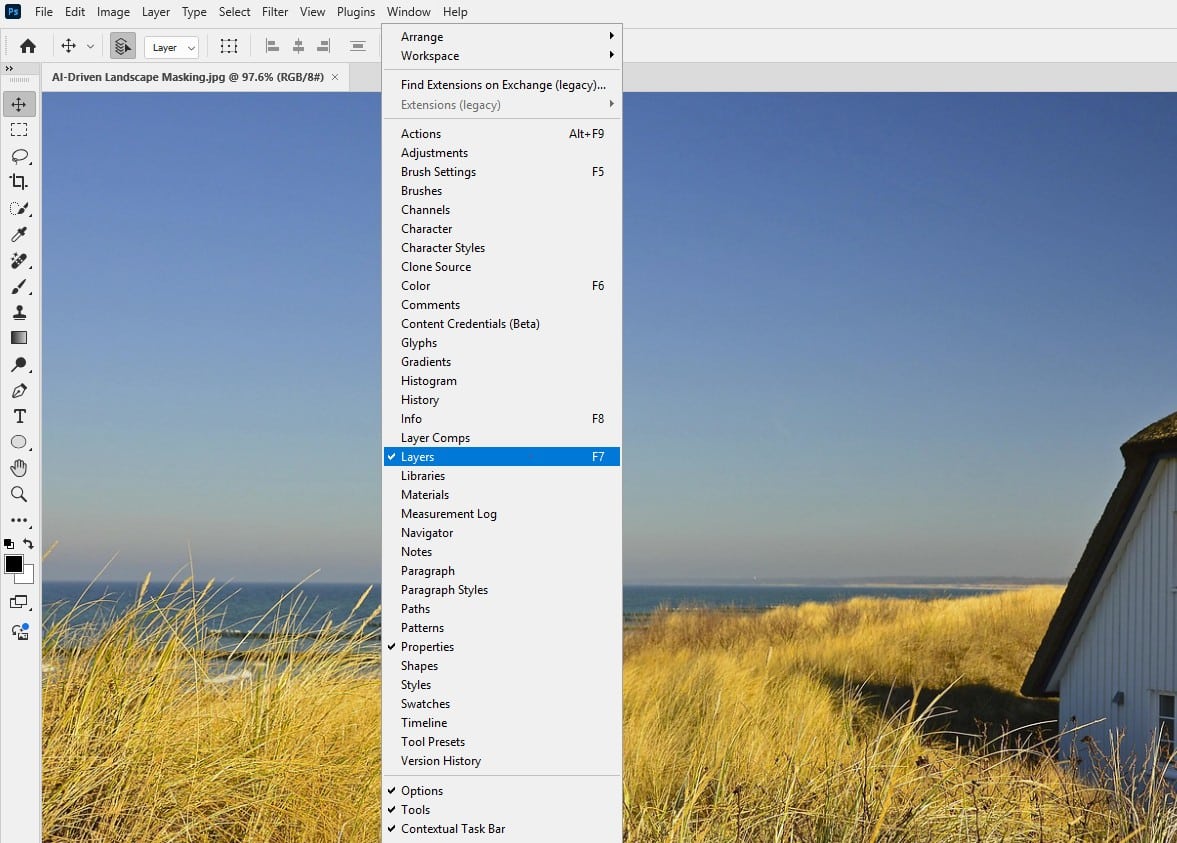
Missing panels like Layers or Tools often result from accidental closure or workspace changes. Go to Window in the top menu bar and tick the missing panel (e.g., Layers or Tools). This instantly reopens hidden panels. If the panel’s there but misplaced, drag it to dock it where you want.
2. Reset the Workspace to Fix Scattered Panel Layouts
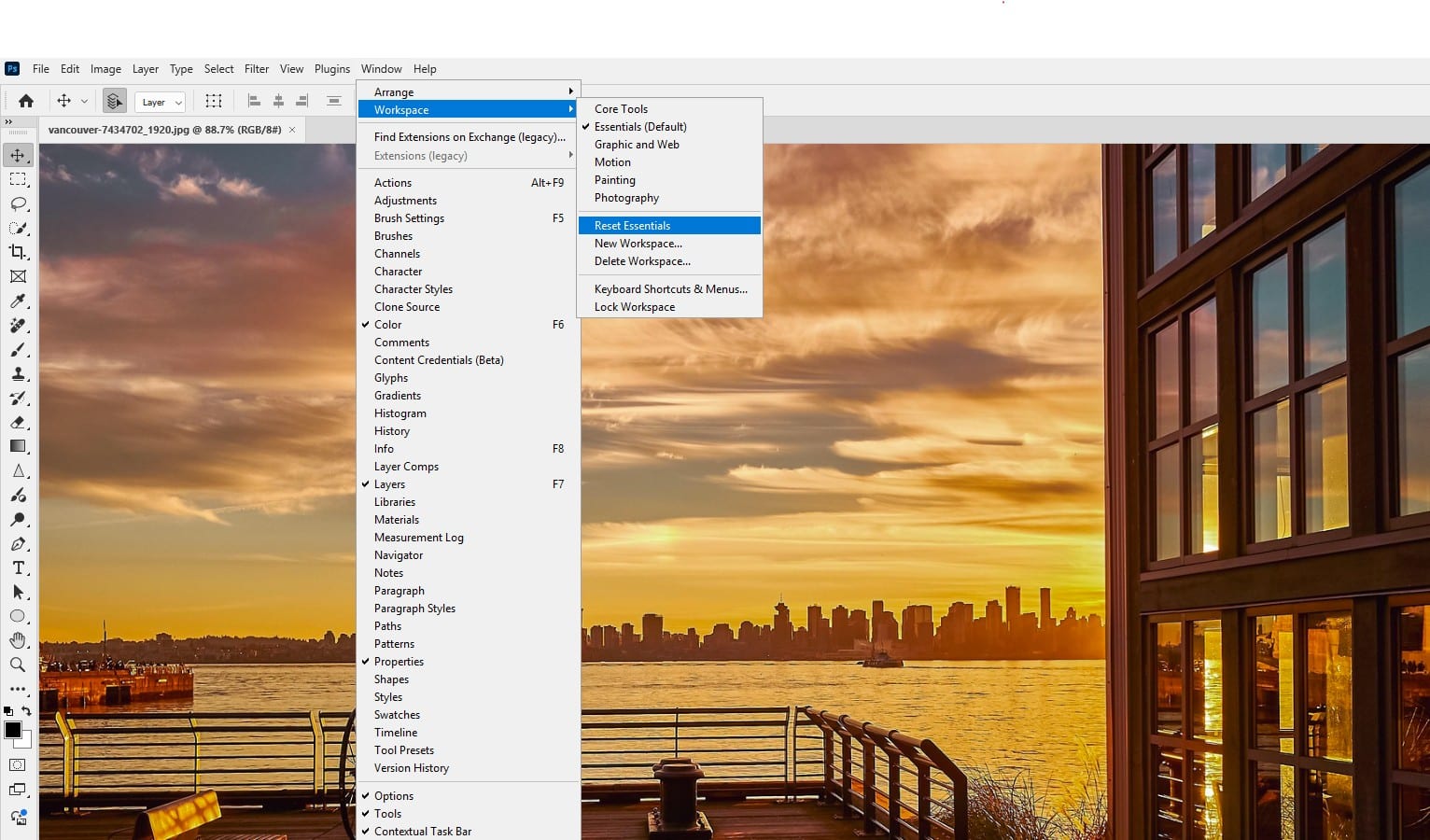
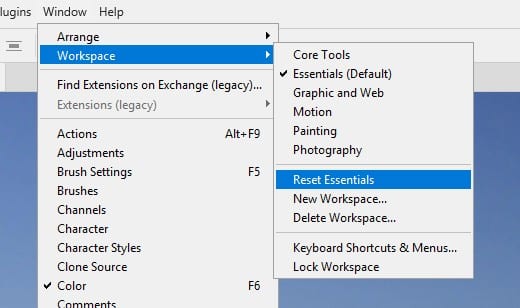
A glitched workspace can hide multiple panels at once or scatter your layout. Go to Window > Workspace > Reset Essentials (or whichever workspace you normally use, like Photography) to restore the default arrangement.
If problems persist, create a clean layout with Window > Workspace > New Workspace and give it a new name.
3. Fix Distorted UI with Scaling Adjustments
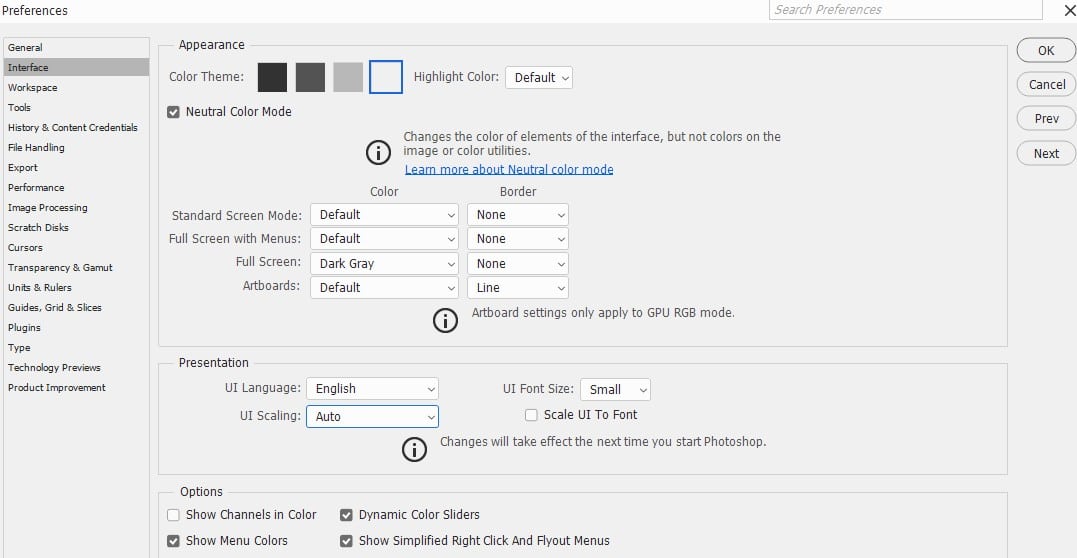
Tiny text, oversized icons, or stretched panels are almost always a scaling mismatch, especially on 4K and 5K displays. Go to Edit > Preferences > Interface on Windows, or Photoshop > Settings > Interface on Mac – Adobe renamed the Mac menu from “Preferences” to “Settings” in recent releases, so look there if Preferences isn’t listed.
Set UI Font Size to Large and UI Scaling to 200% for 4K displays, click OK, and restart Photoshop.
4. Match Scaling Across Multiple Monitors
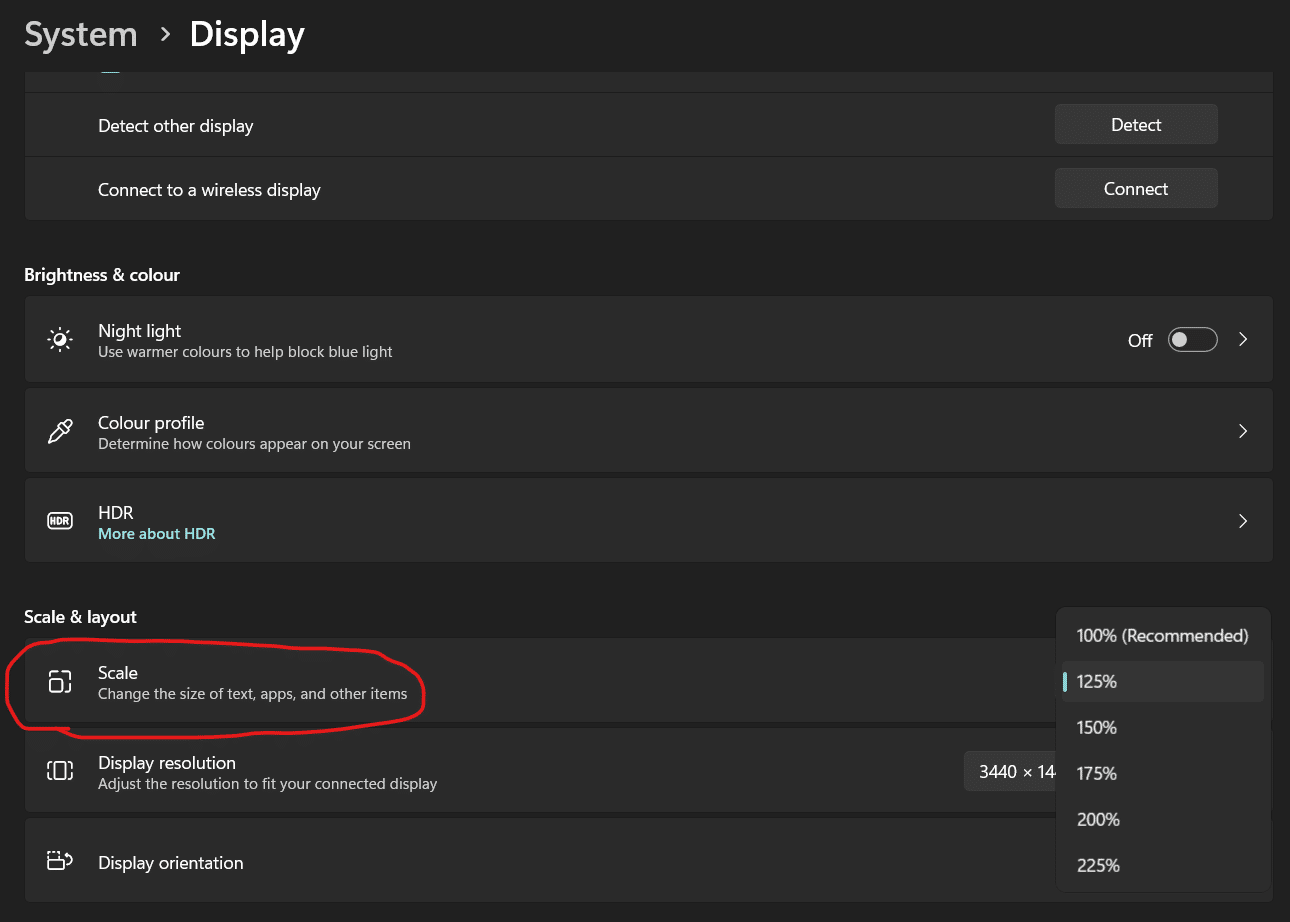
If the UI looks correct on your laptop screen but wrong the moment you drag a panel onto an external monitor, the two displays likely have different OS-level scaling percentages.
Photoshop calculates its UI scale when it launches and doesn’t always adjust cleanly on the fly when you move between displays.
Set both monitors to the same Windows/macOS scaling percentage where possible, and fully restart Photoshop (not just move the window) after changing displays or docking/undocking a laptop.
5. Update Graphics Drivers for Flickering UI
Flickering or garbled UI often points to outdated graphics drivers. Close Photoshop, then update your GPU driver via NVIDIA, AMD, or Intel’s website (or use Windows Update/Mac Software Update).
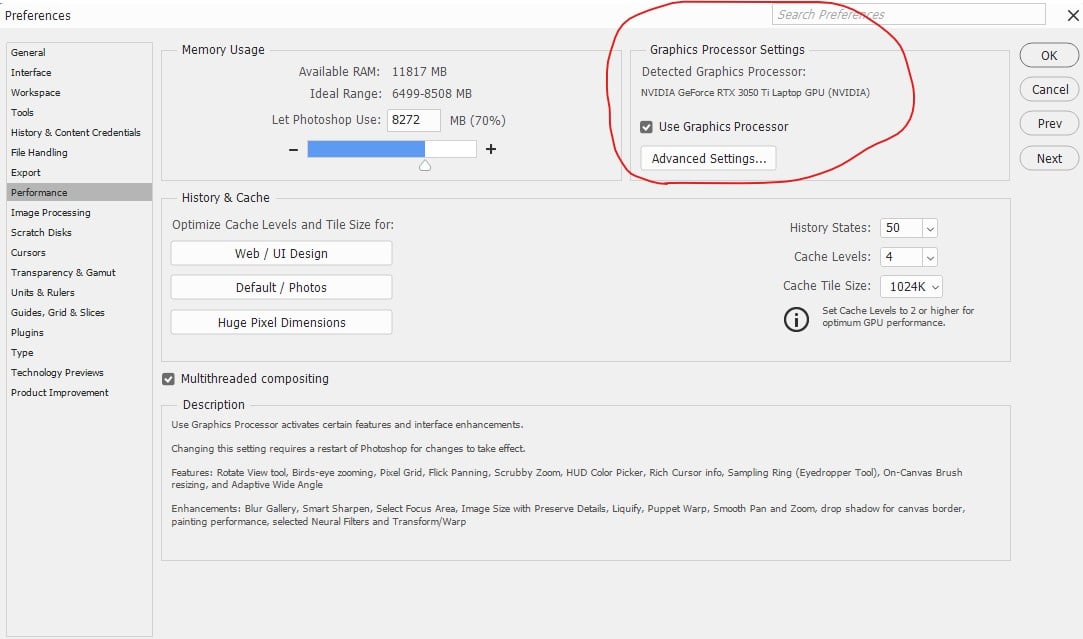
Reopen Photoshop and ensure Preferences > Performance > Use Graphics Processor is ticked.
6. Disable Third-Party Plugins That Add Unwanted Panels
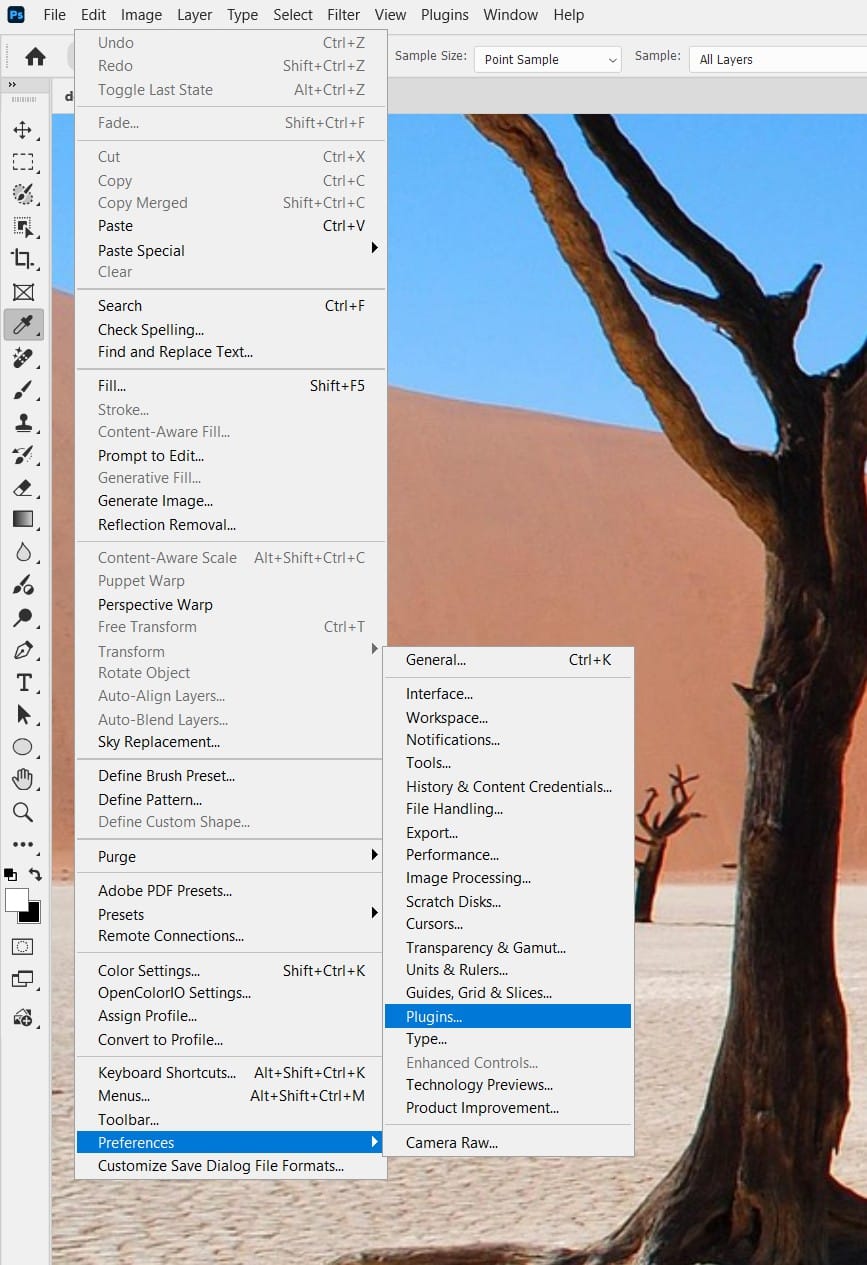
If you’re seeing panels you didn’t add, or the interface behaves oddly only after installing a plugin, marketplace extension, or panel-based script, the plugin is the likely cause rather than Photoshop itself. Go to Preferences > Plugins, disable third-party plugins, and restart Photoshop. If the interface behaves normally, re-enable your plugins one at a time to find the culprit.
7. Reset Preferences to Resolve Persistent Issues
Corrupted preferences can cause stubborn UI problems. Hold Ctrl+Alt+Shift (Windows) or Cmd+Option+Shift (Mac) while launching Photoshop. Confirm “Yes” to the prompt to delete settings. This resets all preferences, fixing deep interface issues but clearing custom settings.
8. Clear Cache and Check Scratch Disk Space if Panels Look Corrupted
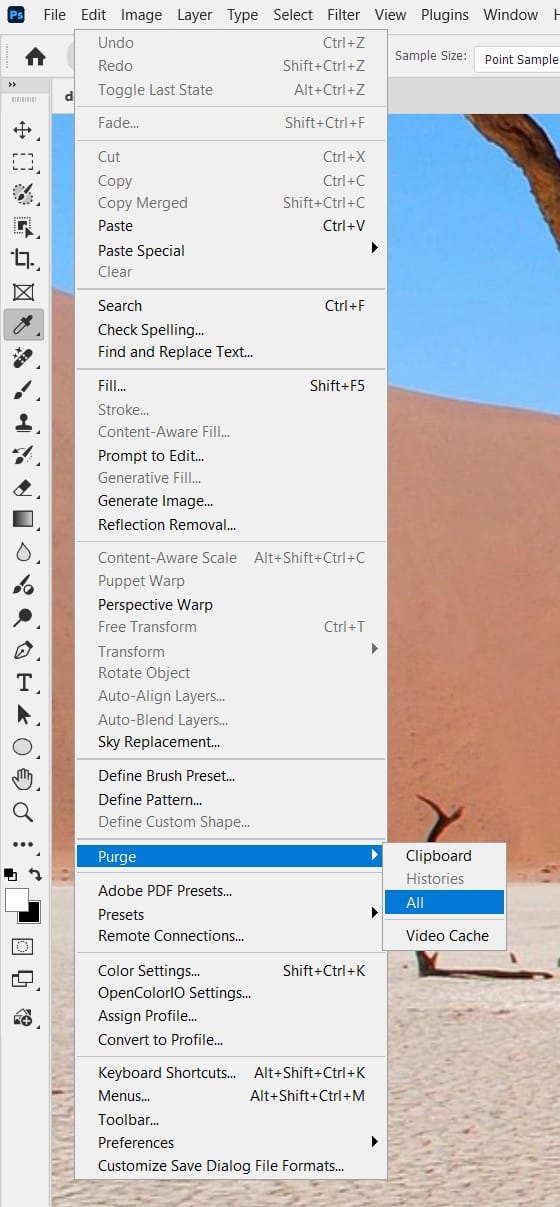
If panel contents, thumbnails, or previews look glitchy or fail to redraw even after a workspace reset, check your scratch disk. Go to Edit > Purge > All to clear the in-app cache, then confirm in Preferences > Scratch Disks that the assigned drive has enough free space (Adobe recommends several times your typical file size).
A nearly full scratch disk drive is a common, easy-to-miss cause of interface glitches that look like a UI bug but are really a storage problem.
9. Update Photoshop for Bug Fixes
Outdated versions may have UI bugs. Open Adobe Creative Cloud, go to Apps, and install any Photoshop updates (2025 or newer). Updates often include AI-enhanced interface stability and bug fixes for display issues.

Troubleshooting Quick Reference
Match your symptom to the likely cause if you’d rather skip straight to the fix:
| Symptom | Likely Cause | Fastest Fix |
| A panel (Layers, Properties, etc.) has vanished | Panel closed or hidden behind another window | Window menu > tick the panel name |
| Panels are scattered or overlapping | Custom layout got dragged out of place | Window > Workspace > Reset Essentials |
| Text/icons are tiny or huge on a 4K/5K screen | UI scaling mismatched to display DPI | Preferences > Interface > UI Scaling |
| UI flickers, garbles, or shows black boxes | Outdated/incompatible GPU driver | Update GPU driver, then check Use Graphics Processor |
| UI looks fine on the laptop screen but wrong on an external monitor | Per-monitor scaling isn’t Photoshop-friendly | Match OS scaling across displays or restart PS after switching |
| Panels won’t dock, resize, or respond at all | Corrupted preferences file | Hold Ctrl/Cmd+Alt/Opt+Shift at launch to reset preferences |
| Extra/odd panels appear that you didn’t add | A third-party plugin or extension is injecting a panel | Disable extensions in Preferences > Plugins, restart, re-enable one by one |
| Thumbnails, previews, or panel contents look corrupted | Scratch disk or cache issue | Purge cache (Edit > Purge > All) and check scratch disk space |
Pro Tips
- Shortcut Keys: Press
Tabto toggle all panels orF7for Layers to check visibility quickly. - Custom Workspace: Save your layout (
Window > Workspace > New Workspace) to avoid repeated resets. - Windows Hi-DPI Fix: Right-click Photoshop’s shortcut, go to Properties > Compatibility > Change High DPI Settings, and tick “Override high DPI scaling behaviour.”
- Keep one plugin folder backup so disabling plugins for testing (Fix 6) is a quick toggle, not a reinstall.
Frequently Asked Questions
Why did my Layers panel disappear in Photoshop?
It’s almost always just closed rather than deleted. Open Window in the menu bar and tick Layers to bring it back — see Fix 1 above.
Why does Photoshop’s interface look blurry or the wrong size on my 4K monitor?
This is a UI scaling mismatch. Set UI Scaling to 200% under Preferences > Interface (Fix 3), and make sure your OS scaling matches across all connected displays (Fix 4).
Will resetting Photoshop’s preferences delete my presets or actions?
A preferences reset clears interface settings, tool defaults, and workspace layouts, but saved presets, actions, and brushes stored in your user library are generally unaffected. Back up anything custom before resetting if you’re unsure.
I don’t see ‘Preferences’ in Photoshop’s menu on Mac — where did it go?
Adobe renamed it. On current Photoshop releases for Mac, look under Photoshop > Settings instead of Photoshop > Preferences.
My UI is fine until I connect a second monitor — is that normal?
It’s a known friction point when displays use different scaling percentages. Match the OS scaling across monitors and fully restart Photoshop after connecting or switching displays, per Fix 4.
Final Thoughts
Missing panels and a distorted UI feel like they derail a whole session, but nearly every case comes down to a closed panel, a scaling mismatch, a driver, a plugin, or a corrupted preferences file.
Work through the fixes above in order, and you’ll almost always have your workspace back before you’d have finished troubleshooting a support ticket.