
Close Menu
PSD VaultPSD Vault
  • VIP Area
  • Photoshop Basics
  • Photo Effect
  • Text Effect
  • Premium Tuts
  • Resources
  • Drawing
  • Inspiration
  • Web Graphics
  • Abstract
  • Freebies
  • Advertise
  • Get in Touch
  • About PSD Vault
Facebook Instagram Pinterest YouTube TikTok
Facebook Instagram Pinterest YouTube TikTok RSS
PSD VaultPSD Vault
  • VIP Area
    • Sign Up
    • Log In
  • Photoshop Basics
  • AI
  • Photoshop Error Fixes
  • Video Tutorial
  • Photo Effect
  • Text Effect
  • Premium Tuts
  • Drawing
  • Opinion
PSD VaultPSD Vault
Home»Basics»10 Tips to Master the Photoshop Contextual Taskbar
photoshop contextual taskbar tips
Basics

10 Tips to Master the Photoshop Contextual Taskbar

By Lana WilsonJanuary 8, 20253 Mins Read
Share
Facebook Twitter LinkedIn Pinterest Email

The contextual taskbar in Photoshop 2024 is a powerful tool to boost your editing efficiency. Here are 10 tips to unlock its full potential.

But before we dive in, here is a brief intro of this new feature:

What is Contextual Taskbar?

The contextual taskbar, introduced in Photoshop 2023 and still present in the latest version (2024), is a dynamic toolbar designed to improve your editing efficiency by offering context-aware tools and adjustments.

By default, it appears as a floating bar at the bottom centre of your document window.

contextual toolbar photoshop position 1

Embrace the Dynamic Nature

The beauty lies in the changing options. Don’t fight it! Learn the logic – text tools bring up text adjustments, brushes get brush settings. This reduces menu diving and keeps your focus on the image.

Pin it When Needed

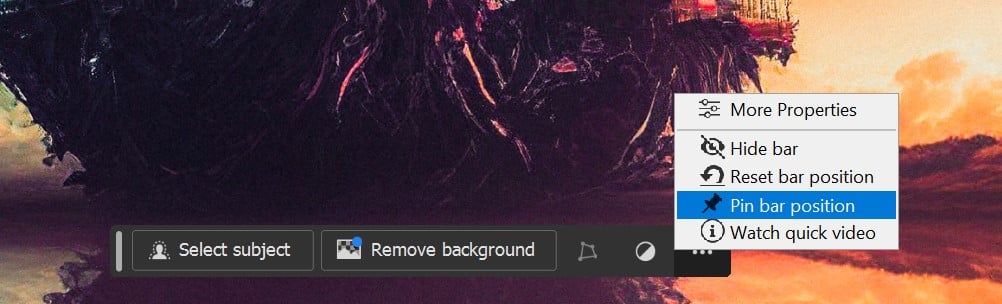
Working on repetitive tasks? Pin the taskbar in place (three-dot menu > Pin bar position) for consistent access to the same tools. Unpin it (same menu) when you need the context to switch.
Master Keyboard Shortcuts

Still love shortcuts? The contextual bar reflects your keyboard shortcut selections. Use familiar shortcuts (like “B” for brush) and see the relevant settings pop up for quick adjustments.

Hidden Gems in the Menu

Don’t underestimate the power of the three-dot menu. It provides access to hidden functions within the current context. Explore it for options you might not readily see on the surface.

Fast Access to Layer Properties

Working with layers? The contextual bar becomes a mini-control panel. Need to change blending modes, opacity, or layer styles? It’s all readily available, saving you trips to the Layers panel.

Selection Magic

The taskbar understands selections! Working on selections? The bar offers tools for refining selections (like feathering or contracting) or quick actions like “Fill Selection” or “Add Layer Mask,” all within easy reach.

Tool-Specific Tweaks

The magic extends beyond basic tools. Filter enthusiasts rejoice! The contextual bar provides filter-specific adjustments when a filter is applied, allowing for on-the-fly fine-tuning.

Develop the Contextual Habit

Train yourself to look at the taskbar for relevant options. Over time, it becomes second nature, reducing reliance on menus and toolbars, keeping your workflow focused on the image.

Experiment with Different Workflows

The contextual bar adapts to your actions. Try using different tools and see how the bar adjusts. This exploration can help you discover new editing workflows that fit your style.

Remember, it’s a Tool, Not a Master

While powerful, the contextual bar shouldn’t dictate your workflow. If you prefer a specific panel or menu, use it! The beauty lies in having options and the flexibility to choose what works best for you.

By mastering the contextual taskbar, you can significantly enhance your Photoshop workflow, allowing you to focus on your creativity and produce stunning edits with greater efficiency.

contextual taskbar workflow
Share. Facebook Twitter Pinterest LinkedIn Tumblr Email
Lana Wilson

Lana Wilson is a Photoshop artist with over 10 years of experience. She is known for her creative and innovative use of Photoshop to create stunning images. Her work has been featured in magazines, websites, and advertising campaigns. Lana is passionate about using Photoshop to tell stories and create emotional connections with her audience. She is always looking for new ways to use the software to push the boundaries of what is possible.

Related Posts

How to Use “Find Distractions” Feature in Photoshop for Easy Photo Clean-up

December 22, 2025

How to Blend Cut-Out Objects Seamlessly with AI Harmonize in Photoshop

December 17, 2025

A Beginner’s Guide to Photoshop’s Adjustment Layers

December 6, 2025

Comments are closed.

Don't Miss

Quick AI Portrait Relighting for Dramatic Effects in Photoshop

December 31, 2025

How to Use Photoshop’s Style Transfer to Boost Your Artwork

December 24, 2025

How to Make Disintegrating Human Effect in Photoshop

December 23, 2025

For Beginners

Basics

How to Use “Find Distractions” Feature in Photoshop for Easy Photo Clean-up

By James QuDecember 22, 20255 Mins Read

How to Blend Cut-Out Objects Seamlessly with AI Harmonize in Photoshop

December 17, 2025

A Beginner’s Guide to Photoshop’s Adjustment Layers

December 6, 2025

How to Make Perfect Hair Selection with AI Masking in Photoshop

November 28, 2025

You May Also Like

Basics

How to Use “Find Distractions” Feature in Photoshop for Easy Photo Clean-up

By James QuDecember 22, 20255 Mins Read
Basics

How to Blend Cut-Out Objects Seamlessly with AI Harmonize in Photoshop

By James QuDecember 17, 20253 Mins Read
Basics

A Beginner’s Guide to Photoshop’s Adjustment Layers

By Lana WilsonDecember 6, 20254 Mins Read
Facebook X (Twitter) Instagram Pinterest
  • About Us
  • Get in Touch
  • Advertise
  • VIP Area
  • Privacy Policy
  • Terms & Conditions
© 2026 PSD Vault. All Right Reserved.

Type above and press Enter to search. Press Esc to cancel.

Manage Consent
To provide the best experiences, we use technologies like cookies to store and/or access device information. Consenting to these technologies will allow us to process data such as browsing behavior or unique IDs on this site. Not consenting or withdrawing consent, may adversely affect certain features and functions.
Functional Always active
The technical storage or access is strictly necessary for the legitimate purpose of enabling the use of a specific service explicitly requested by the subscriber or user, or for the sole purpose of carrying out the transmission of a communication over an electronic communications network.
Preferences
The technical storage or access is necessary for the legitimate purpose of storing preferences that are not requested by the subscriber or user.
Statistics
The technical storage or access that is used exclusively for statistical purposes. The technical storage or access that is used exclusively for anonymous statistical purposes. Without a subpoena, voluntary compliance on the part of your Internet Service Provider, or additional records from a third party, information stored or retrieved for this purpose alone cannot usually be used to identify you.
Marketing
The technical storage or access is required to create user profiles to send advertising, or to track the user on a website or across several websites for similar marketing purposes.
  • Manage options
  • Manage services
  • Manage {vendor_count} vendors
  • Read more about these purposes
View preferences
  • {title}
  • {title}
  • {title}