Close Menu
PSD VaultPSD Vault
  • VIP Area
  • Photoshop Basics
  • Photo Effect
  • Text Effect
  • Premium Tuts
  • Resources
  • Drawing
  • Inspiration
  • Web Graphics
  • Abstract
  • Freebies
  • Advertise
  • Get in Touch
  • About PSD Vault
Facebook Instagram Pinterest YouTube TikTok
Facebook Instagram Pinterest YouTube TikTok RSS
PSD VaultPSD Vault
  • VIP Area
    • Sign Up
    • Log In
  • Free Image Tools
  • Photoshop Basics
  • AI
  • Photoshop Error Fixes
  • Video Tutorial
  • Photo Effect
  • Text Effect
  • Premium Tuts
  • Drawing
PSD VaultPSD Vault
Home»Basics»Essential Photoshop Shortcuts All Beginners Should Learn – Part II
Basics

Essential Photoshop Shortcuts All Beginners Should Learn – Part II

By James QuOctober 7, 20172 Mins Read
Share
Facebook Twitter LinkedIn Pinterest Email

This is Part II of the “Essential Photoshop Shortcuts All Beginners Should Learn” series here on PSD Vault. In this post, I will take you through another five wonderful Photoshop shortcuts that will make your design tasks easier and your workflow more efficient.

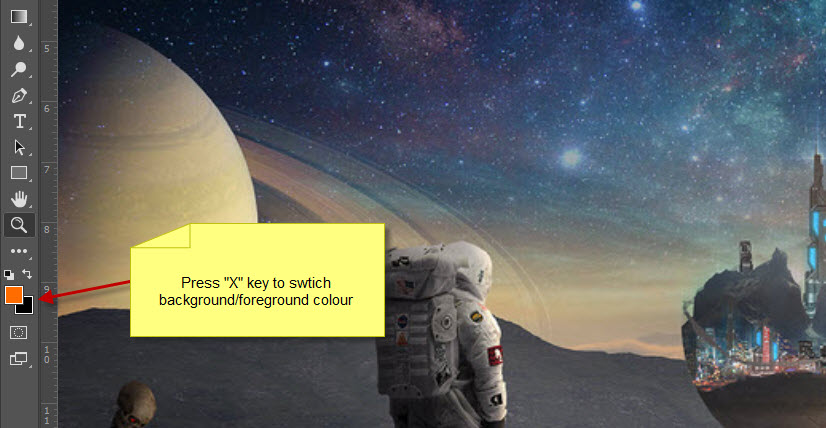
1. Switch Background/Foreground Colours

You would find that quite often you need to switch background/foreground colour. A faster way to do this is to press the “X” key – this is much quicker then using the colour picker:
2. Add to Selection

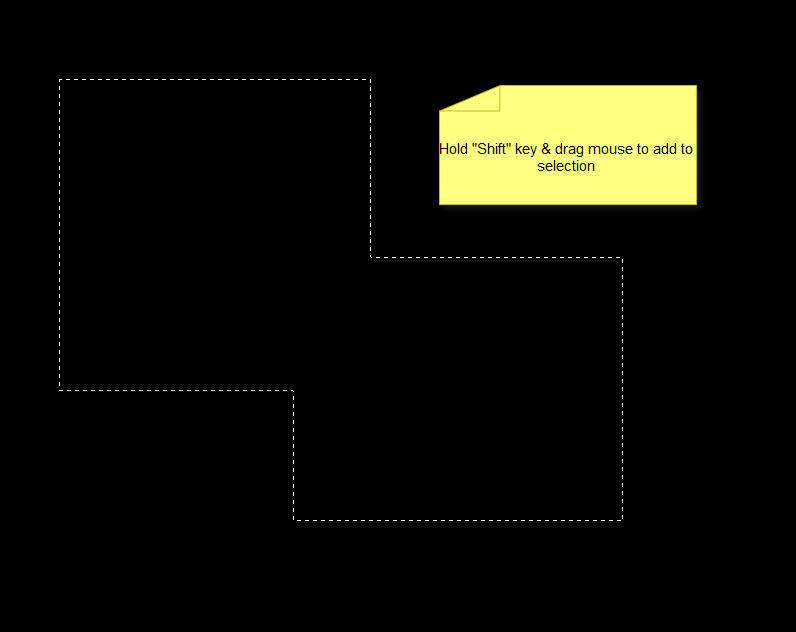
Occasionally you will need to add extra selection to your existing selection. Assuming you already have an selection like this:

To add to this selection, simply use any selection tool + Shift-drag to add another selection to the existing one. This screenshot below shows an extra rectangular selection added to the existing selection:
3. Reveal Hidden Tools

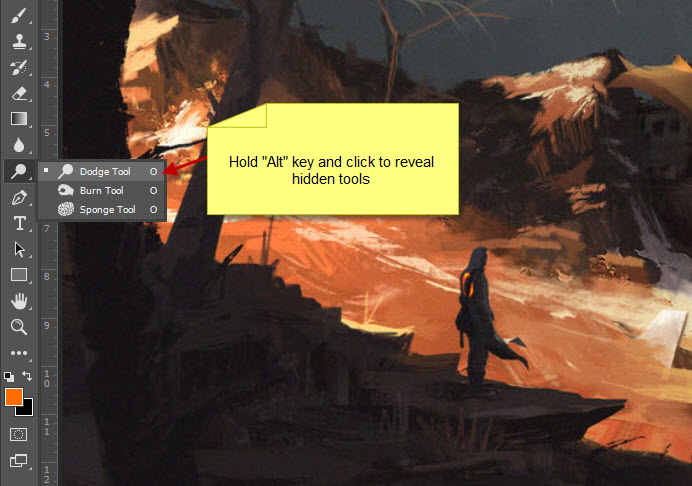
There are hidden tools in almost every tool in the Photoshop toolbox. To reveal them, simply click and hold your mouse and you will see the pop-up window of the hidden tools.

Alternatively, you can simply hold “Alt” key and left-click any one tool to cycle through all the hidden tools within it:
4. Cycle Through Open Document

If you’re like me and enjoy having tons of documents & photos opened at once, you will find this shortcuts handy – simply press Ctrl + Tab to cycle through all open documents:

5. Switch to Hand Tool

To switch your mouse into hand tool, simply hold “space” key. This is very handy if you have one photo zoomed in, and you want to quickly use the hand tool to move around the photo:

That’s it for this post! Hope you learnt a thing or two, now go practicing those shortcuts!

Want to learn more awesome shortcuts? Check out Photoshop Shortcuts – Part I and Photoshop Shortcuts – Part III.

beginners photoshop shortcuts
Share. Facebook Twitter Pinterest LinkedIn Tumblr Email
James Qu
  • Website

James is a seasoned Photoshop expert with over 25 years of experience based in Australia. As the driving force behind PSD Vault, he authors the majority of its in-depth tutorials and insightful articles.

Related Posts

10 Genius Tips to Master Photoshop’s AI Object Selection Tool

August 15, 2026

How to Resize Images Without Losing Quality in Photoshop

August 13, 2026

How to Turn Day to Night in Photoshop: 2 Complete Methods

August 8, 2026

Comments are closed.

Don't Miss

10 Genius Tips to Master Photoshop’s AI Object Selection Tool

August 15, 2026

How to Fix Neural Filters Not Working or Greyed Out in Photoshop 2026

August 14, 2026

How to Resize Images Without Losing Quality in Photoshop

August 13, 2026

For Beginners

AI

10 Genius Tips to Master Photoshop’s AI Object Selection Tool

By James QuAugust 15, 20264 Mins Read

How to Resize Images Without Losing Quality in Photoshop

August 13, 2026

10 Time-Saving Photoshop Shortcuts You’ll Love

August 7, 2026

How to Easily Remove Reflections in Photoshop 2026

August 1, 2026

You May Also Like

AI

10 Genius Tips to Master Photoshop’s AI Object Selection Tool

By James QuAugust 15, 20264 Mins Read
Basics

How to Resize Images Without Losing Quality in Photoshop

By James QuAugust 13, 20265 Mins Read
Photo Effect

How to Turn Day to Night in Photoshop: 2 Complete Methods

By James QuAugust 8, 202618 Mins Read
Facebook X (Twitter) Instagram Pinterest
  • About Us
  • Get in Touch
  • Advertise
  • VIP Area
  • Free Image Tools
  • Privacy Policy
  • Terms & Conditions
© 2026 PSD Vault. All Right Reserved.

Type above and press Enter to search. Press Esc to cancel.

Manage Consent
To provide the best experiences, we use technologies like cookies to store and/or access device information. Consenting to these technologies will allow us to process data such as browsing behavior or unique IDs on this site. Not consenting or withdrawing consent, may adversely affect certain features and functions.
Functional Always active
The technical storage or access is strictly necessary for the legitimate purpose of enabling the use of a specific service explicitly requested by the subscriber or user, or for the sole purpose of carrying out the transmission of a communication over an electronic communications network.
Preferences
The technical storage or access is necessary for the legitimate purpose of storing preferences that are not requested by the subscriber or user.
Statistics
The technical storage or access that is used exclusively for statistical purposes. The technical storage or access that is used exclusively for anonymous statistical purposes. Without a subpoena, voluntary compliance on the part of your Internet Service Provider, or additional records from a third party, information stored or retrieved for this purpose alone cannot usually be used to identify you.
Marketing
The technical storage or access is required to create user profiles to send advertising, or to track the user on a website or across several websites for similar marketing purposes.
  • Manage options
  • Manage services
  • Manage {vendor_count} vendors
  • Read more about these purposes
View preferences
  • {title}
  • {title}
  • {title}