


In this tutorial, I will show you the steps I took to Design a Shattered, Scrappy Metal Text Effect in Photoshop. You will learn how you utilise a range of selection and transformation techniques to manipulate textures in order to form certain effect. Have a try!
This is an intermediate to advance level Photoshop tutorial. If you’re having difficulty with the steps in this tutorial, I suggest you go to the basic section of PSD Vault and practice those tutorials first, then come back and do this one.
Here is a preview of the final effect: (click to enlarge)

PSD File Download
You can download the PSD File for this tutorial via the VIP Members Area for only $6.95/Month (or less)! You will not only get this PSD File, but also 70+ other PSD Files + Extra Goodies + Exclusive Photoshop tutorial there. Signup now and get exclusive :) Find out more about the VIP Members Areas

Ok Let’s get started!
To complete this tutorial, you will need the following stock:
Step 1
Create a new document with black background (size doesn’t really matter for this tutorial, I used 1200px * 700px). Create a new layer on top of the background layer and set the opacity to around 20%, render some cloud with the cloud filter on it:

Duplicate this cloud layer once, compress it down then rotate it as shown below with the free transform tool:

We will use this new cloud layer as a guide for our text base – so increase the opacity to around 30% for it. And you will have the following effect:

Step 2
Load the metal texture image into Photoshop, use the quick selection tool to select a random piece of the texture:

Copy and paste the selection into our document, rotate it a bit as shown below:

Grab a soft eraser with the opacity and flow set to both around 40%, gently erase the edges of the metal texture to give it a little more depth.
Note: The following 3 screenshots indicate the Top Left, Center, and Bottom Right area of the metal texture.
Top Left Portion:

Center Portion:

Bottom Right Corner:

You will have the following similar effect as a result:

Step 3
Now let’s make a particle brush with this metal stock image. If you have followed psdvault.com for a while, you will know that I love making those kind of brush for all sorts of effect :)
So let’s go to the metal image, use the quick selection tool to select a few random pieces from the image, as shown below:

Double click the background layer to unlock it:

Then go to Edit > Define Brush Preset to create a new brush preset:

Once you defined a new brush set, press F5 and bring up the brush windows, apply the following settings:
Shape Dynamics

Scattering

Make sure you tick the “Protect Texture” option on the brush window.
Use this brush as an eraser, reduce the tip size to a small scale, erase the following areas of the metal texture on our document:
Center

Bottom Right

Top Left

Then add the following two adjustment layers as clipping mask to the metal texture layer:
Levels

Black and White

Layer mask on the Black and White adjustment layer:

and you will have the following effect so far:

You can use this particle brush to paint around the following areas for the shatter effect:
Hint: make sure you reduce the brush tip size to a smaller scale, and set the brush flow and opacity to around 50%, DO NOT paint too much particles.

Step 4
Now let’s move to the text part. Type a letter onto the canvas as shown below: (Font choice doesn’t matter here, we only use this as a guide for our texture)

Again we select a piece of metal texture with the Quick Selection Tool:

Copy and paste the selection onto our document, resize and fit it to our letter:

Repeat the steps above and apply more metal texture to the letter:
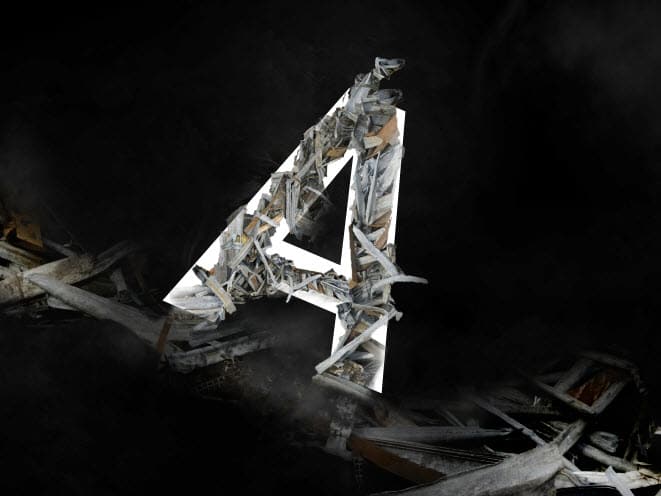
When you’re happy with the shape, hide the original white text, and merge those layers and use a soft erase to remove the edges of the letter:

Make sure you erase the bottom of the letter as well, so it blends into the base:

Add the following 3 adjustment layers as clipping mask to the letter texture:
Levels

Black and White

Layer mask on Black and White adjustment layer:

Curves

Use the particle brush we created in previous step, paint some shattered pieces around the letter:

Here is the effect so far:

Step 5
We’re almost done! For some final retouches, I smart sharpen the image a bit after flattening the layers:

I also added some more particles around the base texture:


Plus a few more spot lights around the letter:

You can also adjust the contrast a bit with a brightness and contrast adjustment layer, and here is the final effect I have for this tutorial:(click to enlarge)
You can choose your own color scheme and experiment with the result – I used a dark red kind of effect.
That’s it for this tutorial! Hope you enjoy this tutorial and find it useful! Till next time, have a great day!
6 Comments
thank’s
good the webside the
i am happy to work and my fevorite the photoshop image to my friends
Hey,You article is excellent and quite in derived oriented for everybody who are in the field of designing especially. Thank You,
Thanks brother, this will be so helpful.
Hey James, It’s a great tutorial and really new to learn the technique. Keep going .
Nice article.
Its a great informative tutorial. Keep sharing continue.