


This is a comprehensive guide on how to invert color in Photoshop using the “invert” command. Invert command in Photoshop is not as simple as it sound, there is more than meets the eyes.
Photoshop gives you full control to alter every pixel in your image. One of Photoshop’s feature is the Invert command. We are going to dig a bit deeper into the Invert command and use some examples to help you understand its usage.

Step 1: Inverting a Flat Image
In this tutorial, we are going to use a nice photo from unsplash.
Step 2
When working with a flat image, we need to make sure that the original image remain intact. Avoid applying Invert command directly to your Background layer. You should always duplicate the Background layer to keep the original image and work with the new duplicated layer. To do this, drag the Background layer onto the New layer icon.

Step 3
Apply the Invert command by clicking on the menu Image > Adjustments > Invert or hit Ctrl + I.

Step 4
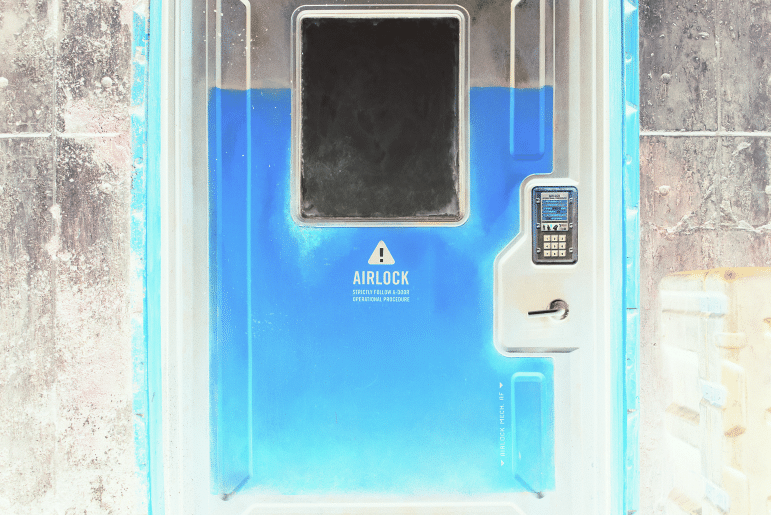
Photoshop will invert every pixels, turning its color to its exact opposite color.

Step 5: Adjustment Layer Invert
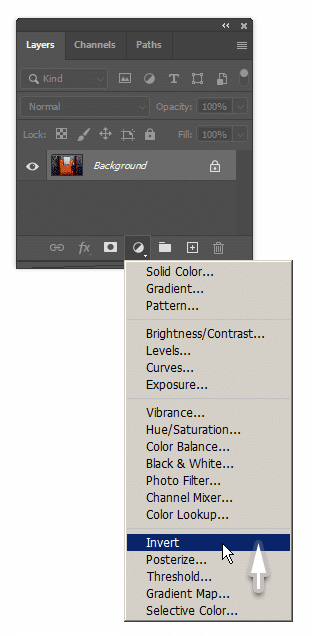
There is other way to invert pixel without directly altering the pixels, which is using adjustment layers. Click the Adjustments icon in the lower part of the Layers Panel and select Invert.
Step 6
This invert adjustment layer works very much like the regular invert. If you take a look at its properties, there is no options available. It simply invert all the pixels underneath it, without directly altering them. Thus, the pixels are unharmed. If you decide to abandon the invert effect, you can simply delete the invert adjustment layer and everything will return to normal.

Step 7
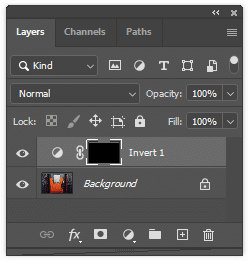
The invert adjustment layer comes with extra mask. The mask works like any mask in ordinary layer, dark conceals and white reveals. Hit D to change foreground and background color to its default, white and black. Hit Ctrl + Delete to fill the mask with black. With the mask filled with black, the invert effect is hidden.
Step 8
Activate The Brush Tool, right click to select brush tip. Click and drag to invert part of the image.


Step 9
If we apply the invert effect into part of an image, we can increase its contrast and may get interesting result. Use smaller brush tip for more accurate result. Let’s try painting the electronic lock with white.


Step 10: Inverting Color Only
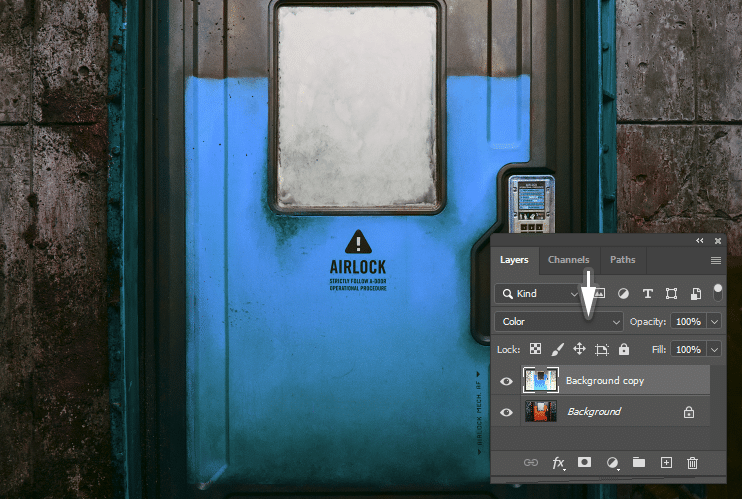
Inverting an image will turn it into a photo negative which seems too extreme. But do you know that we can only invert its color and retain the dark and white portion of the image? Its simple. Apply the Invert command to the duplicated layer and then change its blend mode to Color. This blend will only pass the color information to all the layers underneath it. Notice how we can effortlessly change the door color without making a single selection.
Step 11
The technique works extremely well to invert the color of this car too. In the image below, we use invert adjustment layer instead of the invert command.


Step 12: Inverting Lightness Only
If you choose Luminosity blend mode, instead of color, you only pass the lightness information to all layers beneath it. The result is the color remains but the darkness and lightness is inverted.

Step 13: Inverting Mask
The invert command is not restricted to layers, but works on mask too. This allows us to quickly reveal hidden areas and vice versa. Take a look at the images below. In the first image, the electronic lock is inverted and the rest is normal. Hit Ctrl + I and instantly the electronic lock is normal and the rest is inverted.


Step 14
Here is another image. A layer mask hides the left side of the Eiffel tower and reveals the texts underneath it. A simple “Ctrl + I” can quickly invert the mask and give different result.


That’s it! I hope this tutorial helps you understand how to invert color in Photoshop better. It’s always