


In this tutorial, I will demonstrate the steps I took to create this meteorite text effect in Photoshop. We will render a 3D text in Photoshop and apply rock & fire texture over it to form our final effect.
Techniques include layer blending, image adjustments, painting with custom brush and filter effects. Have a try!
The PSD file of this tutorial is available to buy on PSD Vault Shop, or via the PSD Vault VIP members area.

Note: I made this Photoshop tutorial in Photoshop CC 2018 – some screenshot may have different layout from earlier versions. Some brushes are exclusive to Photoshop CS6 or above.
Here is a preview of the final effect: (click to enlarge)

PSD Vault VIP Membership
You can download the PSD File for this tutorial via the VIP Members Area for only $6.95/Month (or less)! You will not only get this PSD File, but also 200+ other PSD Files + Extra Goodies + Exclusive Photoshop tutorials there. Signup now and get exclusive!

OK Let’s begin!
To complete this tutorial, you will need the following stocks:
Step 1
Create a new document sized 1300px * 780px with black background. Load the earth stock image into Photoshop, select the entire planet as shown below:

Paste the selection over to our document, place the earth to the following position:

Apply the following adjustment layers on top of the earth layer:
Levels

Vibrance

And this is the effect so far:

Step 2
Load the space stock image in Photoshop, copy and paste the entire image to our document:


Step 3
We will be working on our text in this step. Load the rock stock image into Photoshop, type some texts onto it:

Select the text you just typed, go to the background layer and make a copy, paste it over to our document.
We will use the 3D function in Photoshop CC to turn this text into a 3D render.
Note: If you have an early version of Photoshop and don’t have the 3D function, you can download my render here.
Select “New 3D Extrusion from Selected Layer”:

Have a play with the 3D settings, until you’re happy with the shape of the 3D text:

Once you’re happy with the 3D effect, go to 3D > Render 3D Layer and render this text. This will take a few minutes:

Convert this layer to a smart object, use the free transform tool to adjust its shape & size:
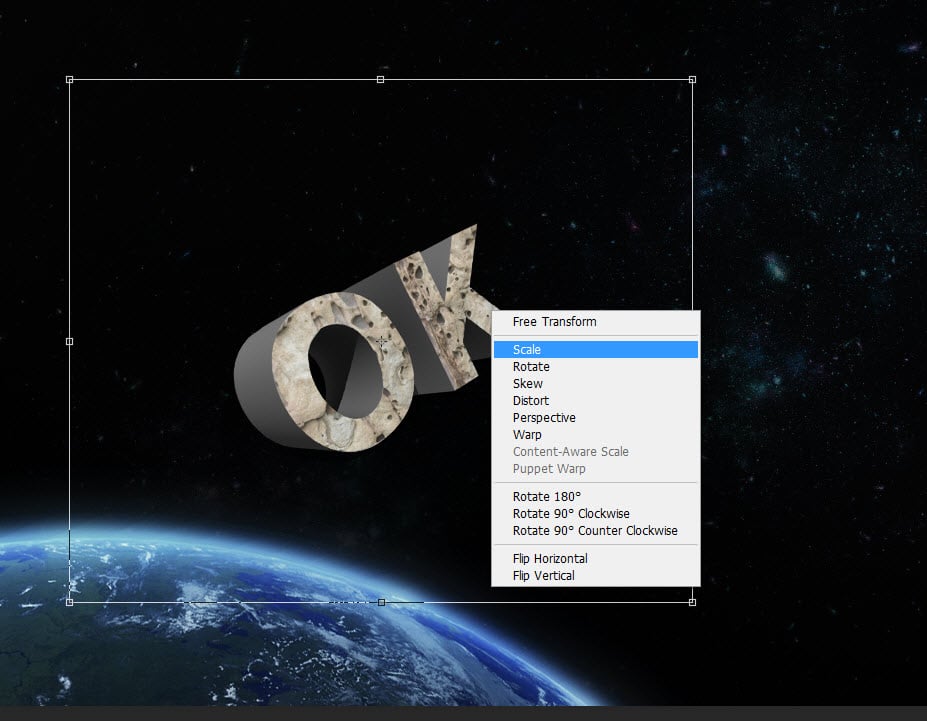
Then select the render layer and move the selection over to the rock texture, copy and paste the texture back to our document:

Change the layer blend mode to “Hard Light” for this new rock layer:

Use a soft eraser, remove the edge of the text as shown below:

Apply the following Black and White adjustment layer as clipping mask to this rock text layer:
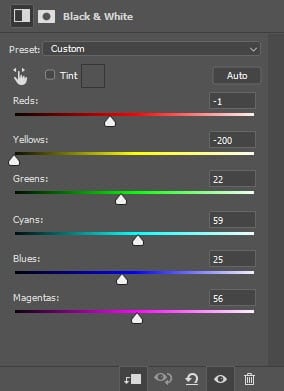
Lower the layer opacity for this Black and White adjustment layer to “65%”:

and here is the effect so far:

Use a particle brush, paint some particles around the text to from a break-apart effect:

Step 4
Load the fire stock into Photoshop, select the entire image and copy it over to our document:

Adjust its shape as shown below with the free transform tool:

Change the layer blend mode to “lighten” for this fire layer:

Use a soft eraser to remove parts of the fire and reveal the text below:

Step 5
We can add a few small meteorites to our document. Go back to the fire stock and use the lasso tool to select the following area:

Copy and paste the selection to our document, adjust its size and place it to the following area:

Duplicate this layer a few times, attached the duplicated layer around the text, as well as around the canvas:

Use the smoke brush, paint some smoke around the text as shown below:

I further applied a few colour adjustments to the image, and this is my final result: (click to enlarge)
That’s it for this meteorite text effect Photoshop tutorial! Hope you enjoy it and drop me a comment below if you have any questions.