


This wood texture face Photoshop tutorial is one of my most ambitious photo manipulation projects – combining portrait extraction, organic texture mapping, fire compositing, and hand-painted atmospheric effects into a single, cohesive surreal image.
The idea came from studying ancient stone idol sculptures, where weathered stone surfaces take on the contours of a human face. Translating that concept into Photoshop — but using living wood grain instead of stone, and fire instead of weathering — gives the final result its unique tension between organic nature and elemental destruction.
This revamped version addresses every issue raised in the original comments: all three stock image links have been updated and verified, the Liquify hair step now includes complete brush settings, and the colour grading section that was left out of the original is fully documented here for the first time.
| Difficulty | Intermediate — some steps require patience, especially Liquify and colour grading |
| Time Required | 60–90 minutes for a first attempt; 30–40 minutes once familiar |
| Software | Adobe Photoshop CC 2020 or later (CS6 compatible for all core steps) |
| Key Techniques | Pen Tool selection, Clipping Masks, Blend Modes, Liquify Filter, Fire compositing, Colour grading |
| Stock Images | Portrait, tree bark texture, fire image — all free, links updated below |
| PSD Download | Available to PSD Vault VIP Members |
Here is a preview of the final effect I have for this tutorial: (click to enlarge)

Stock Images & Resources — Updated 2026
- Portrait (female face): pixelbay.com – search ‘woman portrait neutral expression’. Choose a front-facing or slight three-quarter shot with clean, even lighting and no strong shadows on one side. Avoid photos with complex backgrounds. Free to use with attribution.
- Tree bark texture: Textures.com – search ‘tree bark’ in the free section, or use Unsplash.com searching ‘tree bark close up’. You want a texture with strong vertical grain lines, deep ridges, and warm brown tones. Minimum 2000px wide for a clean result.
- Fire image: pixelbay.com – search ‘fire flame black background’. Choose an image where the fire is photographed against a near-black background — this makes the Screen and Hard Light blend modes work correctly. Avoid fire images with coloured backgrounds.
Editor Note: If you want textures with more variation and control, Textures.com offers free-tier downloads. For fire specifically, searching ‘fire stock photo black background’ on Adobe Stock’s free collection also yields excellent results.
Step 1: Extract the Face Using the Pen Tool
Open your portrait photograph. The Pen Tool is the right choice for face extraction because it gives you precise, smooth curves around the jawline, hairline, and ear — areas where automatic selection tools like Select Subject tend to create jagged or inaccurate edges.
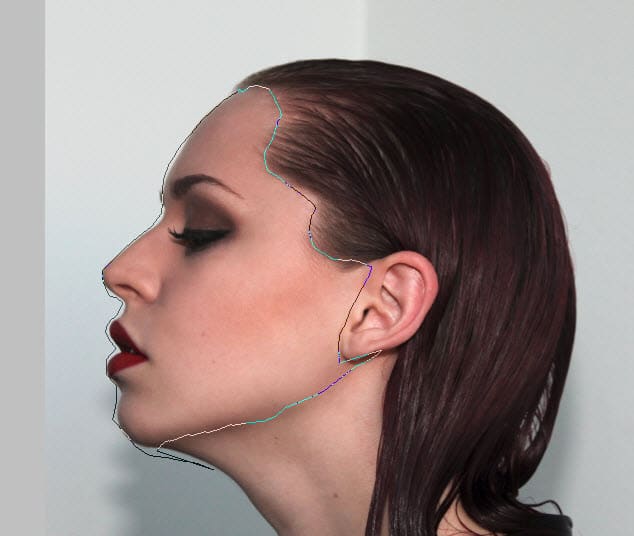
Drawing the Path
- Select the Pen Tool (P). In the Options Bar at the top, make sure ‘Path’ is selected in the dropdown (not Shape or Pixels).
- Zoom to 100–150% on your image so you can see the face edge clearly. Start clicking around the face outline – click for straight-line segments, click and drag for curves. Work slowly around the jawline and forehead where the face meets the background.
- Don’t try to include the hair at this stage – just capture the face, forehead, and neck as a clean oval/face shape. The hair will be recreated artificially in Step 6.
- Close the path by clicking back on your first anchor point. You’ll see a small circle next to the pen cursor when you’re over the starting point.
Pro Tip: To adjust an anchor point after placing it, hold Ctrl/Cmd and click to select it, then drag to reposition. Hold Alt/Opt and click an anchor to convert it between a corner point and a smooth curve point. Take your time here – a clean path at Step 1 saves significant cleanup time in later steps.
Converting Path to Selection
Once your path is complete, right-click anywhere inside the path and choose Make Selection. In the dialogue box that appears, set Feather Radius to 1px — this adds a tiny softness to the edge that prevents the cut-out face from looking artificially sharp against the background.
Click OK. You’ll see the marching ants selection appear around your face outline. Press Ctrl/Cmd+C to copy, then switch to your main document (a new 1920×1080px document with a black background) and paste with Ctrl/Cmd+V.

Use Free Transform (Ctrl/Cmd+T) to resize and centre the face on the canvas. Hold Shift while dragging a corner handle to scale proportionally. Position the face centrally with some breathing room around all edges — don’t fill the entire canvas.

Refine the Edges
The Pen Tool selection will be accurate but may have some visible edge artefacts. With the face layer selected, add a Layer Mask (click the mask icon at the bottom of the Layers panel). Using a soft round brush at 20% Opacity with black as the foreground colour, gently paint over the very edge of the face – particularly around the hairline and the back edge of the neck – to soften and blend the transition. Do not erase large areas, just feather the outermost pixel row.

⚠ Watch Out: Use a Layer Mask for edge refinement – do NOT use the Eraser Tool directly on the layer. If you erase directly and later decide the edge needs to come back, there is no recovery. A mask lets you paint back white to restore any erased edge at any time.
Step 2 – Desaturate & Build Tonal Foundation with Adjustment Layers
With the face placed on the canvas, we now strip its colour and build the tonal range that will carry the wood texture in the next step. All three adjustment layers below go above the face layer as Clipping Masks (Opt/Alt+click between layers, or right-click the layer → Create Clipping Mask).
Black & White Adjustment Layer
Add a Black and White adjustment layer. This converts the face to greyscale using channel-specific controls — far more precise than Image > Desaturate. Use these settings to maximise skin tone contrast and bring out facial structure:

Levels Adjustment Layer
Add a Levels adjustment layer above the Black and White layer (still as a clipping mask). Set the input levels to: Black point 85, Midtone 1, White point 255. This slightly darkens the overall face and increases contrast — we want a face with punchy shadows and bright highlights to receive the wood texture convincingly.
Add a Layer Mask to this Levels layer. Using a large soft black brush at 30% Opacity, paint on the mask over the eye sockets and the centre of the face (nose, cheeks). This preserves slightly more tonal detail in the most expressive areas of the face while letting the periphery go darker.

Layer mask on the levels adjustment layer:

Curves Adjustment Layer
Add a Curves adjustment layer as the final clipping mask on the face stack. In the composite RGB curve, add two points:
- Shadows: Input 30, Output 15 — deepens the darkest shadows for stronger contrast
- Highlights: Input 200, Output 215 — lifts the brightest specular highlights on the forehead and cheekbones
This S-curve gives the greyscale face the sculptural quality that makes the wood texture mapping in the next step feel convincing — as though the grain is truly following the three-dimensional contours of the face.

and you will have the following effect:

Step 3: Map the Wood Bark Texture to the Face
This is the core of the effect. We’re using a tree bark photograph as a clipping mask layer over the greyscale face, relying on the Overlay blend mode to let the face’s tonal structure show through the grain of the wood — creating the illusion that the face itself is carved from living wood.
Placing the Texture
Open your bark texture image. Look for a section of the texture that has interesting grain — ideally with vertical lines running roughly top to bottom (which will align with the natural direction of facial features). Use the Rectangular Marquee Tool to select a good section, copy it, and paste it into your document above the face layer.

Use Free Transform to scale the bark texture until it comfortably covers the entire face area. Don’t worry about it extending beyond the face boundaries — the Clipping Mask in the next step will handle that. Rotate the texture slightly (5–10°) if it looks too perfectly aligned — a slight angle breaks up any artificial regularity.

Right-click the bark layer and choose Create Clipping Mask. The texture is now visible only within the face shape below. Change the blend mode of the bark layer to Overlay.
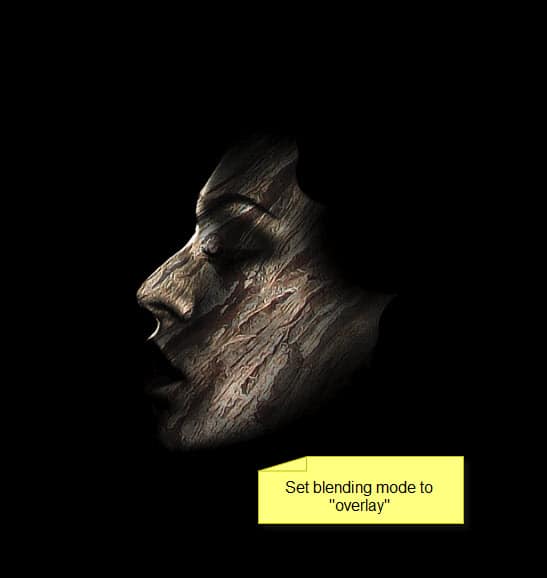
Why this works: Overlay blend mode multiplies dark areas and screens light areas simultaneously. This means the wood grain only shows prominently where the face has mid-tones — it naturally fades in dark shadow areas and bright highlight areas. The result is a texture that appears to wrap around the face’s 3D contours rather than sitting on top as a flat pattern.
Add Adjustment Layers to the Bark
Add two more adjustment layers above the bark layer, both as clipping masks:
Black and White (opacity 80%): This partially desaturates the bark texture, preventing the wood’s natural orange-brown from competing with the fire effect we’ll add later. Setting this layer to 60% opacity preserves a hint of warm wood tone.

Levels: Input Black Point: 71, Midtone: 1, White Point: 255. This increases the bark’s contrast so the grain ridges are more pronounced and the deep cracks in the bark read more dramatically on the face.

Erase to Reveal Skin
Go back to the bark texture layer itself (not its adjustment layers). Add a Layer Mask to the bark layer. Using a medium soft brush at 25% Opacity with black as foreground colour, paint gently on the mask over the central face features – the eyelids, the lips, the tip of the nose. The goal is to allow subtle traces of original skin texture to appear through the bark in these sensitive areas, making the face feel more alive rather than entirely petrified.
This is a subtle step – you’re not removing large areas of bark, just allowing 15-25% of the original skin tone to bleed through in specific spots.

and you will have the following effect so far:

Step 4: Create the Fiery Glowing Eye
Open your fire image. Using the Lasso Tool with a 10px feather, draw a loose selection around a section of fire that has a roughly eye-shaped intensity – wider in the centre, tapering at the ends. The feathered selection is important here: it gives the fire a soft, glowing edge rather than a hard cut-out appearance.

In the Options Bar, click Refine Edge (or Select and Mask in newer versions). Apply these settings to further smooth the selection:

Shaping the Fire to the Eye
Copy and paste the fire selection into your main document, positioning it directly over the eye socket of the face. Use Free Transform → Warp (right-click inside the transform box → Warp) to reshape the fire. Pull the mesh control handles to:
- Taper the left and right edges to roughly match the almond shape of the eye
- Allow the upper edge to flare upward slightly — fire naturally rises
- Compress the lower edge to sit at the lower eyelid line

Press Enter to commit the warp. Change this layer’s blend mode to Hard Light.

🔍 Why this works: Hard Light is a strong, contrasty blend mode that evaluates whether each pixel in your layer is above or below 50% grey. Pixels brighter than 50% grey (the fire flames themselves) screen onto the layer below — they glow through. Pixels darker than 50% grey (the black background of the fire image) multiply with the layer below — they add shadow depth. The result: only the fire glows, the dark background integrates into the shadows of the eye socket.
Adding the Luminous Glow Layer
Duplicate the fire layer (Ctrl/Cmd+J). Change the duplicate’s blend mode to Screen and reduce its Opacity to 50%. Screen mode makes every pixel additive — it adds the fire’s light value to whatever is beneath it, creating a luminous ambient glow that extends slightly beyond the Hard Light layer. Position this duplicate layer directly over the first fire layer.
The combination of Hard Light (strong, contrasty fire integration) at 100% plus Screen (soft ambient glow) at 50% gives the eye a depth that either blend mode alone cannot achieve — the fire appears to burn from within the wood rather than sitting on the surface.

Step 5: Add the Fire Tear & Cloud Atmosphere
The Fire Tear
Return to your fire image. This time, select a much smaller, elongated section — look for a narrow vertical tongue of flame or a thin vertical streak of brighter fire. This will become the tear running down the cheek. Select it with a feathered Lasso selection (8px feather) and paste it into your document.

Scale it down significantly using Free Transform — the tear should be roughly the width of a small brush stroke, approximately 15–25px wide at the eye and tapering as it descends. Use Warp to give it a slight organic curve — tears don’t run in perfectly straight lines; they tend to bow slightly outward from the nose as they travel down the cheek.
Change the blend mode to Screen. The fire tear in Screen mode will glow as a thin line of light running down the cheek surface. Add a Layer Mask and with a very soft small brush at 15% Opacity, gently fade the bottom tip of the tear to transparency — it should feel like it’s evaporating rather than ending abruptly.

Cloud Atmosphere
Create a new layer beneath the face layer — name it ‘Clouds BG’. This cloud layer goes behind the face so it appears as an atmospheric backdrop and wisps around the edges of the head.
There are two approaches depending on what you have available:
- Cloud brush (recommended): Download a free cloud brush set from Brusheezy.com (search ‘cloud brushes photoshop free’). Using white at 20–30% Opacity, paint loose cloud formations behind the face — concentrate them at the sides and above the head, leaving the face area clear.
- Cloud filter: Set foreground to white, background to a dark grey (#222222). Go to Filter > Render > Clouds. This fills the entire layer with a procedural cloud pattern. Use a Layer Mask to paint black over the face area, keeping clouds only in the surrounding space. Adjust the layer blend mode to Screen to make the dark areas transparent.
Either way, keep the clouds subtle — they frame the face and add depth, but if overdone they compete with the wood texture and fire as the main visual elements.

Step 6: Create the Luminous Hair with Liquify
This is the step where the original tutorial lost the most readers — specifically the comment: ‘Show us the settings, brush size etc. I couldn’t make it do anything near like what you pictured.’ Here is the complete technique with all settings.
The technique creates individual strands of glowing hair using a white painted line that is warped by the Liquify filter into organic, flowing shapes. It requires patience and multiple iterations — the first few attempts rarely look right, which is why so many people gave up here. Persist past the first three attempts.

Liquify Settings – Complete
Go to Filter > Liquify. When the Liquify workspace opens, you’ll see your white line in the preview. Use the following settings:
| Liquify Setting | Value | Purpose |
| Tool | Forward Warp (W) | The default push-warp tool |
| Brush Size | 40–60px | Large enough to smoothly bend the line |
| Brush Density | 50 | Mid-range for smooth pressure distribution |
| Brush Pressure | 30–40 | Low pressure = gentle, organic curves |
| Brush Rate | 80 | Higher rate = more responsive strokes |
| Turbulent Jitter | Off | Keep this off for controlled warping |

Technique: Click and slowly drag across the white line using short strokes, alternating direction. Start from the middle of the line and push it left or right by 30–50px. Then move up the line and push in the opposite direction by 20–30px. The goal is an ‘S’ or flowing wave shape — not a dramatic curl, just a subtle organic bend that reads as a strand of hair catching light.
Press OK to apply. The line should now have a gentle, flowing curve. If it looks too mechanical or straight, press Ctrl/Cmd+Z to undo and try again with slightly more pressure and larger movements.
| 🔧 Common Fix: If Liquify doesn’t seem to be affecting the line, you may have the wrong layer selected. Close the Liquify dialogue, confirm the correct layer is highlighted in the Layers panel (it should be the layer with the white line), and try again. Also confirm the Liquify workspace is showing the white line in its preview — if the preview is showing something else, you’re operating on the wrong layer. |
Multiplying the Hair Strands
Duplicate the hair strand layer several times (Ctrl/Cmd+J). For each duplicate:
- Use Free Transform to rotate it by a different angle (5–20° variations) and reposition it around the head area — concentrate strands above the head and at the sides, trailing outward and upward as if blown in a wind.
- Vary the opacity of each duplicate between 40–90% so the strands have different intensities, suggesting depth.
- On some duplicates, apply a second round of Liquify with slightly different settings to ensure no two strands look identical.
- Scale some strands slightly larger or smaller to create variation in apparent distance from the viewer.
Aim for 8–15 strands total. This sounds like a lot but each one takes under 2 minutes once you’re comfortable with the technique.
| 💡 Pro Tip: After placing the strands, select all hair layers and merge them (Ctrl/Cmd+E). Then apply a very slight Outer Glow layer style to the merged hair layer: blend mode Screen, colour #FFE8AA (warm amber), Size 8px, Opacity 40%. This ties the hair’s colour temperature to the fire eye, making the whole image feel lit by the same source. |

I then use some abstract brushes to add some textures around the model, you can find plenty of those brushes on the internet:

STEP 7: COLOUR GRADING – THE MISSING STEP FROM THE ORIGINAL TUTORIAL
This section documents the complete colour grading workflow that produces the warm amber-brown final result.
Layer 1 – Photo Filter (Warming)
Add a Photo Filter adjustment layer at the top of the entire layer stack (Layer > New Adjustment Layer > Photo Filter). Choose Warming Filter (85) from the dropdown. Set Density to 35%, make sure Luminosity is checked. This warms the entire composition toward a fire-adjacent amber tone and begins unifying the wood, fire, and atmospheric elements under a single colour temperature.
Layer 2 – Color Balance (Tonal Sculpting)
Add a Color Balance adjustment layer. We apply different shifts to the three tonal ranges to create the warm-in-lights, cool-in-shadows character of firelight:
- Shadows: Cyan/Red: +15, Magenta/Green: -5, Yellow/Blue: -20 – shadows shift warm-red and lose blue, like deep shadow lit only by fire
- Midtones: Cyan/Red: +10, Magenta/Green: 0, Yellow/Blue: -10 – midtones pull toward amber
- Highlights: Cyan/Red: +5, Magenta/Green: +5, Yellow/Blue: -15 – highlights warm strongly, as though the fire is the primary light source illuminating the face
Layer 3 – Selective Color (Refining the Wood Tones)
Add a Selective Color adjustment layer. Target the Yellows channel specifically – this affects the dominant wood-brown tones:
- Yellows: Cyan -20, Magenta +10, Yellow +15, Black +10
This pushes the yellow-brown of the wood toward a richer, deeper amber and adds a slight darkness to those tones — making the wood feel more aged and dense. The result is visible primarily in the mid-tones of the bark texture.
Layer 4 — Curves (Final Contrast)
Add a final Curves adjustment layer. Apply a gentle S-curve to the composite RGB channel:
- Shadow point: Input 25, Output 10 — crushes the deepest shadows to near-black
- Three-quarter tone: Input 190, Output 200 — lifts the upper midtones slightly
- White point: Input 240, Output 255 — ensures the fire and hair highlights are as bright as possible
In the individual Red channel, add a single midpoint: Input 128, Output 140. This adds a subtle overall red push that reinforces the fire-lit atmosphere across the entire image.
Layer 5 — Hue/Saturation (Final Saturation Control)
Add a Hue/Saturation adjustment layer. Set Master Saturation to +15. This is the final step – it lifts the saturation of all the colour grading you’ve applied, making the amber tones of the wood and fire richer and more vivid without pushing them into garish territory.
If any specific area (like the cloud background) looks oversaturated after this step, paint black at 40% Opacity on the Hue/Saturation layer’s mask over that area to reduce the saturation locally.
| 💡 Pro Tip: The five-layer colour grade above can be grouped (Ctrl/Cmd+G) and labelled ‘Colour Grade’. Setting the group’s opacity to 80% instead of 100% is a useful final check – if the 80% version looks better than 100%, your grade is slightly too strong and you should reduce individual layer opacities. |
Troubleshooting – Every Common Failure Point
In this section, I will address some of the questions raised in the comments since the tutorial was published:
‘The wood texture doesn’t look like it’s following the face- it just looks flat’
This means the Overlay blend mode isn’t working as expected. Check two things: (1) confirm the bark layer’s blend mode is set to Overlay in the Layers panel dropdown – it’s easy to accidentally leave it on Normal; (2) check your greyscale face layer below has sufficient contrast.
If the face is too uniformly grey (flat tonal range), the Overlay mode has nothing to work with. Go back to Step 2 and increase the Curves adjustment’s S-curve steepness – more shadow depth and brighter highlights will give Overlay more to grab onto.
‘My Liquify hair strands look nothing like hair — they’re just blobs’
Three things fix this: (1) your starting line is too thick — repaint it at 3px maximum, not 8–10px; (2) your Liquify Brush Pressure is too high — reduce it to 25–30 for gentler, more controlled distortion; (3) you’re making large sweeping movements in Liquify rather than small sequential nudges.
Use 10–15 small strokes each moving the line by 20–30px maximum, not one large drag across the full length.
‘The fire eye looks pasted-on, not integrated’
The fire needs to interact with the shadow of the eye socket to feel embedded in the face. Add a Multiply mode layer above both fire layers (as a clipping mask to the face layer group) and with a small dark brown brush (#2A0A00) at 15% Opacity, paint into the inner corners of the eye socket and around the eyelid edges. This adds a scorched shadow effect around the fire that makes the light source feel like it’s burning from inside the eye socket rather than projected onto the face surface.
‘The colour grade makes the face look too orange/too monochrome’
The Photo Filter Warming density is probably too high for your specific photo. Reduce it from 35% to 20%, then rebuild from there. Also check whether your bark texture layer’s Black and White adjustment is at too high an opacity – if it’s 100%, the wood is completely desaturated and the amber colour grade has less natural colour to work with.
Reduce the Black and White layer to 50–60% opacity to let more of the wood’s original warm brown show through.
‘The abstract brush textures around the face look random and uncontrolled’
When using abstract scatter brushes in Step 6, place them deliberately rather than randomly. Use darker, more opaque marks close to the face where they transition into the atmospheric elements, and lighter, more transparent marks further from the face as they fade into the background.
Follow the implied direction of the hair strands — if the hair trails upward and to the right, the scatter brushes should also suggest that same upward-right directionality.
That’s it for this tutorial! Hope you enjoy it and find it useful! Till next time, have a great day!
21 Comments
Great tutorial. I like final output.
the link to FIRE do not have the file anymore. There are only wall textures
I found ur link to the right fire. I think this is the one http://www.cgtextures.com/texview.php?id=60409&PHPSESSID=ujeu719oev8ekmvnqvsnpen3p2
Looks like they changed the link url – fixed now :)
wow cool tutorial!
Wonderful tutorials, really great job, thanks for the share!
very great effect….cool imaging..!
Great Tuto, like the final result…
Amazing effect – love the effect on the eyes. The liquify tool tip is especially useful so thanks for that…
Do you have any tutorial for the smoke?
Do you have any tutorial for the smoke?
First of all hello mister,
I admire your work for almost a year now and I find nessecery to point that your tutorials helped me A LOT, and i mean a lot. I’d like to ask something, I’ve seen in your guides that you almost never show the last steps about the colours you put (and thats not a judgement, i wouldn’t myself and im neither askin you to do this) but could you make a guide or something that explains how u put such colours on a Black n White image with steps like hue and saturation if I’m guessing right(?) etc.
Best regards
Quiver.
so simple and beauty
THE TUTORIAL IS GREAT BUT EVEN THOUGH I TRY DOING THE WAYS YOU HAVE MENTIONED, THE PICTURES ARE NOT AT ALL LOOKING GOOD.
@Shekhar: the end result won’t always to be the exact same as the one on tutorial. There are lots of skills involved :) Practice hard.
If you have something needed clarifying, please let me know.
James
I gave up with this, it was already going badly – then I reached the liquify part and it just outright pissed me off. Show us the settings, brush size etc. I couldn’t make it do anything near like what you pictured.
This is one lovley TUT, and to leave final step is good, practice hard and you will reach it one day!
hi very great effect .. do u have any video tut for this coz some of steps is little tricky nd its helpful for beginners like me
i m unable to add colour effect plz plz plz help
can you give me that cloud brush i reaaly need that and i appreciate ur work, i use cs5
Its really confusing. Shallow explanation and few pics I think. I’m a noob at PS, but this is really vague. I’m stuck at Step 2: Do I keep the clipping mask till the end of the Step, do I release at some point ? I’m releasing the clipping mask and when I create the Level Layer with Mask I just don’t know how to get this shadowy effect. I’ll keep on trying, but someone please enhance this tutorial for us noobs.