


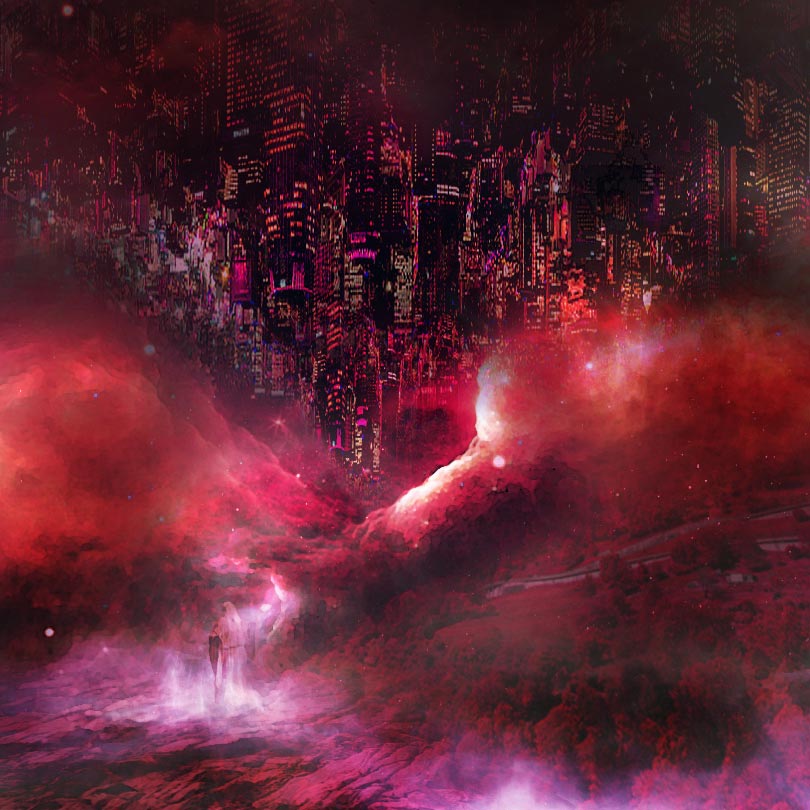
In this tutorial, I will show you the process of creating a city up side down surreal photo manipulation in Photoshop. We will construct a surreal landscape first, then combine it with city & space stock images to form the final effect. Have a try!
The PSD file of this tutorial is available via the PSD Vault VIP members area.
This is an intermediate level difficulty tutorial and some steps can be tricky.
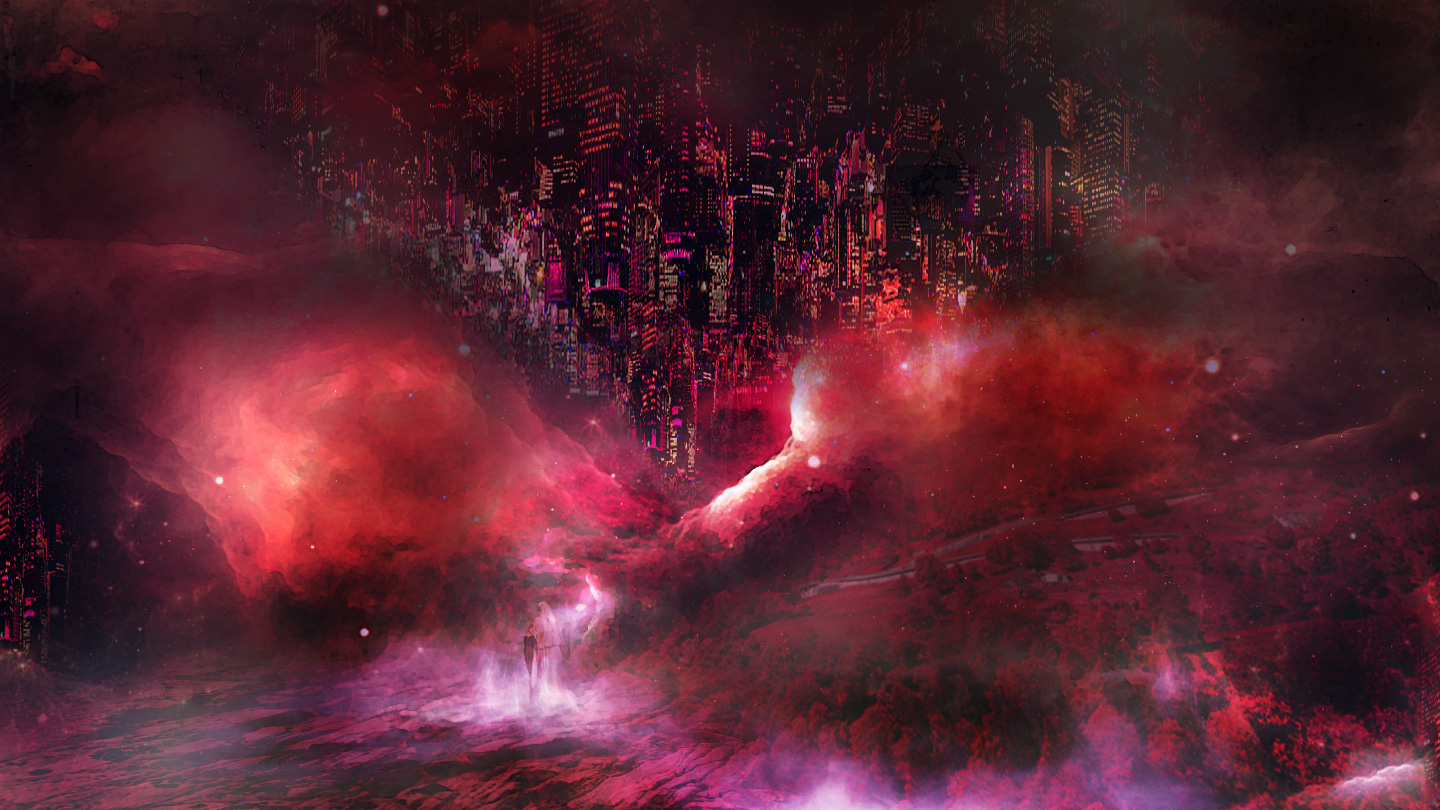
Here is a preview of the final effect I have for this tutorial: (click to enlarge)
PSD Vault VIP Membership
You can download the PSD File for this tutorial via the VIP Members Area for only $6.95/Month (or less)! You will not only get this PSD File, but also 100+ other PSD Files + Extra Goodies + Exclusive Photoshop tutorials there. Signup now and get exclusive!

OK Let’s get started!
To complete this tutorial, you will need the following stocks:
Step 1
Create a new document sized 1440 * 810 px with black background. Load the landscape stock image into Photoshop, copy and paste this image onto our canvas:
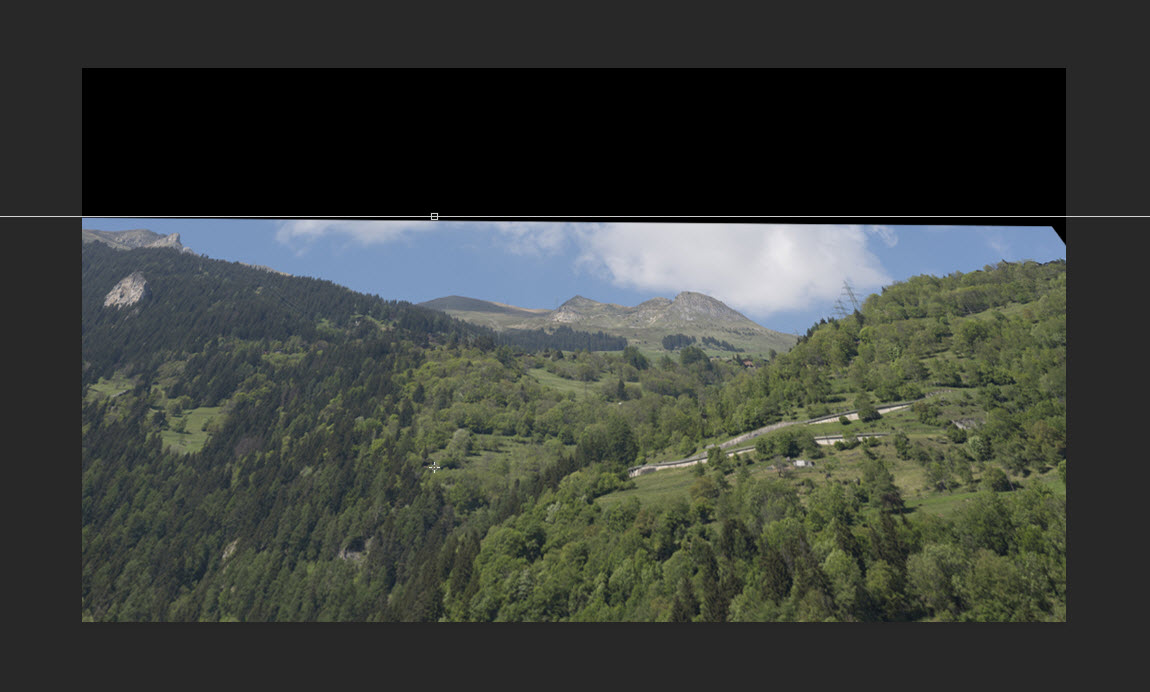 Use a big soft eraser, remove the following area off the landscape image layer:
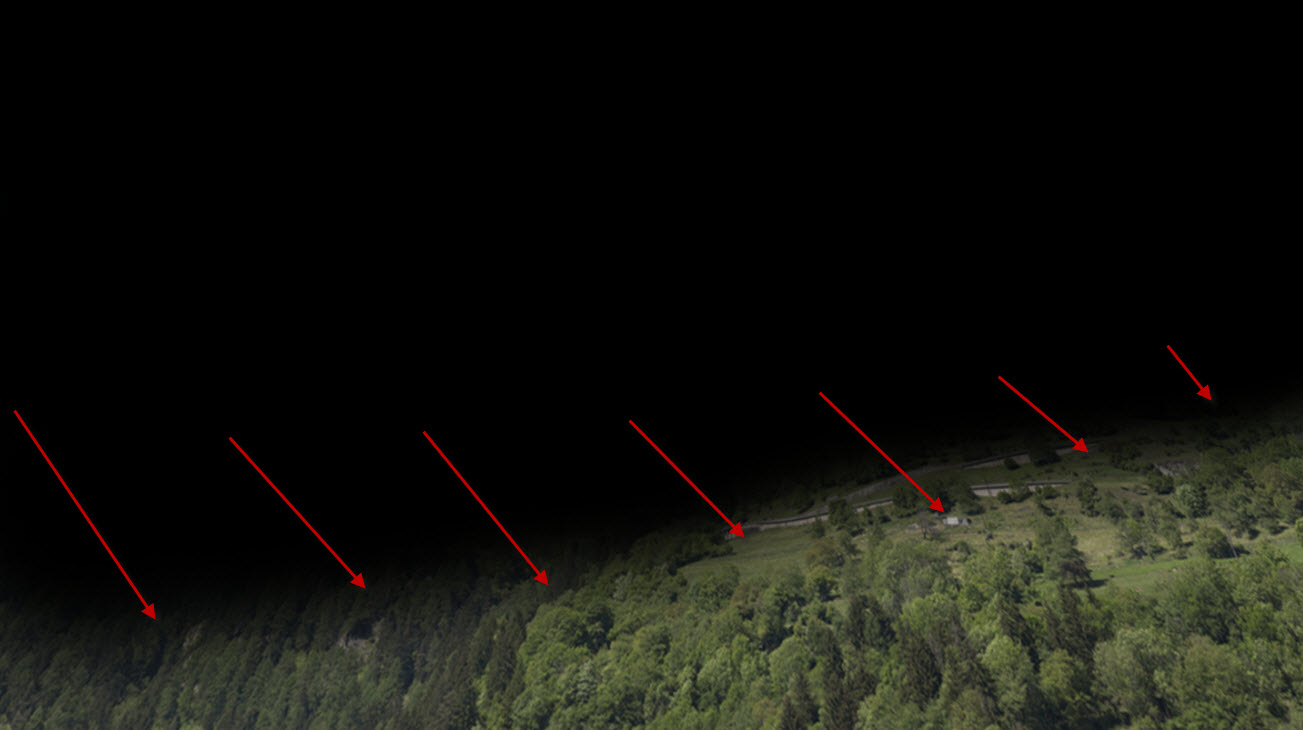
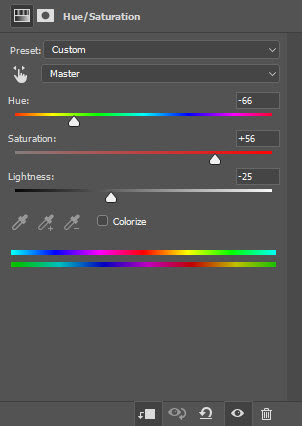
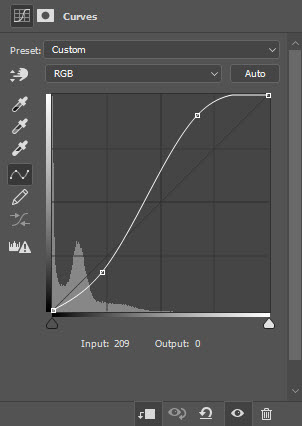
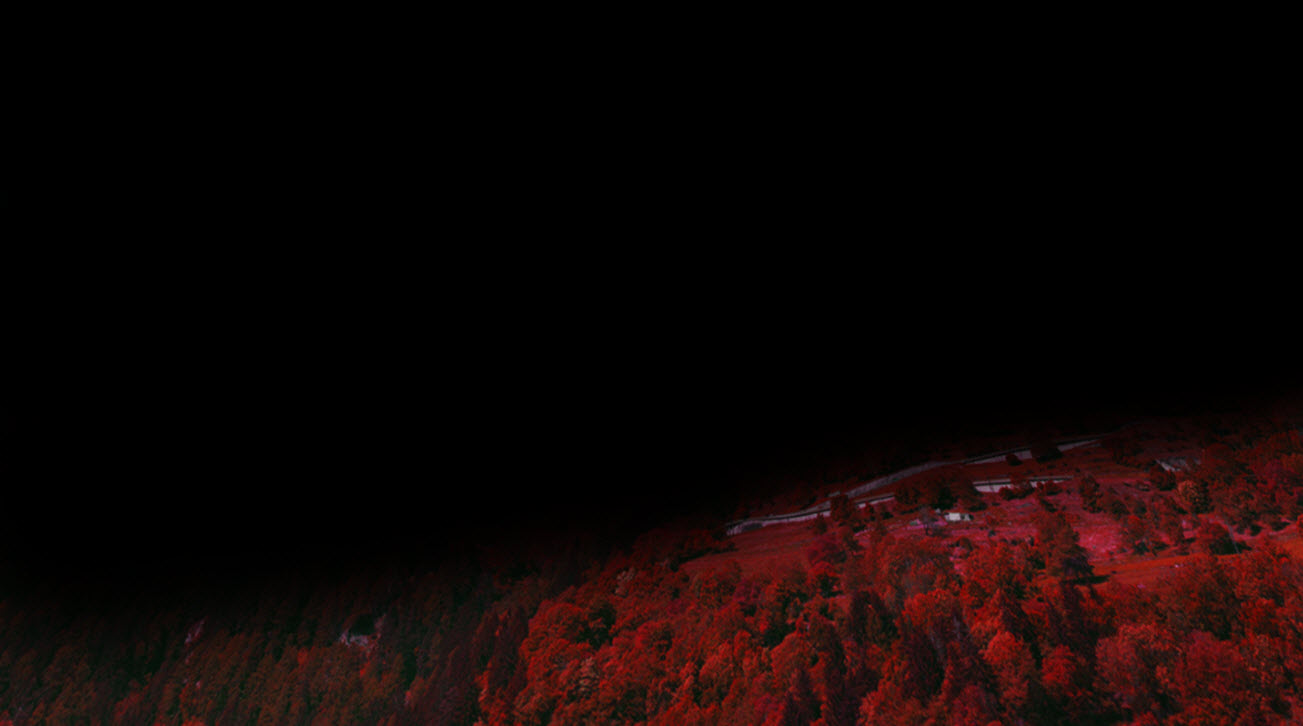
We can turn the colour of the landscape from green to red. So apply the following image adjustment layers as clipping masks to this landscape layer:
Hue/Saturation
 Curves
and here is the effect you will have:
Step 2
Load the rock image into Photoshop and select the tip of the rock. We will use this to form a cliff.
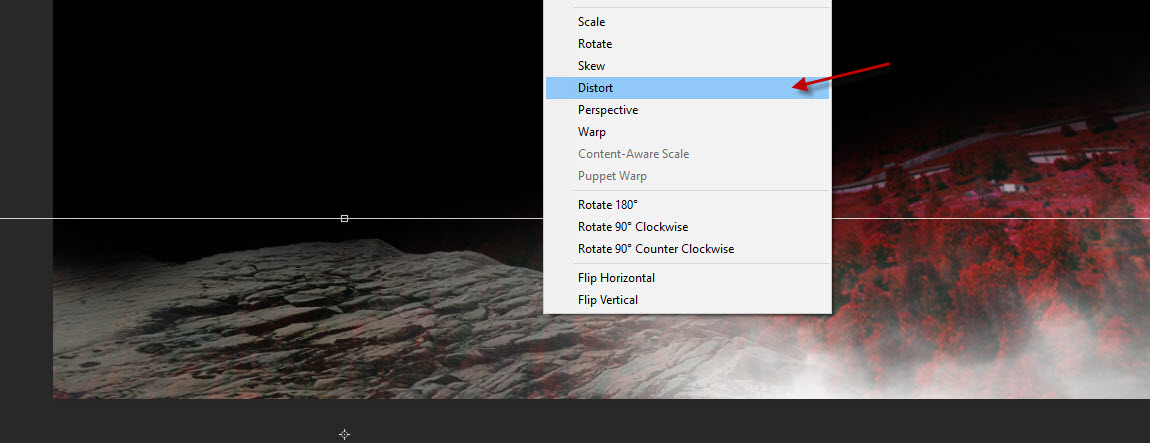
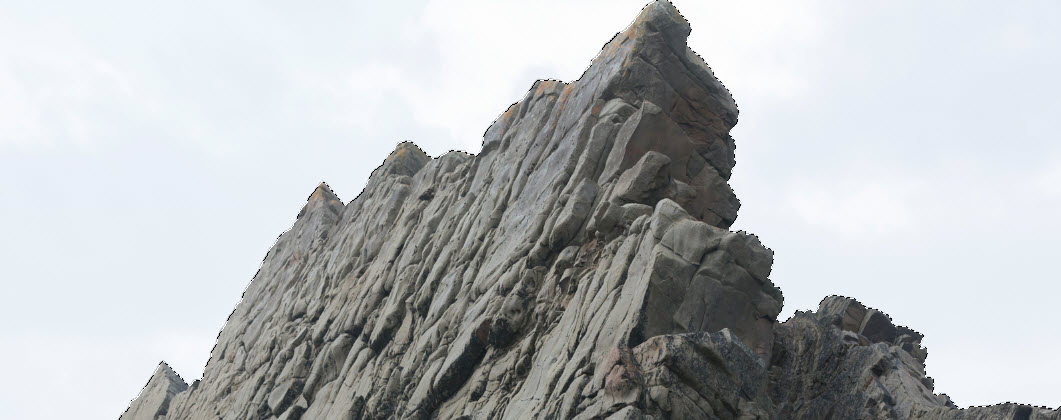 Copy and paste your selection to our document, apply the free transform tool to distort this layer until it has a shape of a cliff:
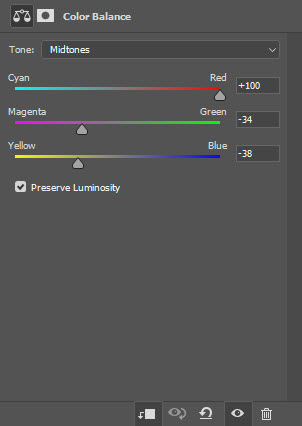
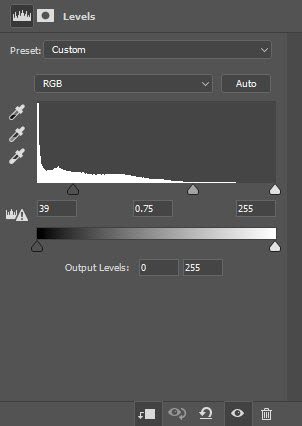
Apply the following image adjustment layers as clipping masks to this cliff layer to turn its colour to red:
Color Balance
Levels
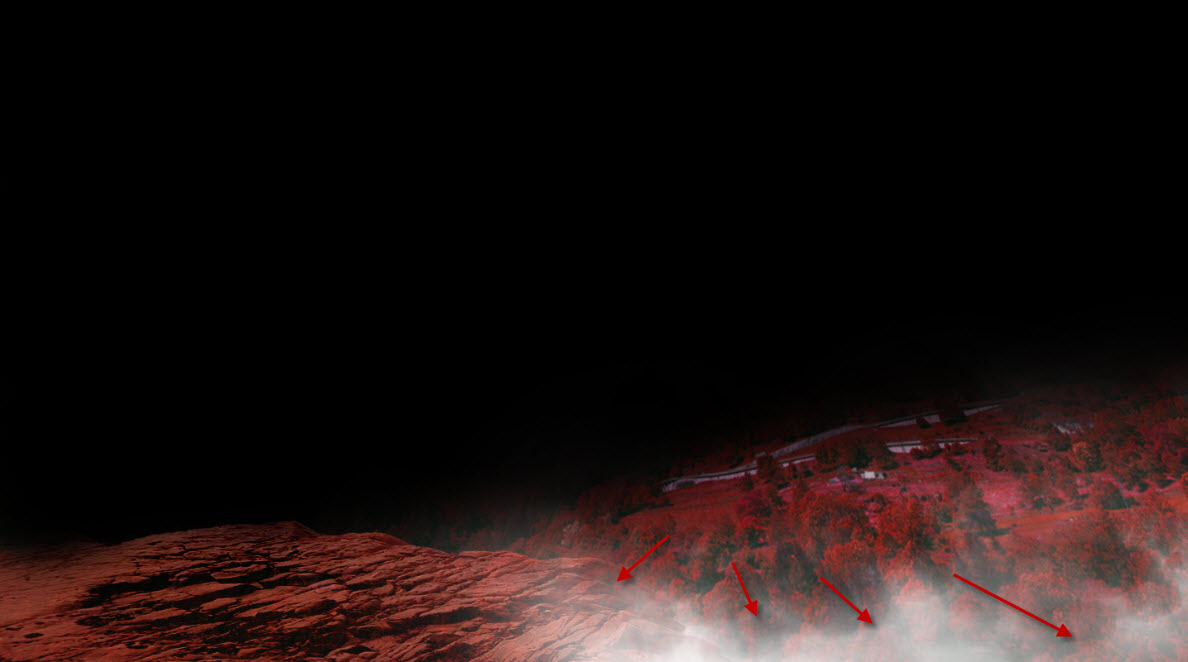
Paint some cloud over the cliff as shown below:
Step 3
Load the wizard stock image into Photoshop. Copy and paste it to the following position:
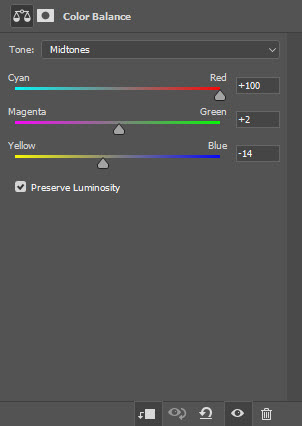
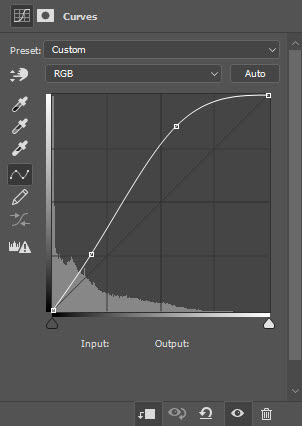
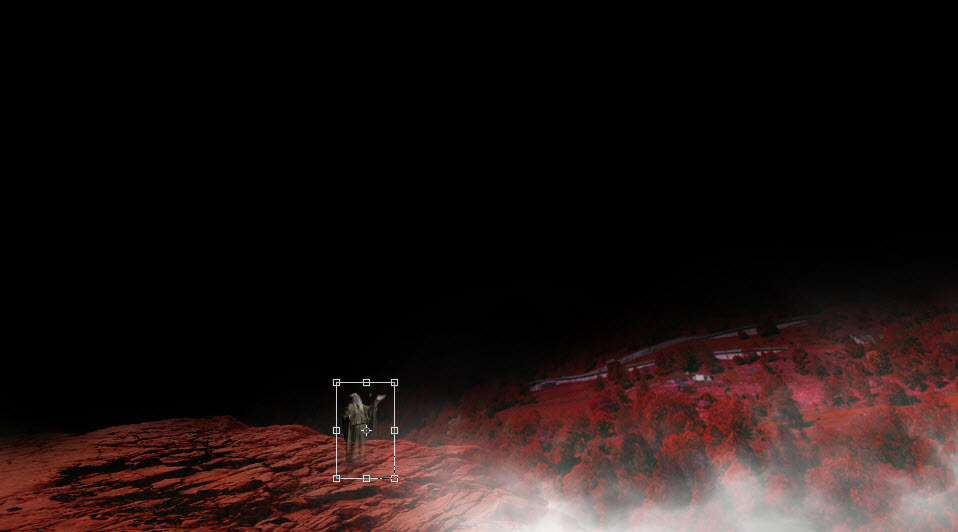 Apply the following image adjustment layers to the wizard layer:
Color Balance
Curves
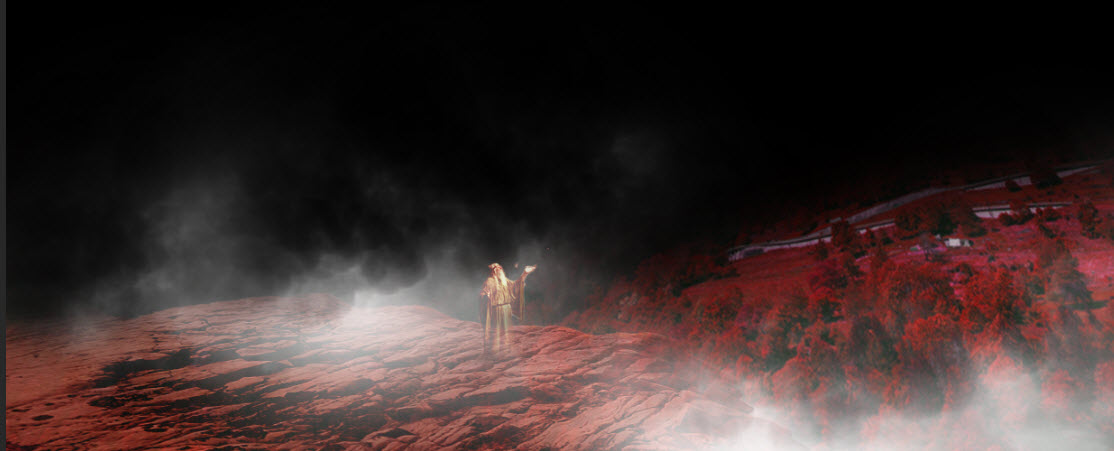
and this is the effect so far:
Step 4
Load the “space 1” image into Photoshop, paste it over to our document as shown below:
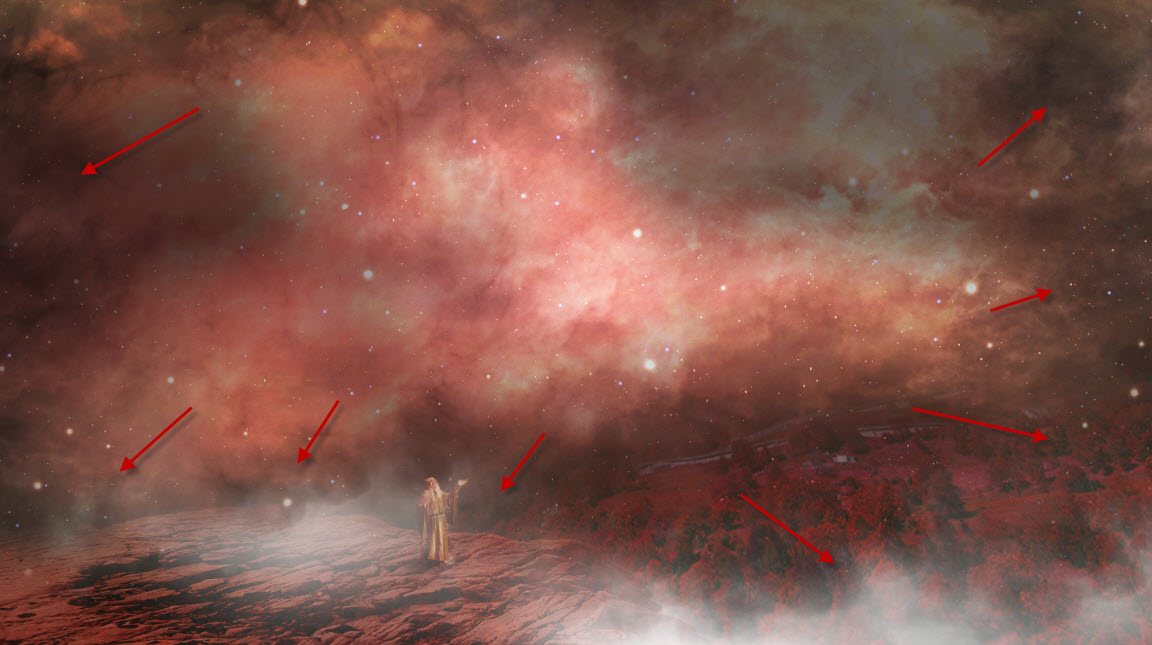
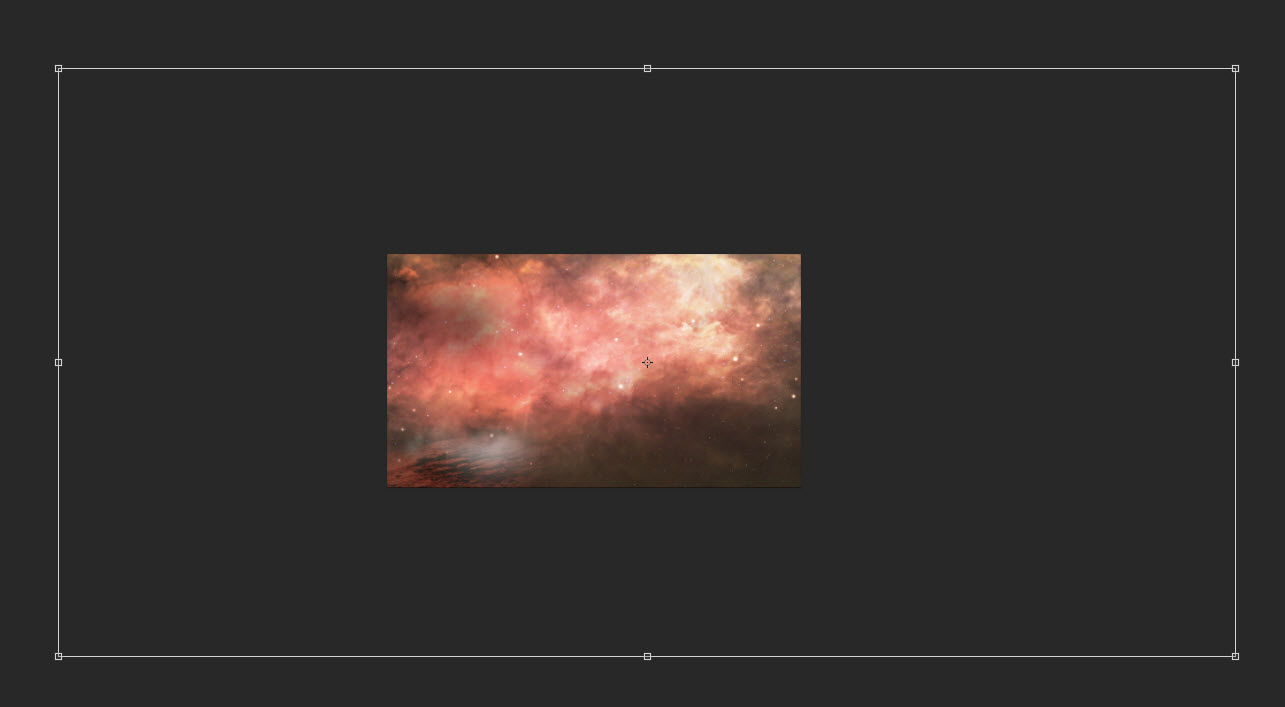 Use a big soft eraser to fade the following area shown below:
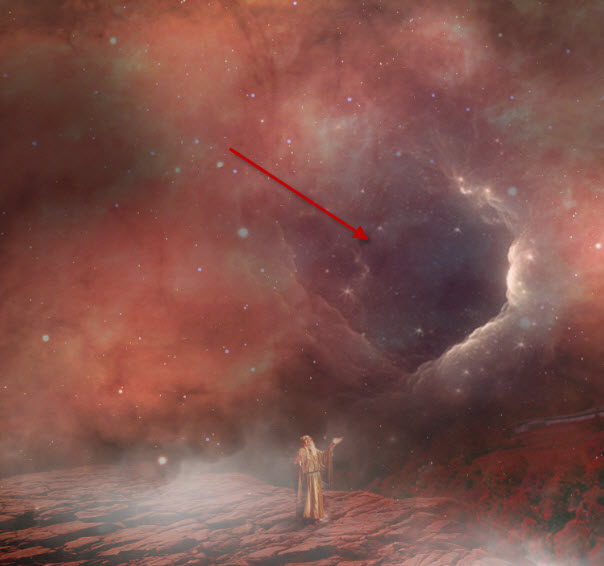
 Load “space 2” image into Photoshop, copy and paste the blackhole onto the centre of the image, as shown below:
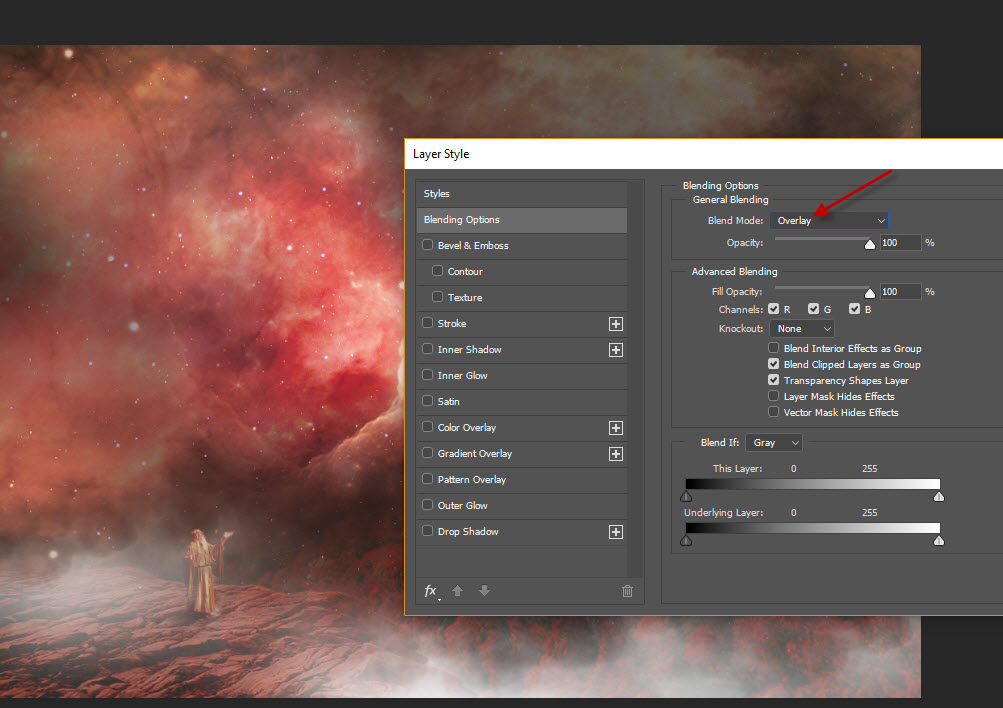
 Change the layer blend mode of this blackhole layer to “Overlay”:
 Then, duplicate this blackhole layer twice, and this is effect you will have:
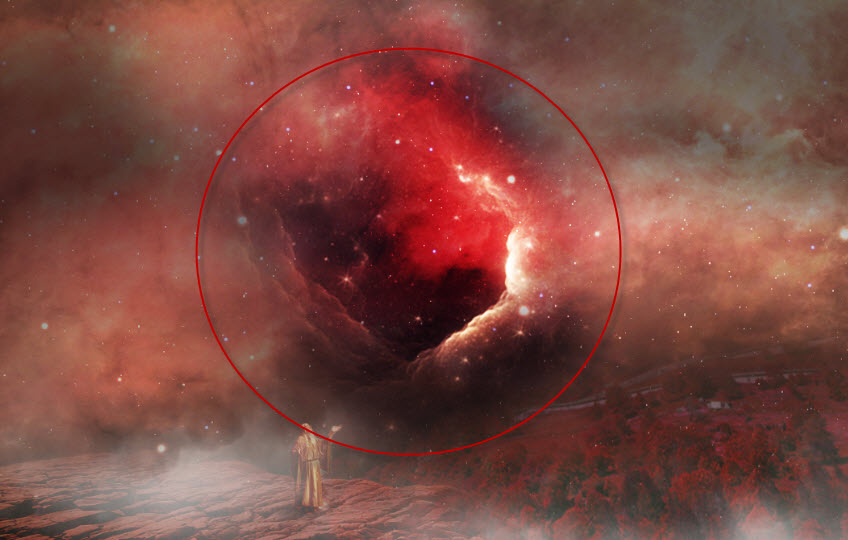
You can add a few more blackholes around the canvas, as shown below:
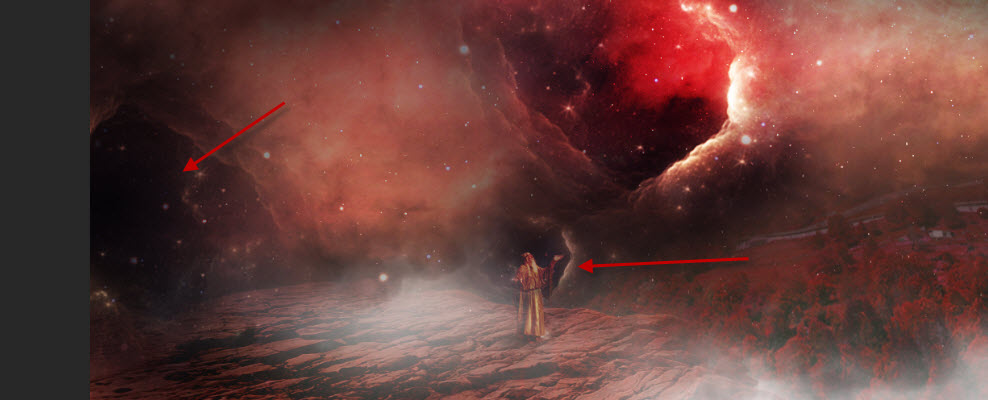
Step 5
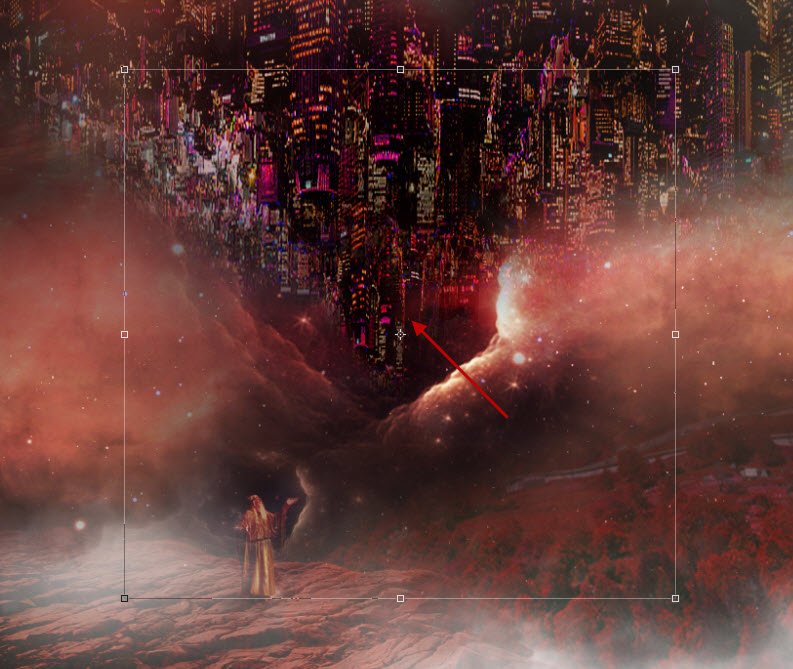
Load the city stock image into Photoshop, copy & paste the selection to our document, place it into the following position:
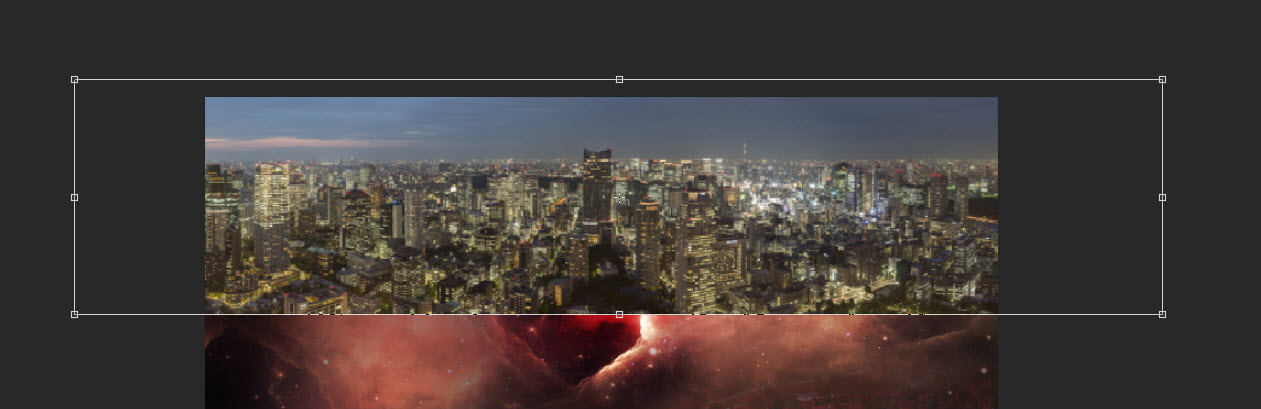 Flip this city layer vertically with the free transform tool:
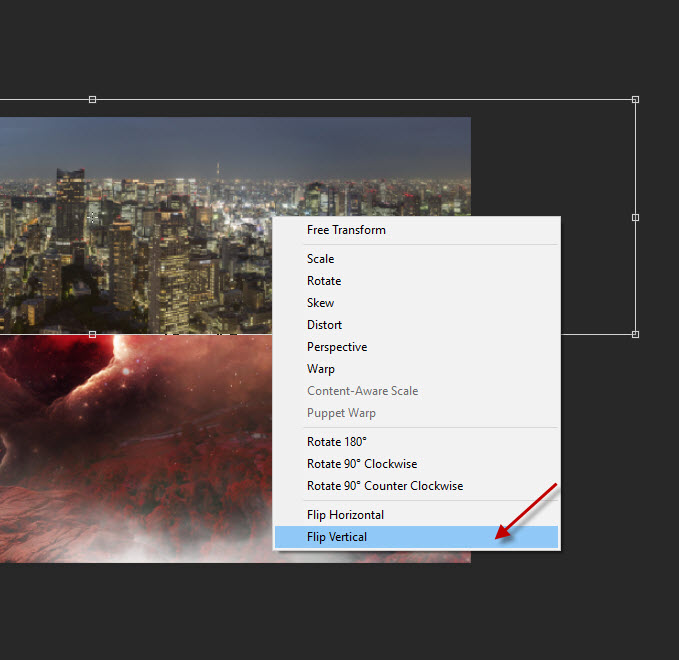
Use a big soft eraser, remove the edge of the city and try to form it into a triangle shape:
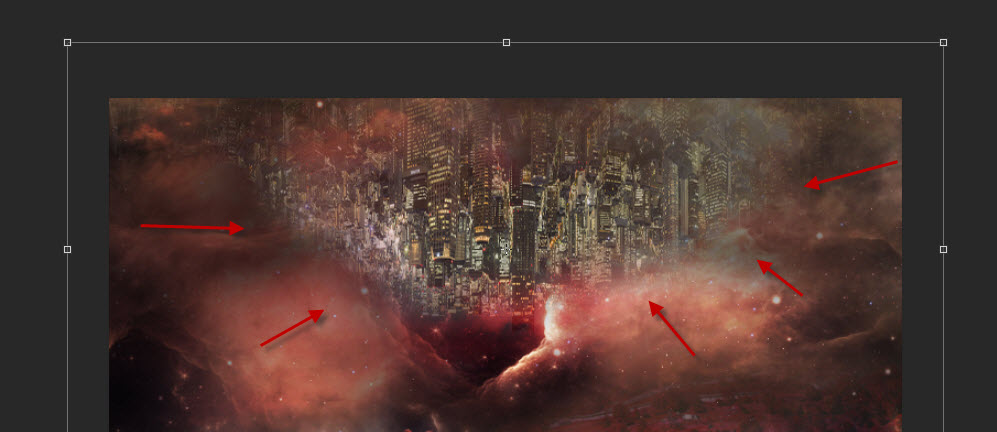
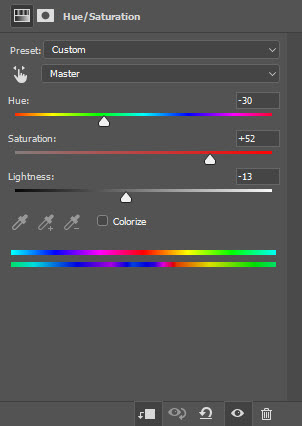
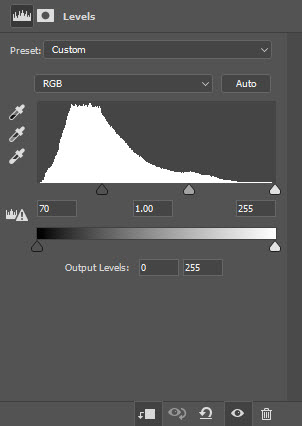
Apply the following image adjustments as clipping masks to this layer:
Hue/Saturation
Levels
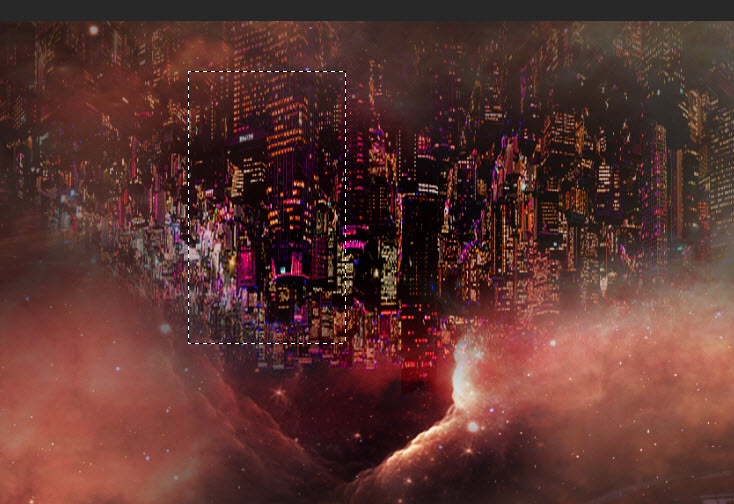
We can copy a portion of the city layer and paste it to the tip of the triangle shape:
And this is the effect so far:
Step 6
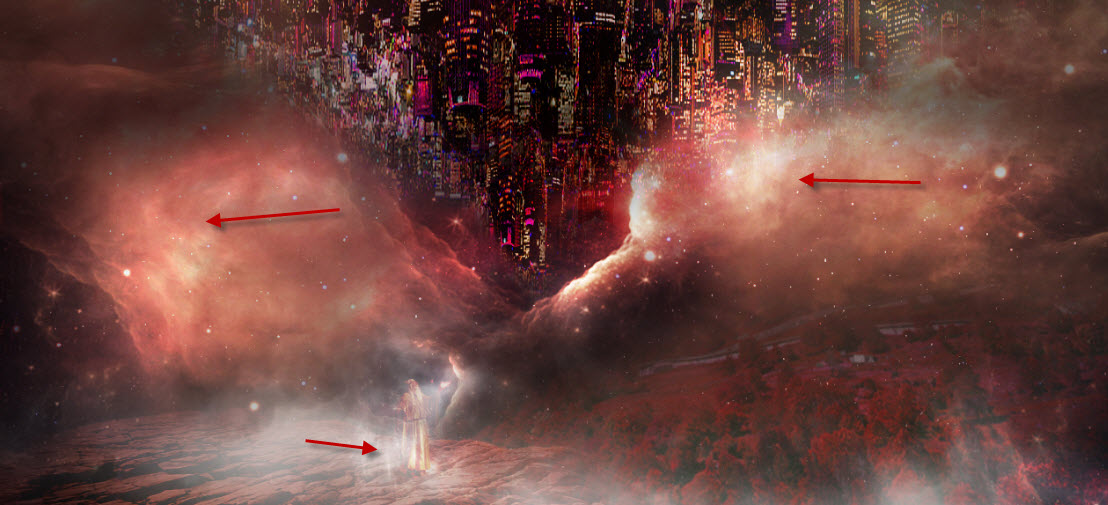
We’re almost done! For final touches, I further added some cloud painting to the following area:
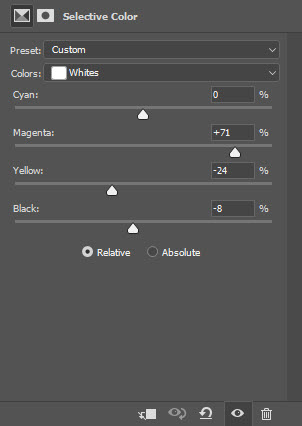
Apply the following selective color adjustment layer for the “White” colour:
This will turn the cloud into purple, further enhance the surreal look of the image:
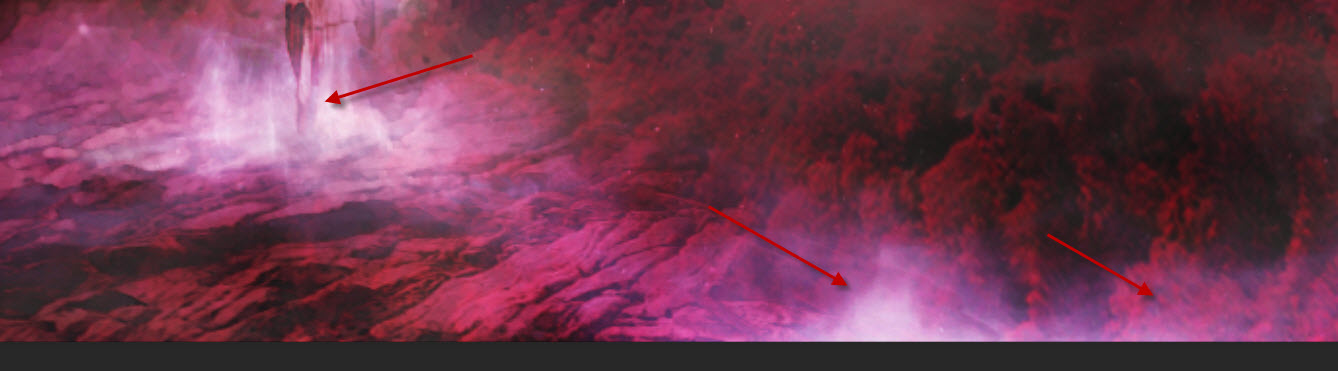
And this is my final result: (click to enlarge)
That’s it for this tutorial! Hope you enjoy it and find it useful. If you have any questions for this tutorial, please let me a comment below and I will try my best to answer it.
Till next time, have a great day!