Close Menu
PSD VaultPSD Vault
  • VIP Area
  • Photoshop Basics
  • Photo Effect
  • Text Effect
  • Premium Tuts
  • Resources
  • Drawing
  • Inspiration
  • Web Graphics
  • Abstract
  • Freebies
  • Advertise
  • Get in Touch
  • About PSD Vault
Facebook Instagram Pinterest YouTube TikTok
Facebook Instagram Pinterest YouTube TikTok RSS
PSD VaultPSD Vault
  • VIP Area
    • Sign Up
    • Log In
  • Free Image Tools
  • Photoshop Basics
  • AI
  • Photoshop Error Fixes
  • Video Tutorial
  • Photo Effect
  • Text Effect
  • Premium Tuts
  • Drawing
PSD VaultPSD Vault
Home»Basics»Legacy Free Transform – How to Enable it in Newer Version of Photoshop
Basics

Legacy Free Transform – How to Enable it in Newer Version of Photoshop

By James QuDecember 15, 20222 Mins Read
Share
Facebook Twitter LinkedIn Pinterest Email

There are numerous changes made to The Free Transform Tool since Photoshop 2020. While they’re quite useful, it does take a while to get used to and can be annoying at times. This tutorial teaches you how to switch back to the Legacy Free Transform Tool via a simple preference setting.

Why We Would Want to Use Legacy Free Transform?

Some of us have been using Photoshop for a long time. We have got used to the shortcuts and behavior of certain tools. While the latest upgrade brings many cool new features, it’s not easy to adapt the new controls straight away.

There is one distinct change with the Free Transform Tool in Photoshop 2020, which makes the “constraint aspect ratio” option sticky:

This makes things awkward for us.

Thankfully Photoshop 2020 left the option open to let us go back. Perhaps Adobe also realizes there will be a demand for this!

Let’s Enable It

To Enable Legacy Free Transform in Photoshop 2020, go to “Edit > Preferences”:
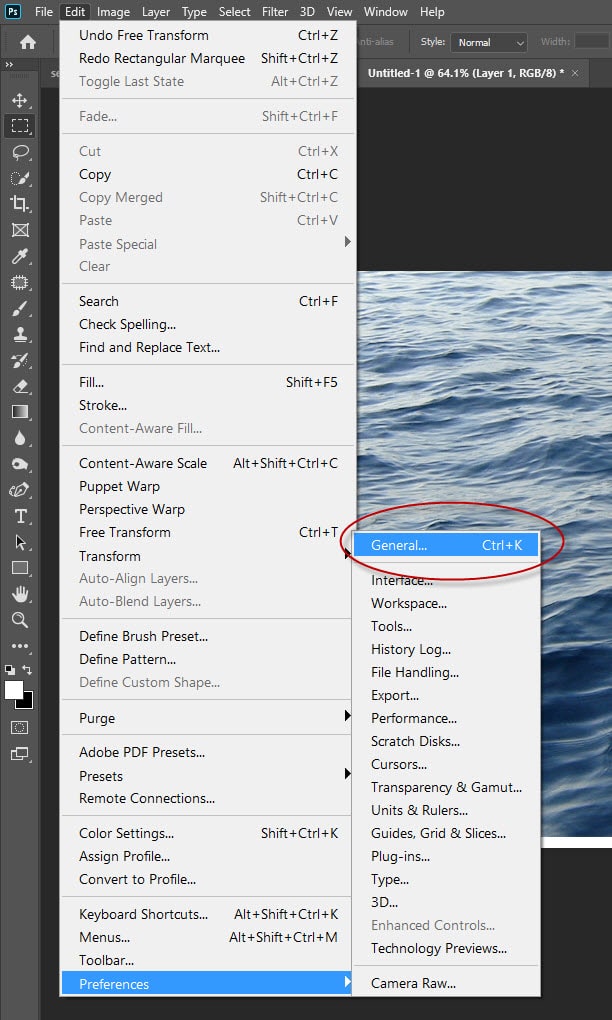
Go to the “General” tab, then tick the “Use Legacy Free Transform” option:

Click “Ok” to apply this change. That’s it! Pretty simple isn’t it. Now the Free Transform Tool will behave exactly the way it was prior to the 2020 update.

While you’re in the “Preference” window, go ahead and check out all the options you have available in it. There are an abundance of cool options you can set there. They are going to make your life as a designer much easier.

That’s it for this tutorial! If you wish to explore more about free transform tool, check out this tutorial on PSD Vault:

How to Use Transform Tools & Distort Filters to Achieve Amazing Photo Effect in Photoshop

There is also a comprehensive guide on reshaping & transforming on the Adobe site.

Till next time, have a great day!

free legacy transform
Share. Facebook Twitter Pinterest LinkedIn Tumblr Email
James Qu
  • Website

James is a seasoned Photoshop expert with over 25 years of experience based in Australia. As the driving force behind PSD Vault, he authors the majority of its in-depth tutorials and insightful articles.

Related Posts

Curves or Levels: Choosing the Right Tool for Stunning Edits

March 26, 2026

10 Proven Ways to Improve Photoshop Performance in 2026

March 22, 2026

How to Use Photoshop’s Remove Tool with AI Precision

March 4, 2026

Comments are closed.

Don't Miss

How to Enlarge Images Without Losing Quality in Photoshop (using Super Resolution)

March 29, 2026

How to Edit Non-Destructively with Smart Objects & Neural Filters in Photoshop

March 26, 2026

Curves or Levels: Choosing the Right Tool for Stunning Edits

March 26, 2026

For Beginners

Basics

Curves or Levels: Choosing the Right Tool for Stunning Edits

By James QuMarch 26, 20265 Mins Read

10 Proven Ways to Improve Photoshop Performance in 2026

March 22, 2026

How to Use Photoshop’s Remove Tool with AI Precision

March 4, 2026

10 Genius Tips to Master Photoshop’s AI Object Selection Tool

February 27, 2026

You May Also Like

Basics

Curves or Levels: Choosing the Right Tool for Stunning Edits

By James QuMarch 26, 20265 Mins Read
Basics

10 Proven Ways to Improve Photoshop Performance in 2026

By James QuMarch 22, 202621 Mins Read
AI

How to Use Photoshop’s Remove Tool with AI Precision

By James QuMarch 4, 20264 Mins Read
Facebook X (Twitter) Instagram Pinterest
  • About Us
  • Get in Touch
  • Advertise
  • VIP Area
  • Free Image Tools
  • Privacy Policy
  • Terms & Conditions
© 2026 PSD Vault. All Right Reserved.

Type above and press Enter to search. Press Esc to cancel.

Manage Consent
To provide the best experiences, we use technologies like cookies to store and/or access device information. Consenting to these technologies will allow us to process data such as browsing behavior or unique IDs on this site. Not consenting or withdrawing consent, may adversely affect certain features and functions.
Functional Always active
The technical storage or access is strictly necessary for the legitimate purpose of enabling the use of a specific service explicitly requested by the subscriber or user, or for the sole purpose of carrying out the transmission of a communication over an electronic communications network.
Preferences
The technical storage or access is necessary for the legitimate purpose of storing preferences that are not requested by the subscriber or user.
Statistics
The technical storage or access that is used exclusively for statistical purposes. The technical storage or access that is used exclusively for anonymous statistical purposes. Without a subpoena, voluntary compliance on the part of your Internet Service Provider, or additional records from a third party, information stored or retrieved for this purpose alone cannot usually be used to identify you.
Marketing
The technical storage or access is required to create user profiles to send advertising, or to track the user on a website or across several websites for similar marketing purposes.
  • Manage options
  • Manage services
  • Manage {vendor_count} vendors
  • Read more about these purposes
View preferences
  • {title}
  • {title}
  • {title}