Close Menu
PSD VaultPSD Vault
  • VIP Area
  • Photoshop Basics
  • Photo Effect
  • Text Effect
  • Premium Tuts
  • Resources
  • Drawing
  • Inspiration
  • Web Graphics
  • Abstract
  • Freebies
  • Advertise
  • Get in Touch
  • About PSD Vault
Facebook Instagram Pinterest YouTube TikTok
Facebook Instagram Pinterest YouTube TikTok RSS
PSD VaultPSD Vault
  • VIP Area
    • Sign Up
    • Log In
  • Free Image Tools
  • Photoshop Basics
  • AI
  • Photoshop Error Fixes
  • Video Tutorial
  • Photo Effect
  • Text Effect
  • Premium Tuts
  • Drawing
PSD VaultPSD Vault
Home»Photoshop Error Fixes»How to Fix “Could not complete your request because of a program error” in Photoshop
Photoshop Error Fixes

How to Fix “Could not complete your request because of a program error” in Photoshop

By James QuDecember 23, 20233 Mins Read
Share
Facebook Twitter LinkedIn Pinterest Email

Adobe Photoshop, a powerhouse for creatives, occasionally throws a curveball with an error message that reads, “Could not complete your request because of a program error.” This seemingly vague message can be caused by a myriad of issues, ranging from corrupt preferences to incompatible plugins. In this guide, we’ll show you step-by-step solutions to have this error fixed.

Understanding the “Could not complete your request because of a program error”

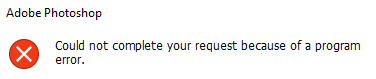
Description: The notorious “Could not complete your request because of a program error” in Photoshop is a catch-all error message that can be triggered by various issues. It often stems from problems like corrupted preferences or incompatible plugins. When this error occurs, it can disrupt your workflow and leave you scratching your head, wondering about the root cause.

Below is a sample screenshot of this error message:
Fixing the Issue

1. Restart Photoshop:

One of the simplest yet effective solutions is to give Photoshop a fresh start. Close the program and reopen it to see if the error persists. Sometimes, a temporary glitch can be resolved with a simple restart.

2. Clear Photoshop Cache:

Cached data can sometimes lead to errors. To clear the Photoshop cache, follow these steps:

  • Go to Edit > Purge > All.
  • This action will remove the accumulated cache and might address the program error.

3. Disable Third-Party Plugins:

Incompatibility with third-party plugins is a common culprit. To disable them:

  • Navigate to Edit > Preferences > Plug-Ins.
  • Uncheck or remove third-party plugins that might be causing conflicts.

4. Reset Preferences:

Corrupted preferences can trigger the error. Resetting them can be a more involved but effective solution:

  • Hold down Alt+Ctrl+Shift (Windows) or Option+Command+Shift (Mac) while starting Photoshop.
  • A dialog box will appear, asking if you want to delete the Adobe Photoshop Settings file. Confirm and let Photoshop start with default preferences.

These steps provide a systematic approach to tackling the “Could not complete your request because of a program error” in Photoshop. If the error persists after trying these solutions, further investigation into specific system configurations or consulting Adobe support may be necessary.

Conclusion

While encountering the “Could not complete your request because of a program error” in Photoshop can be disconcerting, armed with the knowledge of potential causes and effective fixes, you can navigate through the challenges seamlessly.

Remember, troubleshooting is part of the creative process, and with these solutions, you’ll be back to bringing your visions to life in no time. Happy Photoshopping!

error photoshop
Share. Facebook Twitter Pinterest LinkedIn Tumblr Email
James Qu
  • Website

James is a seasoned Photoshop expert with over 25 years of experience based in Australia. As the driving force behind PSD Vault, he authors the majority of its in-depth tutorials and insightful articles.

Related Posts

The Beginner’s Guide to Photoshop AI Masking Tool

May 14, 2026

How Colour Theory Supercharges Your Photoshop Skills

May 3, 2026

How to Read Photoshop Histograms for Beginners

April 18, 2026

Comments are closed.

Don't Miss

How to Create a Duotone Effect in Photoshop with Gradient Maps

May 16, 2026

How to Create Epic War Scene in Photoshop

May 15, 2026

The Beginner’s Guide to Photoshop AI Masking Tool

May 14, 2026

For Beginners

Basics

How Colour Theory Supercharges Your Photoshop Skills

By James QuMay 3, 20265 Mins Read

How to Read Photoshop Histograms for Beginners

April 18, 2026

How to Sharpen Images in Photoshop: 4 Methods for Every Situation

April 12, 2026

Curves or Levels: Choosing the Right Tool for Stunning Edits

March 26, 2026

You May Also Like

AI

The Beginner’s Guide to Photoshop AI Masking Tool

By James QuMay 14, 20264 Mins Read
Basics

How Colour Theory Supercharges Your Photoshop Skills

By James QuMay 3, 20265 Mins Read
Basics

How to Read Photoshop Histograms for Beginners

By James QuApril 18, 20267 Mins Read
Facebook X (Twitter) Instagram Pinterest
  • About Us
  • Get in Touch
  • Advertise
  • VIP Area
  • Free Image Tools
  • Privacy Policy
  • Terms & Conditions
© 2026 PSD Vault. All Right Reserved.

Type above and press Enter to search. Press Esc to cancel.

Manage Consent
To provide the best experiences, we use technologies like cookies to store and/or access device information. Consenting to these technologies will allow us to process data such as browsing behavior or unique IDs on this site. Not consenting or withdrawing consent, may adversely affect certain features and functions.
Functional Always active
The technical storage or access is strictly necessary for the legitimate purpose of enabling the use of a specific service explicitly requested by the subscriber or user, or for the sole purpose of carrying out the transmission of a communication over an electronic communications network.
Preferences
The technical storage or access is necessary for the legitimate purpose of storing preferences that are not requested by the subscriber or user.
Statistics
The technical storage or access that is used exclusively for statistical purposes. The technical storage or access that is used exclusively for anonymous statistical purposes. Without a subpoena, voluntary compliance on the part of your Internet Service Provider, or additional records from a third party, information stored or retrieved for this purpose alone cannot usually be used to identify you.
Marketing
The technical storage or access is required to create user profiles to send advertising, or to track the user on a website or across several websites for similar marketing purposes.
  • Manage options
  • Manage services
  • Manage {vendor_count} vendors
  • Read more about these purposes
View preferences
  • {title}
  • {title}
  • {title}